
Look, I’ve seen this mistake in so many builds—it doesn’t matter how powerful your GPU is or how expensive your cooling system looks. If your cables are blocking airflow, your PC will still run hotter than it should.
Here is the real talk about why your rig is acting up in thermals: bad cable management creates airflow turbulence, heat pockets, and inconsistent cooling pressure inside the case.
At fixrig.xyz, we’re going to break down how to manage cables inside a PC for better airflow using real-world engineering logic—not just “make it look clean” advice.
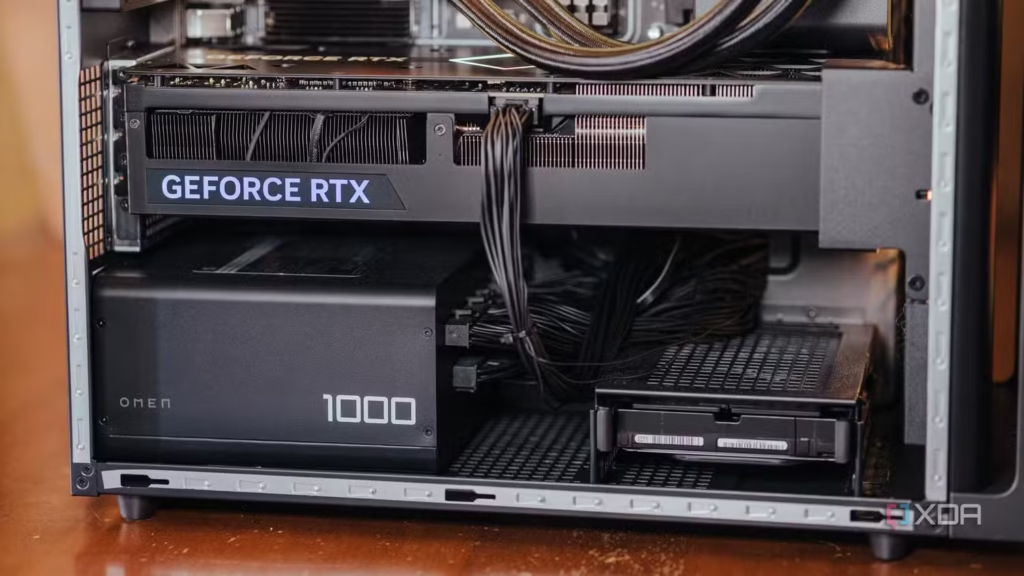
Why Cable Management Directly Affects Airflow
Airflow inside a PC case works like a controlled tunnel system:
- Front intake pulls cool air
- Rear/top exhaust pushes hot air out
- Fans create directional pressure flow
When cables block this path:
- Air loses direction
- Heat gets trapped near GPU/CPU
- Fans work harder (more noise + more wear)
- Thermal throttling becomes more likely
In modern 2026 hardware, even a 3–5°C temperature difference can impact boost clocks.
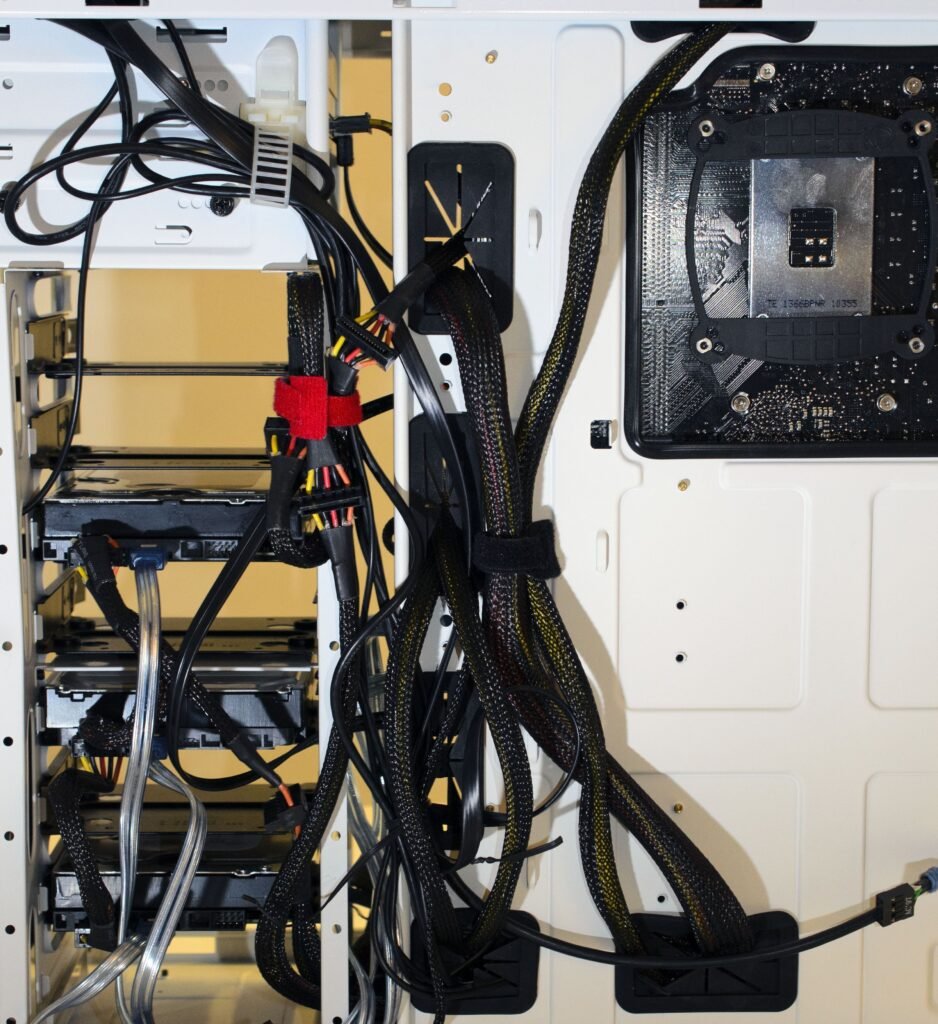
Common Symptoms of Poor Cable Management
1. High GPU Temperatures
Cables blocking front-to-back airflow path.
2. CPU Thermal Spikes
Airflow turbulence near cooler intake zone.
3. Loud Fan Noise
Fans overcompensating for poor airflow efficiency.
4. Dust Accumulation Hotspots
Stagnant airflow zones attract more dust.
5. Inconsistent Performance
Thermal throttling under gaming or rendering loads.
Core Principles of Cable Management for Airflow
Before touching cables, understand this:
Principle 1: Airflow Must Be Linear
Air should move in a straight front-to-back or bottom-to-top direction.
Principle 2: Obstruction-Free Zones Matter More Than Clean Looks
Clean aesthetics are secondary—air paths are priority.
Principle 3: Pressure Balance Is Critical
Positive vs negative pressure affects dust and cooling efficiency.
Tools You Need for Proper Cable Management
Here’s a professional-level toolkit:
Basic Tools
- Zip ties
- Velcro straps
- Cable combs
Advanced Tools
- Modular PSU cables
- Extension sleeved cables
- Cable routing clips
Optional Pro Tools
- Thermal sensor software
- Case airflow diagram reference
- Magnetic cable organizers
Step-by-Step Guide: How to Manage Cables Inside a PC for Better Airflow
Step 1: Disconnect and Plan Layout First
Don’t rush.
Look, I’ve seen people unplug everything and randomly start stuffing cables back—this is where mistakes happen.
Instead:
- Remove both side panels
- Identify airflow direction
- Mark cable routing paths
Think like an airflow engineer, not just a builder.
Step 2: Separate Cables by Priority
Divide cables into groups:
- Power cables (24-pin, CPU EPS, GPU power)
- Data cables (SATA, NVMe connectors if visible)
- Fan/RGB cables
High-power cables should NEVER cross airflow paths.
Step 3: Route Cables Behind the Motherboard Tray
Modern cases in 2026 are designed with cable channels.
Do this:
- Push excess cable length behind tray
- Use built-in routing holes
- Avoid sharp bends on PSU cables
A messy back panel is fine—front airflow must stay clean.
Step 4: Secure Cables Using Tie Points
Use:
- Velcro straps for reusable setup
- Zip ties for permanent builds
Anchor cables to:
- Case frame edges
- PSU shroud
- Drive cage mounts
This prevents vibration and movement during operation.
Step 5: Clear Front Intake Area Completely
This is critical.
Front intake should be:
- 100% unobstructed
- No hanging SATA or fan cables
- No PSU cable loops near intake fans
Even a single cable crossing airflow path reduces efficiency.
Step 6: Optimize GPU Cable Routing
GPU cables are often the biggest airflow blockers.
Fix it by:
- Routing GPU power cables from bottom side
- Creating smooth curves instead of sharp bends
- Avoiding fan-facing cable exposure
A clean GPU zone improves both thermals and aesthetics.
Step 7: Manage Fan and RGB Cables Smartly
Fan cables should:
- Follow case edges
- Be grouped using splitters if needed
- Avoid hanging in center airflow column
RGB cables should never be left loose inside main chamber.
Step 8: Final Airflow Test
After management:
- Power on system
- Check fan behavior
- Monitor temperatures under load
If airflow is correct:
- GPU temps drop
- CPU boost stabilizes
- Fans run quieter
Comparison Table: Poor vs Optimized Cable Management
| Factor | Poor Cable Management | Optimized Cable Management |
|---|---|---|
| Airflow | Blocked & turbulent | Smooth & directional |
| Temperatures | Higher | Lower & stable |
| Noise | Loud fans | Quiet operation |
| Dust buildup | High | Reduced |
| Performance | Inconsistent | Stable |
Advanced Cable Management Techniques (Pro-Level)
1. PSU Cable Modularity Advantage
Use modular PSUs to remove unused cables completely.
2. Custom-Length Cables
Reduces excess slack inside case.
3. Vertical GPU Mounting Consideration
Requires special routing but improves internal airflow visibility.
4. Negative Cable Pressure Strategy
Keep more empty space in front intake zone.
Common Mistakes Beginners Make
Ignoring Airflow Path Priority
They focus on looks instead of function.
Over-Tightening Zip Ties
Can damage cable insulation over time.
Blocking Intake Fans Accidentally
Loose cables near front panel.
Leaving PSU Cables Unused Inside Case
These should always be removed if modular PSU is used.
Real Engineering Insight
Cable management is not just “clean building”—it is fluid dynamics control inside a constrained airflow chamber.
Every cable:
- Disrupts laminar airflow
- Creates micro turbulence zones
- Impacts thermal efficiency
That’s why professional system builders treat cable routing like airflow engineering, not decoration.
Final Thoughts
Mastering how to manage cables inside a PC for better airflow is one of the highest ROI upgrades you can do without spending money.
You’re not just cleaning cables—you’re improving:
- Cooling efficiency
- System stability
- Hardware lifespan
- Noise levels
A clean airflow path is basically a free performance boost.
CTA: Optimize Your Build with fixrig.xyz
At fixrig.xyz, we don’t just build PCs—we engineer airflow and stability.
If you want, drop your PC case model and GPU setup in the comments, and I’ll suggest a custom airflow + cable routing plan for your exact build.
Because in real hardware engineering… airflow is performance.
Leave a Reply