Look, I’ve seen this issue a thousand times—your mechanical keyboard starts double typing, skipping letters, or randomly repeating keystrokes. One minute you’re typing normally, next minute your doc looks like this: “heelloo woorlld”.
Here is the real talk about why your rig is acting up: key chatter isn’t random. It’s a signal—either your switches are wearing out, there’s debris interfering with contact points, or your software/firmware isn’t filtering inputs correctly.
In this deep technical guide from fixrig.xyz, I’ll show you exactly how to troubleshoot mechanical keyboard key chatter at home, step-by-step, using real hardware repair techniques and smart diagnostics.
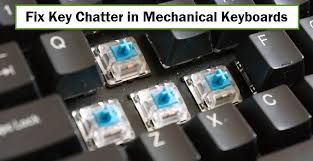
What is Key Chatter?
Key chatter happens when a single keypress registers multiple times.
Common Symptoms
- Double typing (e.g., “tt” instead of “t”)
- Random repeated characters
- Missed keystrokes followed by duplicates
- Inconsistent typing behavior
This issue can affect productivity, gaming, and even coding accuracy.
Root Causes of Key Chatter (2026 Hardware Perspective)
1. Worn-Out Mechanical Switches
Mechanical switches degrade over time—especially budget ones.
2. Dust & Debris Inside Switch
Tiny particles can interfere with electrical contact.
3. Faulty Debounce Settings (Firmware)
Keyboard firmware controls how keystrokes are registered.
4. USB Signal Noise or Voltage Instability
Unstable power can cause erratic input signals.
5. Outdated Drivers or OS Conflicts
Yes, software can cause hardware-like issues.
Tools Checklist for DIY Fix
Before you start, gather:
- Keycap puller
- Switch puller (if hot-swappable)
- Isopropyl alcohol (90%+)
- Soft brush or cotton swabs
- Compressed air
- Tweezers
- Spare switches (optional)
Pro tip: Work on a clean, well-lit surface. You don’t want to lose tiny components.
Comparison Table: Software Fix vs Hardware Repair
| Fix Type | Difficulty | Cost | Effectiveness |
|---|---|---|---|
| Update Drivers | Easy | Free | Medium |
| Adjust Debounce Software | Easy | Free | High |
| Clean Switches | Medium | Low | High |
| Replace Switch | Medium | $$ | Very High |
| Replace Keyboard | Easy | $$$ | Maximum |
Step-by-Step: How to Troubleshoot Mechanical Keyboard Key Chatter at Home
Step 1: Identify the Problem Key
- Open a keyboard tester tool
- Press each key slowly
- Look for duplicate inputs
This helps isolate whether it’s one key or multiple.
Step 2: Rule Out Software Issues
Before opening hardware, always check software:
- Update keyboard drivers
- Try a different USB port
- Test on another PC
If the issue disappears, it’s not hardware.
Step 3: Adjust Debounce Settings
Modern keyboards (especially gaming ones) allow debounce control.
- Increase debounce delay slightly
- This prevents rapid duplicate signals
Some software tools let you tune this precisely.
Step 4: Clean the Switch (Basic Method)
Dust is a silent killer.
- Remove keycap
- Blow compressed air into switch
- Lightly clean around it
This fixes a surprising number of cases.
Step 5: Deep Clean with Isopropyl Alcohol
If basic cleaning fails:
- Apply small amount of alcohol
- Press key repeatedly to distribute
- Let it dry completely
This helps remove internal residue affecting контакts.
Step 6: Test Again
Reconnect keyboard and test:
- If chatter is gone → problem solved
- If still present → move to hardware fix
Step 7: Replace the Switch (Hot-Swappable Keyboards)
If your keyboard supports it:
- Use switch puller
- Remove faulty switch
- Install new one
This is the most reliable fix.
Step 8: Soldered Keyboard? Advanced Repair
If switches are soldered:
- You’ll need a soldering kit
- Desolder faulty switch
- Replace with new one
If your not experienced, don’t risk damaging the motherbord PCB.
Advanced Troubleshooting (Pro Level)
Check USB Voltage Stability
Unstable voltage can cause signal issues:
- Use powered USB hub
- Avoid low-quality cables
Firmware Update
Manufacturers release updates that fix debounce issues.
OS-Level Input Filtering
Some advanced users use software filters to ignore duplicate keystrokes.
Common Mistakes That Make Key Chatter Worse
Ignoring Early Signs
Chatter gets worse over time—not better.
Overusing Cleaning Liquids
Too much liquid can damage switches.
Forcing Switch Removal
This can damage sockets or PCB.
Cheap Replacement Switches
Low-quality switches fail quickly.
Real-World Scenarios
Problem: Only one key double types
Cause: Worn switch
Fix: Replace switch
Problem: Multiple keys chattering
Cause: Firmware or voltage issue
Fix: Update firmware + check USB
Problem: Issue disappears on another PC
Cause: Driver conflict
Fix: Update or reinstall drivers
Pro Tips from a Hardware Engineer
- Invest in hot-swappable keyboards for easier repairs
- Clean your keyboard monthly
- Avoid eating over your keyboard (seriously)
- Use quality switches for longevity
And here’s something most guides won’t tell you:
Sometimes the problem isn’t the switch—it’s microscopic oxidation on contact points.
When to Replace Instead of Repair
Replace your keyboard if:
- Multiple switches fail simultaneously
- PCB is damaged
- Repair cost exceeds keyboard value
At that point, your just wasting time.
Final Thoughts: Precision Matters
Mechanical keyboards are precision devices. Even a tiny issue can cause major typing problems.
The good news? Most key chatter issues are fixable at home—if you follow the right proccess.
The bad news? Ignoring it will only make things worse.
CTA: Fix Your Keyboard Like a Pro
At fixrig.xyz, we go beyond basic fixes—we teach you real hardware mastery.
Still facing key chatter? Not sure if it’s your switch, firmware, or drivers?
Drop your keyboard model and issue in the comments—and let’s troubleshoot your rig step-by-step.
Because your typing experience should be smooth… not frustrating.
Leave a Reply