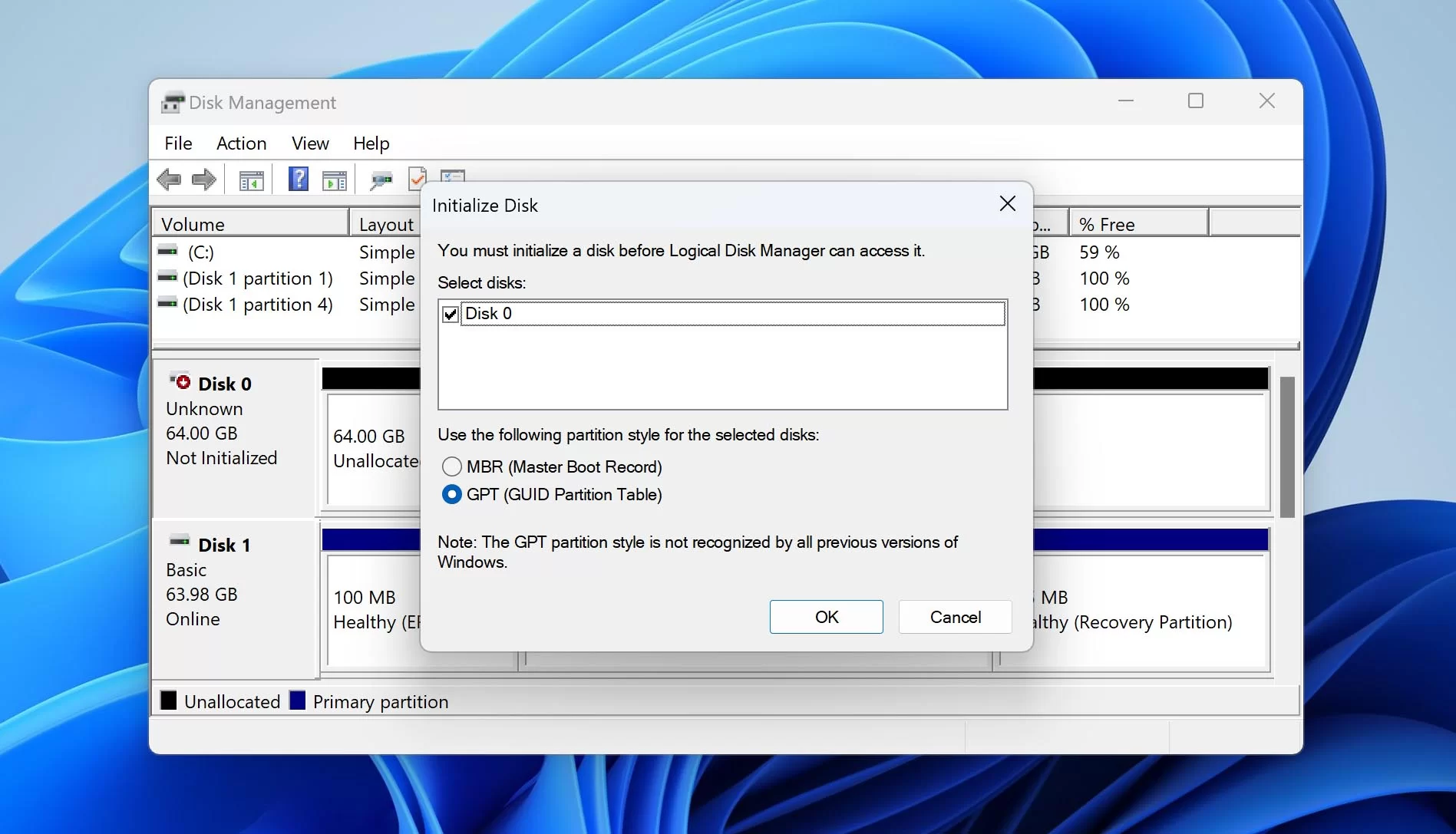
Look, I’ve seen this issue a thousand times—and it always starts with the same panic moment.
You plug in your external hard drive… nothing shows up in File Explorer… then you open Disk Management and—still nothing.
Here is the real talk about why your rig is acting up: this is not always data loss. In most cases, it’s a hardware detection failure between USB controller, drivers, power delivery, or disk initialization at OS level.
In this fixrig.xyz expert guide, I’ll walk you through troubleshooting external hard drive not showing up in Disk Management, step by step, like a real hardware engineer—not a generic tech blog.
Common Symptoms of External Drive Not Showing Up
Before fixing, identify the exact behavior:
1. Drive Not Visible in File Explorer
Windows does not assign a drive letter.
2. Missing in Disk Management
Even advanced tools can’t detect it.
3. USB Sound But No Drive
Connection is partially working.
4. Device Appears in Device Manager Only
Hardware is detected but not initialized.
5. Random Disconnects
Drive appears and disappears repeatedly.
Root Causes (Hardware + System-Level Breakdown)
Faulty USB Port or Cable
Weak or damaged connection prevents stable detection.
Insufficient Power Supply
External drives need proper voltage delivery.
Missing or Corrupted Drivers
System cannot communicate with storage device.
Uninitialized or RAW Disk State
Drive exists but has no partition table.
BIOS or UEFI USB Configuration Issues
Some systems disable external storage detection.
Physical Drive Failure
Mechanical or SSD failure inside enclosure.
Tools Checklist Before Troubleshooting
Prepare these tools:
- Alternate USB cable
- Different USB ports (rear preferred)
- External power adapter (if required)
- Another PC for testing
- Disk Management access
- Device Manager access
Pro tip: Always isolate hardware vs software before assuming data loss.
Comparison Table: Software Issue vs Hardware Issue
| Cause Type | Symptoms | Fix Difficulty | Recovery Chance |
|---|---|---|---|
| Software (Drivers/Partition) | Drive partially detected | Easy | High |
| USB Cable/Port Issue | Intermittent detection | Easy | High |
| Power Failure | Drive spins off/on | Medium | Medium |
| Firmware/Controller Issue | Not visible anywhere | Hard | Medium |
| Physical Failure | No detection at all | Very Hard | Low |
Step-by-Step: Troubleshooting External Hard Drive Not Showing in Disk Management
Step 1: Check Physical Connection
Start simple:
- Unplug and replug drive
- Try different USB port
- Avoid front panel ports
Look, I’ve seen this error a thousand times—it’s often just a bad cable.
Step 2: Try Another System
Connect drive to another PC:
- If it works → your system issue
- If not → drive issue
This isolates the fault immediately.
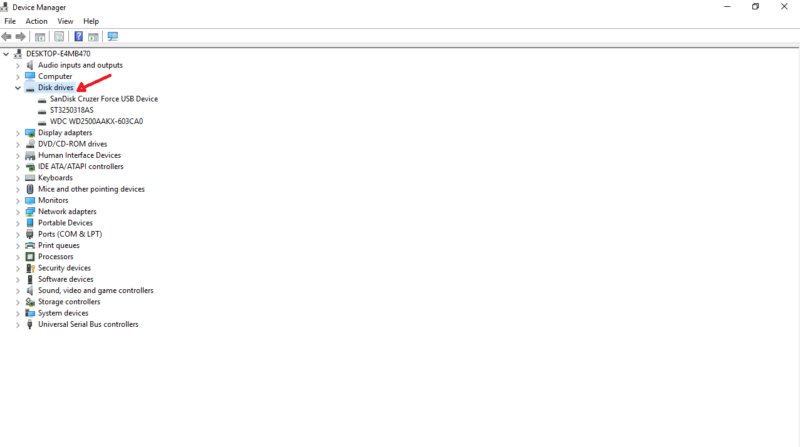
Step 3: Check Device Manager
Press:
- Win + X → Device Manager
Look under:
- Disk Drives
- USB Controllers
If unknown device appears → driver issue.
Step 4: Scan Disk Management Properly
Open:
- Disk Management
Check for:
- Unallocated disk
- Offline disk
- No drive letter
If visible but unallocated → data may still be safe.
Step 5: Assign Drive Letter Manually
If disk exists but not shown:
- Right-click → Change Drive Letter
- Assign new letter
This fixes many “invisible drive” cases.
Step 6: Reinstall USB Drivers
Go to Device Manager:
- Uninstall USB controllers
- Restart PC
Windows will reinstall drivers automatically.
Drivers play a critical role in detection stability.
Step 7: Check Power Delivery
Some external drives require:
- Dual USB power
- External adapter
Low voltage = drive spin failure.
Voltage instability is a hidden cause most users ignore.
Step 8: Initialize Disk (ONLY if empty or new)
If disk shows as:
- Unknown
- Not initialized
You can initialize it—but WARNING:
- This erases existing partition data structure
Only do this if data is not important.
Step 9: Disable USB Power Saving
Windows may cut power:
- Control Panel → Power Options
- Disable USB selective suspend
This prevents random disconnects.
Step 10: BIOS/UEFI USB Check
Enter BIOS:
- Ensure USB storage support enabled
- Enable legacy USB if required
Some systems restrict external device detection at firmware level.
Advanced Troubleshooting (Pro Level)
Check Disk in Diskpart
Use Command Prompt:
- diskpart
- list disk
If visible here → software-level issue.
If NOT visible → hardware-level problem.
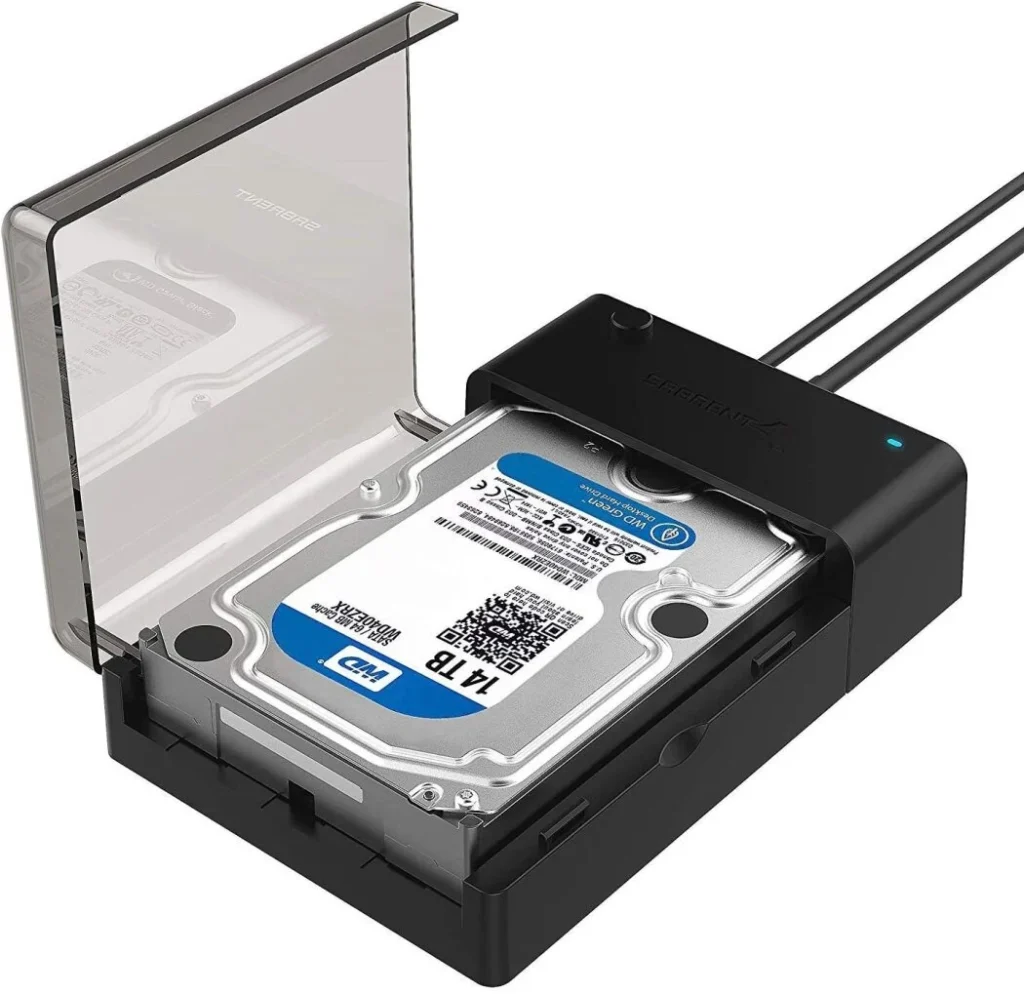
Test Enclosure vs Drive Separately
Sometimes:
- SATA drive is fine
- USB enclosure is dead
Try removing drive from enclosure.
Check SMART Status (If Detected)
If drive appears:
- Run SMART diagnostics
Warning signs:
- Reallocated sectors
- Read errors
Common Mistakes That Make It Worse
Formatting Immediately
This destroys recoverable data structure.
Ignoring Power Issues
Many external drives fail due to low voltage.
Using Cheap USB Hubs
Unstable power = detection failure.
Reconnecting Repeatedly
Can worsen mechanical wear.
Real-World Scenarios
Problem: Drive spins but not visible
Cause: Partition or driver issue
Fix: Disk Management repair
Problem: No response at all
Cause: Power or hardware failure
Fix: Try different cable or enclosure
Problem: Visible on other PC
Cause: System configuration issue
Fix: Driver reset or USB fix
Pro Tips from a Hardware Engineer
- Always use rear motherboard USB ports
- Avoid cheap cables for external HDDs
- Backup data regularly (3-2-1 rule)
- Monitor drive health with SMART tools
And here’s something most guides won’t tell you:
External drive issues are often NOT disk failures—they are USB controller or power instability problems disguised as disk failure.
When to Consider Hardware Failure
Assume failure if:
- Drive not detected on multiple systems
- No spin-up sound
- Repeated clicking or vibration issues
- Enclosure replacement doesn’t help
At that stage, professional recovery may be needed.
Final Thoughts: Diagnose Before You Panic
Troubleshooting external hard drive not showing up in Disk Management is all about layered diagnosis:
Hardware → Cable → Power → Drivers → Disk Management → BIOS
Skip steps, and you’ll miss the real cause.
Follow the process, and most “dead drives” come back to life—or at least reveal their true condition.
CTA: Fix Your Storage Like a Pro
At fixrig.xyz, we don’t guess—we diagnose hardware problems properly.
Still can’t see your external drive in Disk Management? Not sure if it’s dead or just hidden?
Drop your setup details in the comments—and we’ll help you troubleshoot it step by step.
Because in real hardware engineering… nothing is ever “random”—it’s always a signal waiting to be understood.
Leave a Reply