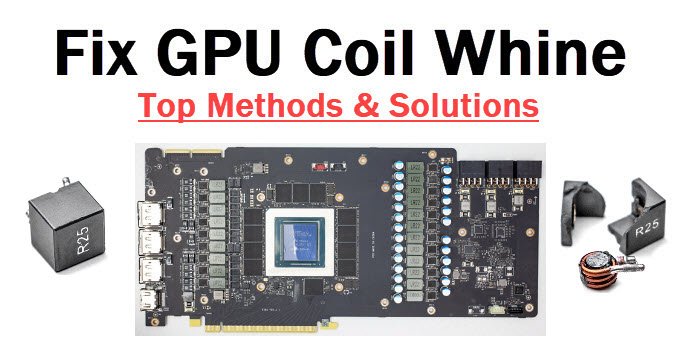
Look, I’ve seen this issue a thousand times—and it always confuses users the same way.
You buy a high-end GPU, install it, run a game… and suddenly you hear a high-pitched electrical buzzing sound.
That’s coil whine.
Here is the real talk about why your rig is acting up: coil whine is not a “fault” in most cases—it’s a physics side-effect of electrical components vibrating under high load frequency changes, especially in modern high-performance GPUs.
In this fixrig.xyz expert breakdown, I’ll show you how to fix coil whine in high-end graphics cards, or at least reduce it to near silence using real hardware-level techniques.
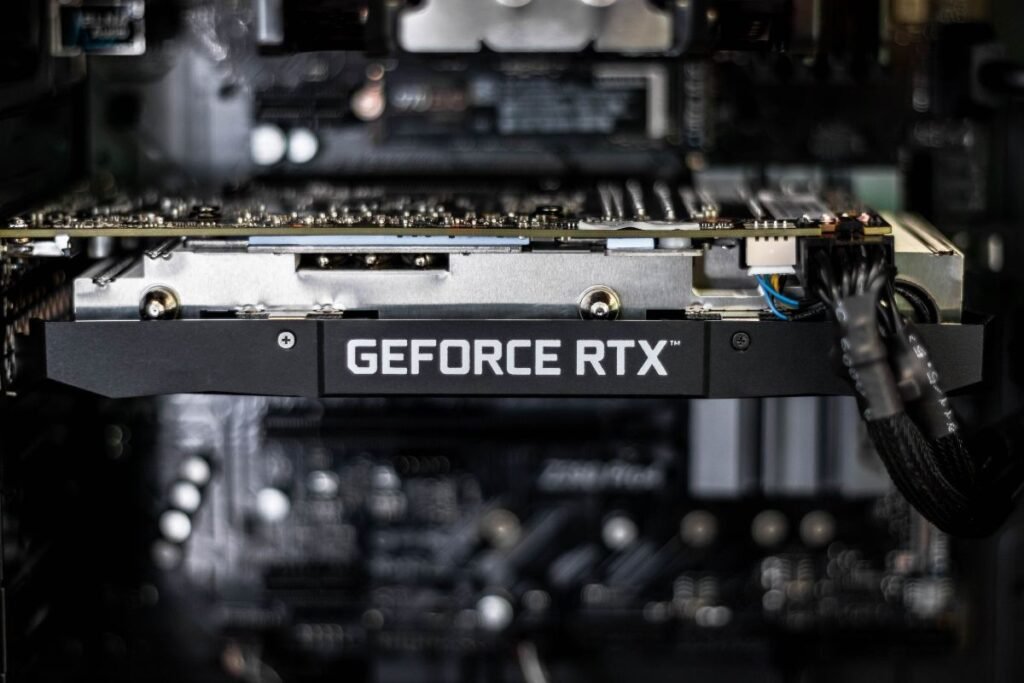
What Is Coil Whine? (Hardware Explanation)
Coil whine happens when electrical components vibrate at high frequency under load.
Main Sources Inside GPU:
- Power delivery coils (VRMs)
- Inductors on PCB
- Capacitor oscillation under load spikes
When GPU load changes rapidly, current flow fluctuates, causing vibration → sound.
Common Symptoms of Coil Whine
1. High-Pitched Noise During Gaming
Especially in high-FPS scenes.
2. Noise Changes with FPS
More FPS = more whine.
3. Silent Desktop, Loud Under Load
Idle is fine, gaming triggers sound.
4. PSU or GPU Area Buzzing
Sound comes from GPU zone or PSU region.
Root Causes (2026 GPU Power Behavior)
High Frame Rates (Uncapped FPS)
Modern GPUs push 300–1000 FPS in menus → unstable power draw.
Voltage Spikes
Rapid voltage switching in VRMs.
PSU Ripple Noise
Low-quality power supply amplifies coil vibrations.
Poor Electrical Dampening
Budget GPUs or aging components lack insulation.
Extreme Overclocking
Increases current fluctuations.
Tools Checklist for Diagnosis
Before attempting fixes:
- FPS limiter software
- GPU monitoring tool
- PSU with stable output rating
- Alternative power cable
- Benchmark software
Pro tip: Always test coil whine under controlled FPS conditions.
Comparison Table: Software Fix vs Hardware Fix
| Fix Type | Difficulty | Cost | Effectiveness |
|---|---|---|---|
| FPS Limiting | Easy | Free | High |
| V-Sync / G-Sync | Easy | Free | High |
| Undervolting GPU | Medium | Free | Very High |
| PSU Upgrade | Medium | $$ | High |
| GPU Replacement | Hard | $$$ | Absolute |
Step-by-Step: How to Fix Coil Whine in High-End Graphics Cards
Step 1: Limit FPS Immediately
This is the most effective first step.
- Enable V-Sync
- Or set FPS cap (60/120/144)
Why it works:
Less FPS = less power fluctuation = reduced coil vibration.
Step 2: Enable G-Sync or FreeSync
If supported:
- Smooth frame delivery
- Reduced sudden power spikes
This stabilizes GPU load behavior.
Step 3: Try Undervolting GPU
Undervolting reduces electrical stress:
- Lower voltage
- Same performance in many cases
- Reduced coil vibration
Use tools like MSI Afterburner.
Step 4: Check PSU Quality
Look, I’ve seen this error a thousand times—people blame GPU, but PSU is often the real culprit.
Check:
- Wattage rating
- 80+ certification
- Stable rails (12V line)
A weak PSU = unstable voltage = louder coil whine.
Step 5: Change Power Cable or PCIe Connector
Sometimes issue is simple:
- Replace PCIe cables
- Avoid daisy-chaining
Poor contact increases electrical noise.
Step 6: Try Different Power Outlet
Yes, even wall power matters:
- Avoid overloaded extension boards
- Use direct socket
Voltage instability contributes to noise.
Step 7: Adjust In-Game Settings
High FPS menus are the worst offenders:
- Cap menu FPS
- Reduce unnecessary rendering load
Many games run 500+ FPS in menus → coil whine spikes.
Step 8: Apply GPU Power Limit
In GPU software:
- Reduce power limit by 10–20%
This stabilizes voltage swings.
Step 9: Test Case Airflow & Mounting
Improper mounting can amplify noise:
- Tighten GPU screws
- Ensure no vibration contact with case
Sometimes sound is amplified physically.
Step 10: BIOS/UEFI Power Settings
Some motherboards support:
- PCIe power management
- Power phase tuning
Adjusting this can reduce noise.
Advanced Troubleshooting (Pro Level Fixes)
PSU Swap Testing
If possible:
- Test GPU with another PSU
This isolates root cause quickly.
Frame Rate Behavior Analysis
If coil whine:
- Increases with FPS → GPU normal behavior
- Constant noise → PSU or hardware issue
Cap Background FPS
Modern GPUs render hidden frames:
- Steam menus
- Browsers
- Launchers
Cap global FPS for stability.
Common Mistakes That Make Coil Whine Worse
Running Unlimited FPS
This is the biggest cause.
Using Low-Quality PSU
Cheap units amplify noise.
Overclocking Without Testing
Increases voltage instability.
Ignoring PSU-GPU Pairing
Mismatch causes electrical imbalance.
Real-World Scenarios
Problem: Coil whine in menus only
Cause: Uncapped FPS
Fix: FPS limiter or V-Sync
Problem: Constant buzzing under load
Cause: PSU instability
Fix: PSU upgrade or replacement
Problem: New GPU has coil whine
Cause: Normal manufacturing variance
Fix: Undervolt or limit FPS
Pro Tips from a Hardware Engineer
- Coil whine is NOT always a defect
- High FPS = high electrical switching noise
- Undervolting often gives best balance
- PSU quality matters more than users think
And here’s something most guides won’t tell you:
Even two identical GPUs can behave differently due to microscopic differences in coil winding and PCB manufacturing tolerances.
When to Consider RMA or Replacement
Only consider replacement if:
- Coil whine is extreme even at low FPS
- Noise persists across multiple PSUs
- It affects usability
Otherwise, it’s usually manageable.
Final Thoughts: Physics, Not Failure
Fixing coil whine in high-end graphics cards is not about “eliminating” it completely—it’s about controlling electrical load behavior.
You’re not fixing a broken GPU…
You’re managing how power flows through it.
CTA: Optimize Your GPU Like a Pro
At fixrig.xyz, we go beyond basic fixes—we teach real hardware engineering thinking.
Still dealing with coil whine? Not sure if it’s your GPU or PSU?
Drop your full system specs in the comments—and let’s tune your setup step-by-step.
Because in high-end hardware… silence is not luck, it’s engineering.
Leave a Reply