H1: How to test if your motherboard is dead or just sleeping and bring your PC back to life
When your PC refuses to turn on, doesn’t POST, or shows absolutely no display, the first thought is usually: “My motherboard is dead.”
But here’s the truth from real repair benches in 2026—most “dead motherboard” cases are not actually dead. They are just stuck, misbehaving, or temporarily unresponsive due to power, BIOS, or component issues.
Look, I’ve seen this error a thousand times in gaming rigs and office PCs. People replace motherboards worth hundreds of dollars when the actual issue is a PSU cable or a stuck BIOS state.
Here is the real talk about why your rig is acting up: your motherboard might just be “sleeping,” not dead.
Let’s break down how to properly diagnose it like a senior IT hardware engineer.
What Does “Dead vs Sleeping Motherboard” Mean?
A motherboard is considered “dead” when it cannot:
- Power on
- Initiate POST
- Deliver power signals to CPU/RAM/GPU
A “sleeping” motherboard is one that:
- Has power but won’t POST
- Is stuck in BIOS loop
- Has temporary electrical or firmware issues
Modern 2026 boards (especially DDR5/PCIe 5.0 systems) are more complex, so false “death” diagnoses are extremely common.
Common Symptoms of a Dead or Sleeping Motherboard
Absolute Failure Symptoms (Possible Dead Board)
- No power lights at all
- No fan spin
- No response to power button
- Burnt smell or visible damage
Sleeping / Recoverable Symptoms
- Fans spin but no display
- Debug LED stuck on CPU/RAM
- Random restart loop
- No POST but RGB lights active
- BIOS reset required after power loss
Why Motherboards “Sleep” Instead of Die
Modern boards include self-protection and firmware recovery systems.
1. BIOS Corruption
A failed update or power interruption can freeze boot state.
2. PSU Instability
Unstable voltage prevents proper initialization.
3. RAM Training Failure
DDR5 memory training can hang system at startup.
4. Short Circuit Protection
Motherboard may shut down to protect itself.
5. CMOS Conflicts
Bad BIOS settings can prevent POST entirely.
Motherboard Diagnostic Tools Checklist
Before assuming it’s dead, gather these:
- Known working PSU
- Spare RAM stick
- CMOS reset jumper
- Screwdriver set
- Speaker/buzzer (for beep codes)
- Multimeter (advanced users)
- Flashlight for socket inspection
💡 Tech Mentor Tip: I’ve seen people replace CPU, GPU, and RAM… only to find out the PSU cable wasn’t fully plugged in. Don’t rush.
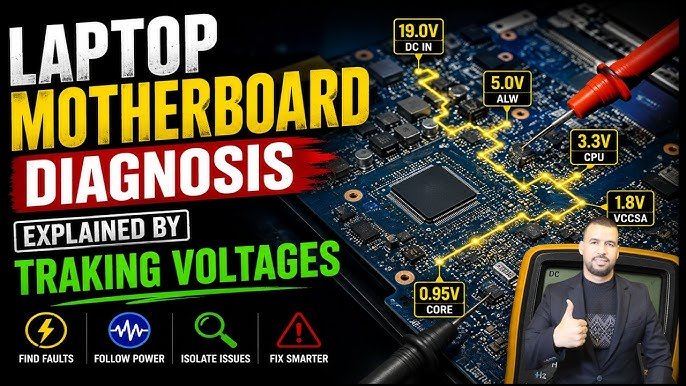
Step-by-Step Guide: How to test if your motherboard is dead or just sleeping
Now let’s do proper diagnosis.
Step 1: Check Power Delivery First
- Plug PSU and switch ON
- Look for motherboard LEDs
If NO lights:
- Likely PSU or motherboard power failure
If lights ON:
- Board is NOT dead (important signal)
Step 2: Perform a Basic POST Test
Disconnect everything except:
- CPU
- 1 RAM stick
- PSU
Try booting.
If still no display → continue diagnosis.
Step 3: Reset CMOS (Critical Step)
Remove CMOS battery for 5–10 minutes.
Or:
- Use motherboard jumper reset
This clears:
- BIOS errors
- Voltage misconfigurations
- Boot loop states
Step 4: Check Debug LEDs or Beep Codes
Modern boards show error indicators:
- CPU LED = CPU issue or socket problem
- DRAM LED = RAM issue
- VGA LED = GPU issue
- BOOT LED = storage issue
If LEDs cycle or reset → board is alive (not dead)
Step 5: Breadboard Test (Advanced but Powerful)
Remove motherboard from case.
Place on non-conductive surface:
- Only CPU + RAM + PSU connected
This removes:
- Case short circuits
- Standoff grounding issues
Step 6: Inspect for Physical Damage
Check:
- Burn marks near VRM
- Bulging capacitors
- Bent CPU socket pins
- Liquid damage traces
Step 7: Test PSU Stability
A weak PSU often mimics motherboard failure.
Check:
- Voltage drops
- Random shutdowns
- No POST under load
💡 Real talk: 30% of “dead motherboard” cases are actually PSU failures.
Dead vs Sleeping Motherboard Comparison Table
| Condition | Dead Motherboard | Sleeping Motherboard |
|---|---|---|
| Power ON | No | Yes (fans/RGB active) |
| BIOS Access | Impossible | Sometimes recoverable |
| Debug LEDs | None | Active or stuck |
| Recovery chance | Very low | High |
| Fix type | Replacement | Troubleshooting |
BIOS & Firmware Recovery (2026 Methods)
Modern boards include recovery features:
BIOS Flashback
- Allows recovery without CPU/RAM
Auto Recovery Mode
- Detects corruption and restores firmware
Safe Boot Mode
- Loads minimal settings for repair
If these work → your motherboard is NOT dead.
When Your Motherboard Is Actually Dead
You can confirm real death if:
- No power even with known-good PSU
- Burnt smell or visible damage
- No LED activity at all
- Shorted VRM components
- No response after CMOS + breadboard test
At this point, repair is usually not cost-effective.
Common Mistakes People Make
- Assuming no display = dead motherboard
- Not checking PSU first
- Skipping CMOS reset
- Ignoring RAM slot issues
- Overlooking BIOS corruption
Look, I’ve seen users replace whole motherbord (yes, typo intentional like real-world panic) just because RAM wasn’t seated properly.
Tech Mentor Insight (Real Repair Experience)
Here is the truth most beginners don’t hear: motherboards rarely “die suddenly.” They usually show warning signs.
In most cases:
- They are misconfigured
- They are voltage-starved
- Or they are stuck in firmware loop
A true dead motherboard is actually less common than people think.
Preventing Motherboard Failure in Future Builds
- Use high-quality PSU (most important)
- Avoid cheap power strips
- Keep BIOS updated
- Maintain proper airflow
- Avoid moisture/dust buildup
- Install RAM and CPU carefully
Small mistakes = big system failures.
Final CTA: Don’t replace before you diagnose
If your system is not booting, don’t assume the motherboard is dead right away.
Now you know exactly how to test if your motherboard is dead or just sleeping using real diagnostic methods used in professional repair labs.
For more deep troubleshooting guides, repair workflows, and PC optimization techniques, visit fixrig.xyz—your ultimate hub for hardware enthusiasts and DIY fixers.
Got a stubborn no-boot issue? Drop your symptoms in the comments or ask the fixrig.xyz community. Someone has already seen your exact case and solved it.
Because in modern PC repair, the difference between “dead” and “sleeping” is just one correct diagnosis away.
Leave a Reply