
Look, I’ve seen this issue a thousand times—you join a meeting, start talking… and someone says, “Bro, your mic is buzzing.”
Or worse—your audio sounds like you’re broadcasting from inside a broken radio.
Here is the real talk about why your rig is acting up: mic static and background noise on PC is rarely just “a bad mic.” It’s usually a combination of grounding issues, driver problems, poor shielding, voltage interference, or wrong audio settings.
In this deep technical guide from fixrig.xyz, I’ll walk you through fixing mic static and background noise on PC, step-by-step—covering both software and hardware-level solutions used by professionals.
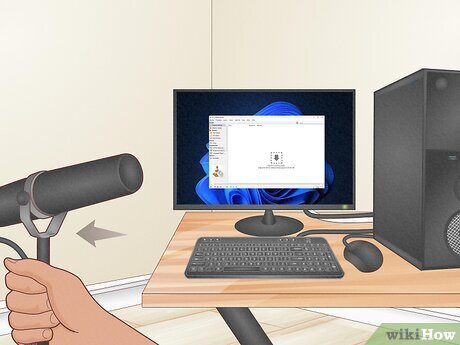
Common Symptoms of Mic Static & Noise
Before fixing anything, identify the type of noise:
1. Constant Buzzing (Electrical Noise)
- Low hum or high-pitched buzz
- Gets louder when PC is under load
2. Hissing Sound
- Background “ssssss” noise
- Common with cheap microphones
3. Crackling or Popping
- Random audio distortion
- Often driver or cable related
4. Echo or Background Amplification
- Picks up room noise excessively
- Poor noise suppression settings
If your hearing any of these, your audio chain needs fixing.
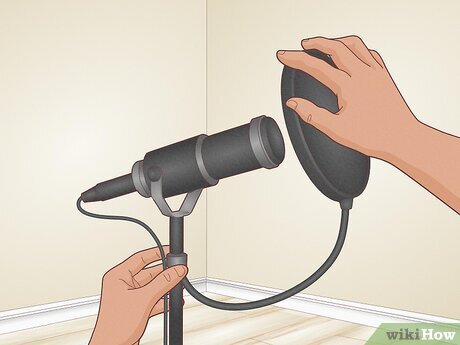
Root Causes (2026 Audio System Breakdown)
Ground Loop Interference
Electrical grounding issues cause buzzing.
Poor Shielding (Cables/Mic)
Cheap cables pick up interference.
Outdated or Corrupt Audio Drivers
Drivers control audio signal processing.
High Mic Gain Settings
Too much gain amplifies noise.
USB Power Noise
Unstable voltage from USB ports.
Thermal or System Load Interference
Yes—thermal throttling and high load can affect audio clarity.
Tools Checklist Before You Start
Prepare these tools:
- Headphones (for monitoring)
- Alternative USB port
- Updated audio drivers
- Optional USB sound card
- Shielded audio cables
Pro tip: Always test your mic on another device to isolate the problem.
Comparison Table: Software Fix vs Hardware Fix
| Fix Type | Difficulty | Cost | Effectiveness |
|---|---|---|---|
| Adjust Mic Settings | Easy | Free | Medium |
| Update Drivers | Easy | Free | High |
| Reduce Gain | Easy | Free | High |
| Use USB Sound Card | Medium | $$ | Very High |
| Replace Mic/Cable | Medium | $$–$$$ | Maximum |
Step-by-Step: Fixing Mic Static and Background Noise on PC
Step 1: Test the Microphone
- Plug mic into another PC or phone
- Record sample
If noise persists → hardware issue
If clean → PC issue
Step 2: Check Basic Connections
- Ensure cable is fully plugged in
- Avoid loose jacks
- Try different USB or audio port
Loose connections cause crackling and static.
Step 3: Reduce Microphone Gain
This is one of the biggest mistakes users make.
- Right-click sound icon → Sounds
- Recording tab → Select mic
- Properties → Levels
Set:
- Mic volume: 70–80%
- Boost: As low as possible
Too much gain = amplified noise.
Step 4: Disable Audio Enhancements
- Go to mic properties
- Disable all enhancements
Some enhancements introduce noise instead of removing it.
Step 5: Update Audio Drivers
- Device Manager → Sound, video and game controllers
- Update drivers
Better: download from motherboard or laptop manufacturer.
Drivers directly impact audio processing quality.
Step 6: Use Noise Suppression Software
Modern tools can help:
- Enable built-in noise suppression
- Use third-party filters if needed
But remember—software is not a complete fix.
Step 7: Change USB Port (Critical for USB Mics)
- Move mic to different USB port
- Prefer rear motherboard ports
Front ports often have more interference.
Step 8: Eliminate Electrical Interference
Keep mic cables away from:
- Power cables
- GPU area
- PSU
Electromagnetic interference is a silent killer.
Step 9: Use External USB Sound Card
If using 3.5mm mic:
- Plug into USB sound card
- Bypass motherboard audio
This removes internal noise from the system.
Step 10: Check Grounding
If you hear buzzing:
- Try different power outlet
- Use surge protector
- Ensure proper grounding
Ground loop issues are very common.
Advanced Troubleshooting (Pro Level)
Check System Load & Thermal Behavior
High CPU usage or thermal throttling can cause:
- Audio glitches
- Crackling
Monitor Task Manager for abnormal proccess spikes.
BIOS Audio Settings
- Enter BIOS
- Ensure onboard audio enabled
- Check for audio-related settings
Some BIOS configurations affect signal stability.
Cable Quality Upgrade
- Use shielded cables
- Avoid cheap adapters
Cable quality directly affects noise levels.
Common Mistakes That Make It Worse
Using Maximum Mic Boost
This amplifies noise instead of voice.
Ignoring Cable Quality
Cheap cables = interference magnet.
Plugging Into Front Panel
Front ports often have poor shielding.
Skipping Driver Updates
Outdated drivers cause audio instability.
Real-World Scenarios
Problem: Constant buzzing sound
Cause: Ground loop
Fix: Change outlet or use USB sound card
Problem: Hissing background noise
Cause: High gain
Fix: Lower mic levels
Problem: Crackling audio
Cause: Loose connection or driver issue
Fix: Reconnect + update drivers
Pro Tips from a Hardware Engineer
- Always use rear motherboard ports for audio
- Keep cables organized and separated
- Invest in a good microphone—it matters
- Monitor your system load during recording
And here’s something most guides won’t tell you:
Your GPU can introduce electrical noise into your audio chain—especially under heavy load.
When to Replace Hardware
Replace your mic or setup if:
- Noise persists after all fixes
- Cable damage is visible
- Internal mic circuitry fails
At that point, your just fighting hardware limitations.
Final Thoughts: Clean Audio is a System-Level Result
Fixing mic static and background noise on PC isn’t about one setting—it’s about optimizing your entire audio chain:
Drivers + Power + Cables + Settings + Hardware
Get all of them right—and your audio becomes crystal clear.
CTA: Fix Your Audio Like a Pro
At fixrig.xyz, we don’t just fix problems—we help you master your setup.
Still hearing static? Not sure if it’s your mic, drivers, or interference?
Drop your setup details in the comments—and let’s troubleshoot your rig step-by-step.
Because your voice deserves to be heard clearly… not through static.
Leave a Reply