Look, I’ve seen this issue a thousand times—and it always starts the same way.
You hear a faint click… click… click… from your hard drive. Then your system slows down. Then files disappear. And finally—your drive becomes inaccessible.
Here is the real talk about why your rig is acting up: a clicking hard drive is not a software issue. It’s almost always mechanical failure inside the drive—read/write head damage, spindle issues, or firmware-level corruption.
In this expert guide from fixrig.xyz, I’ll show you how to recover data from a clicking hard drive safely, without making the damage worse.
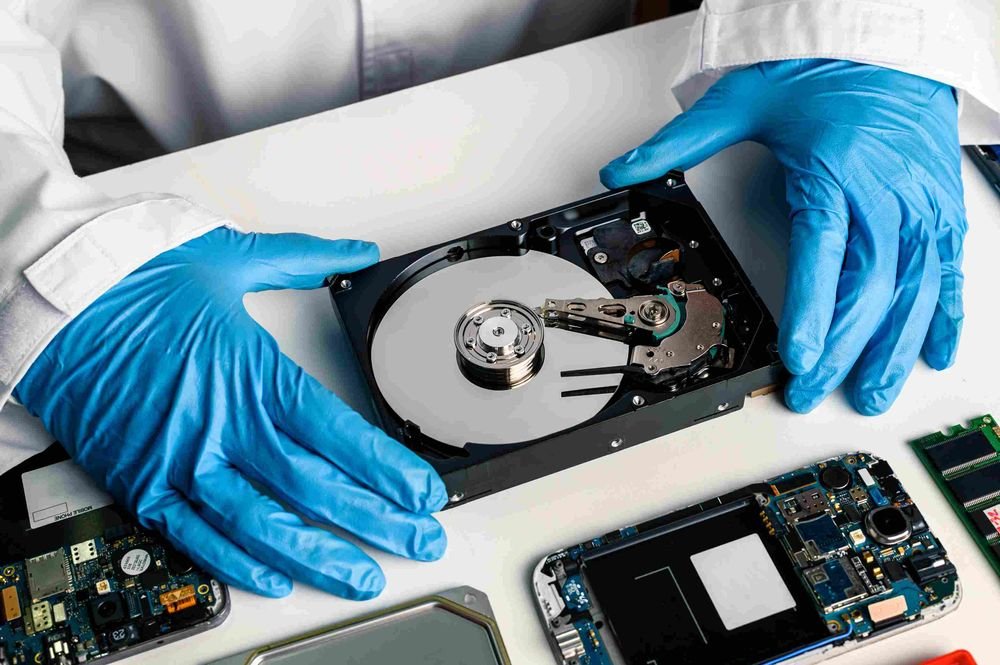
Why Hard Drives Start Clicking (Hardware Reality)
A clicking sound usually means the drive is struggling to read data.
1. Read/Write Head Failure
The head tries to read but keeps resetting position.
2. Spindle Motor Issues
Platters fail to spin correctly.
3. Bad Sectors Expansion
Damaged areas increase rapidly.
4. Power Instability
Voltage drops can cause repeated head calibration.
5. Firmware Loop Failure
Drive can’t initialize properly.
If your hearing clicking sounds repeatedly, stop using the drive immediately.
Critical Warning Before Recovery
Never do this:
- Don’t keep rebooting the PC
- Don’t run disk repair tools repeatedly
- Don’t try random “fix software”
Every attempt can reduce recovery chances.
Tools Checklist for Safe Data Recovery
Prepare carefully:
- SATA/USB adapter
- Secondary working PC
- Data recovery software (read-only mode)
- External storage drive
- Anti-static environment
Pro tip: Always recover to a different drive—not the same one.
Comparison Table: DIY Recovery vs Professional Recovery
| Method | Risk Level | Cost | Success Rate |
|---|---|---|---|
| Software Recovery | Medium | Low | Moderate |
| Disk Imaging | Low | Medium | High |
| Clean Room Recovery | Very Low | High | Very High |
| Continued Use of Drive | Extreme | Free | Very Low |
Step-by-Step: How to Recover Data from a Clicking Hard Drive Safely
Step 1: Stop Using the Drive Immediately
This is the most important step.
- Power off system
- Disconnect drive
Every second of use increases damage.
Step 2: Check Basic Connections
Sometimes the issue is not internal:
- Replace SATA cable
- Try different USB port
- Test external enclosure
Loose connections can mimic clicking.
Step 3: Try External Connection Only
- Connect drive via USB adapter
- Avoid internal booting
This reduces system stress on the drive.
Step 4: Attempt Drive Detection (Carefully)
Check if system detects the drive:
- BIOS check
- Disk Management (Windows)
If not detected → likely hardware failure.
Step 5: Create a Sector-by-Sector Clone
This is the safest DIY recovery method:
- Use disk imaging tools
- Clone entire drive to healthy disk
This prevents further wear.
Never recover directly from failing drive.
Step 6: Use Data Recovery Software
Once image is created:
- Scan cloned drive
- Recover files selectively
Focus on critical data first.
Step 7: Prioritize Important Files
Recover in order:
- Documents
- Photos
- Work files
- System data
Avoid unnecessary full restore attempts.
Advanced Troubleshooting (Pro Level)
Check Power Supply Stability
Unstable PSU can worsen clicking:
- Test with different power source
- Avoid cheap adapters
Voltage drops can damage heads further.
Listen for Pattern Changes
- Fast clicking = head failure
- Slow clicking = spindle issue
- No spin = motor failure
This helps diagnose severity.
BIOS Detection Behavior
If BIOS:
- Detects drive → partial recovery possible
- Doesn’t detect → serious hardware failure
Common Mistakes That Destroy Data Forever
Repeated Power Cycling
This causes more head crashes.
Running CHKDSK Immediately
Can overwrite recoverable data.
Freezing the Drive (Myth)
Does not repair modern drives and can cause condensation damage.
Ignoring Early Warning Clicks
Early intervention is critical.
Real-World Scenarios
Problem: Clicking but still detected
Cause: Bad sectors or head misalignment
Fix: Clone immediately
Problem: Not detected at all
Cause: PCB or motor failure
Fix: Professional recovery needed
Problem: Clicking after drop
Cause: Physical head crash
Fix: Stop immediately, no DIY attempt
Pro Tips from a Hardware Engineer
- Always maintain backups (3-2-1 rule)
- Never trust a clicking drive again
- Use SSDs for critical work
- Monitor SMART health regularly
And here’s something most guides won’t tell you:
Once a mechanical drive starts clicking, every additional attempt to “fix it” usually reduces recovery success.
When to Go for Professional Recovery
Choose expert recovery if:
- Drive is not detected in BIOS
- Clicking is continuous and loud
- Data is highly valuable
At this stage, DIY methods may cause permanent loss.
Final Thoughts: Speed Matters More Than Tools
Recovering data from a clicking hard drive safely is not about fancy software—it’s about timing and damage control.
Stop using the drive early.
Clone it properly.
Recover from a safe copy.
That’s the real strategy.
CTA: Save Your Data the Right Way
At fixrig.xyz, we help you understand hardware failures before they become disasters.
Still hearing clicking sounds? Not sure if your drive is recoverable?
Drop your drive symptoms in the comments—and let’s guide you step-by-step before it’s too late.
Because once data is gone… prevention was your only chance.
Leave a Reply