Look, I’ve seen this error a thousand times—and it always shows up at the worst possible moment.
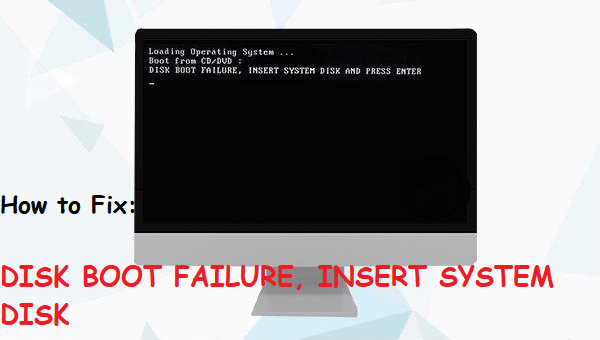
You press the power button… fans spin… and instead of Windows loading, you get:
“Disk Boot Failure”
or
“No Boot Device Found”
Here is the real talk about why your rig is acting up: this is not just a Windows issue. It’s a boot chain failure inside your UEFI system, meaning your motherboard can’t correctly find, read, or initialize your storage device.
In this expert guide from fixrig.xyz, I’ll break down Fixing “Disk Boot Failure” on modern UEFI systems, step-by-step, using real hardware troubleshooting logic—not guesswork.
Common Symptoms of Disk Boot Failure
Before fixing anything, confirm the behavior:
1. “No Boot Device Found”
System cannot locate OS drive.
2. Boot Loop Into BIOS
PC keeps returning to UEFI screen.
3. Black Screen After POST
System passes startup but fails to load OS.
4. SSD/HDD Not Detected
Drive missing from BIOS entirely.
If your seeing any of these, your boot chain is broken somewhere.
Root Causes (UEFI Boot System Breakdown)
Incorrect Boot Order
System tries wrong drive first.
Corrupted Bootloader (EFI Partition)
UEFI cannot find boot files.
Faulty or Disconnected Storage Drive
Loose SATA/NVMe connection.
BIOS Reset or Update Failure
Settings reverted to defaults.
SSD/HDD Hardware Failure
Drive not responding at hardware level.
Secure Boot / UEFI Conflicts
Modern systems block incompatible boot entries.
Tools Checklist Before Troubleshooting
Prepare:
- BIOS/UEFI access (DEL/F2 key)
- Windows installation USB
- SATA/NVMe cables (if desktop)
- External drive enclosure
- Spare bootable drive (optional)
Pro tip: Always verify hardware before assuming software corruption.
Comparison Table: Software Fix vs Hardware Fix
| Fix Type | Difficulty | Cost | Success Rate |
|---|---|---|---|
| Boot Order Fix | Easy | Free | High |
| UEFI Repair | Medium | Free | High |
| Bootloader Rebuild | Medium | Free | Very High |
| Cable/Drive Check | Easy | Low | High |
| Drive Replacement | Hard | $$ | Maximum |
Step-by-Step: Fixing “Disk Boot Failure” on Modern UEFI Systems
Step 1: Enter BIOS/UEFI
Restart system and press:
- DEL / F2 / ESC (depends on motherboard)
Check:
- Is your SSD/HDD visible?
If NOT detected → hardware issue likely.
Step 2: Check Boot Order
Go to Boot Settings:
- Set your main SSD as Boot Option #1
- Disable unnecessary boot devices
Incorrect priority is one of the most common causes.
Step 3: Enable UEFI Mode Properly
Modern systems require:
- UEFI mode enabled
- Legacy/CSM disabled (in most cases)
Mismatch causes boot failure.
Step 4: Check Storage Mode (AHCI vs RAID)
Wrong mode breaks booting:
- AHCI → standard SSD setups
- RAID → multi-drive configurations
Changing this incorrectly can trigger Disk Boot Failure.
Step 5: Inspect Physical Connections
For desktop users:
- Reseat SATA cables
- Reinsert NVMe SSD
- Check motherboard slots
Loose connections = instant boot failure.
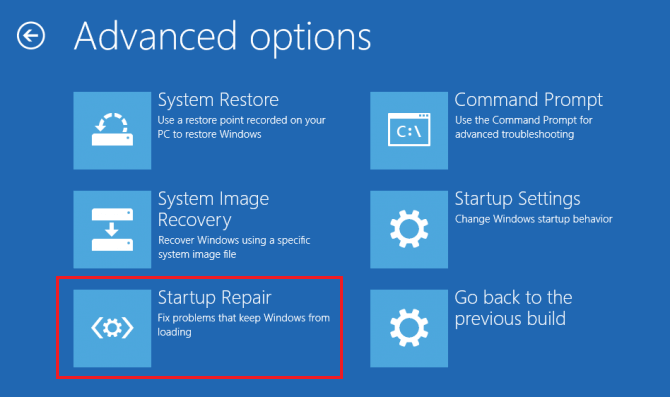
Step 6: Repair Bootloader Using Windows USB
If drive is detected:
- Boot from Windows USB
- Select Repair Your Computer
- Open Command Prompt
Run:
- bootrec /fixmbr
- bootrec /fixboot
- bootrec /rebuildbcd
This rebuilds EFI boot structure.
Step 7: Check Disk Health (SMART Status)
A failing drive may show:
- Slow detection
- Missing partitions
- Random boot failure
If SMART status is bad → backup immediately.
Step 8: Disable Secure Boot Temporarily
Secure Boot can block boot entries:
- Disable it temporarily
- Test system boot
Then re-enable after fixing.
Advanced Troubleshooting (Pro Level)
BIOS Reset After Update
If system recently updated BIOS:
- Settings may reset
- Boot order often changes
Reconfigure manually.
NVMe Slot Issues
Some motherboards share lanes:
- GPU + NVMe conflicts
- Disabled slots
Check motherboard manual.
Corrupted EFI Partition
Symptoms:
- Drive detected but won’t boot
Fix via bootrec or reinstall EFI.
Voltage or PSU Instability
Unstable power can cause:
- Drive detection failure
- Random boot errors
Check PSU health.
Common Mistakes That Make It Worse
Reinstalling OS Immediately
This destroys recovery chances unnecessarily.
Ignoring BIOS Settings
Most users skip this critical step.
Switching Storage Modes Randomly
Can break existing installations.
Not Checking Physical Drive
Software fixes won’t help dead hardware.
Real-World Scenarios
Problem: SSD not detected
Cause: Cable or hardware failure
Fix: Reseat or replace drive
Problem: Boot loop into BIOS
Cause: Wrong boot order
Fix: Set correct boot device
Problem: After Windows update system won’t boot
Cause: EFI corruption
Fix: Bootloader repair
Pro Tips from a Hardware Engineer
- Always back up EFI and system partitions
- Keep BIOS updated—but stable
- Prefer UEFI over Legacy boot
- Use high-quality SSDs for OS drives
And here’s something most guides won’t tell you:
A single BIOS setting change can make a perfectly healthy drive look “dead” to your system.
When to Replace Hardware
Replace your drive if:
- Not detected in BIOS at all
- SMART shows failure warnings
- Repeated boot failures continue
At that point, recovery is secondary to replacement.
Final Thoughts: Boot Failure is a System-Level Problem
Fixing “Disk Boot Failure” on modern UEFI systems is not just about Windows repair—it’s about understanding the entire boot chain: BIOS → UEFI → Storage → EFI → OS.
Break one link, and the system stops.
Fix the right link, and everything works again.
CTA: Fix Your Boot System Like a Pro
At fixrig.xyz, we help you diagnose hardware problems at the root—not just treat symptoms.
Still stuck on Disk Boot Failure? Not sure if it’s BIOS, SSD, or bootloader?
Drop your system specs and issue in the comments—and let’s troubleshoot your rig step-by-step.
Because your system should boot cleanly… every single time.
Leave a Reply