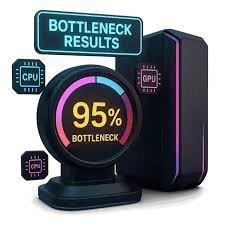
o identify hardware bottlene
H
If your gaming rig feels like it’s “holding back” even after upgrading parts, you’re probably dealing with a hardware bottleneck.
And look, I’ve seen this situation a thousand times in custom gaming PCs—RTX GPUs paired with weak CPUs, fast CPUs stuck behind slow storage, or RAM holding back everything else. The frustrating part? Most users don’t even realize where the actual limit is.
Here’s the real talk about why your rig is acting up: a bottleneck isn’t always obvious, but once you learn how to identify hardware bottlenecks in your gaming rig, you can instantly unlock hidden performance.
Let’s break it down like a senior IT hardware engineer in 2026 would—clear, practical, and no nonsense.
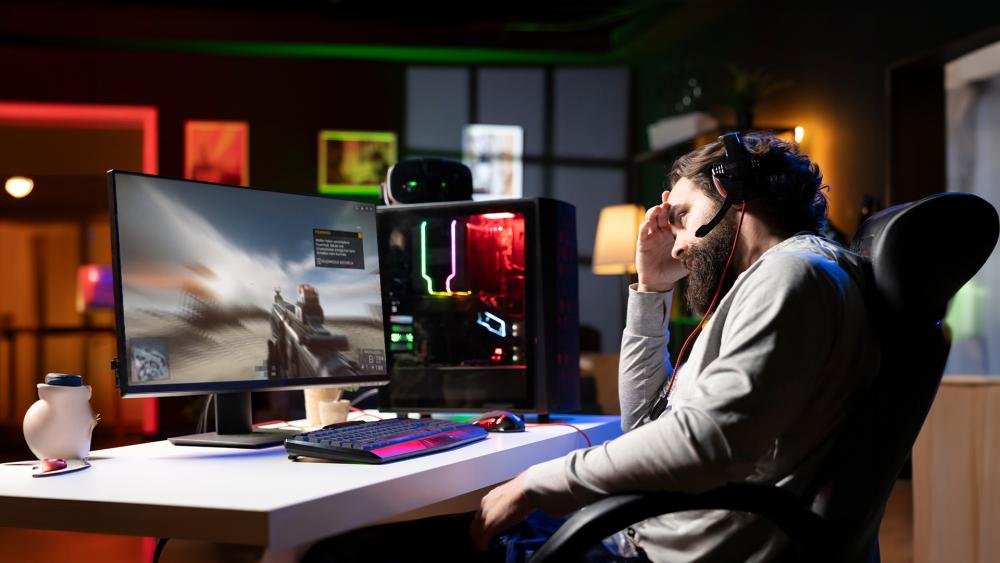
What is a Hardware Bottleneck?
A hardware bottleneck happens when one component in your system limits the performance of the others.
Think of it like a water pipe system:
- GPU = water pump
- CPU = controller
- RAM = buffer tank
- Storage = water source
If one part is weak, the whole system slows down.
Common Symptoms of Hardware Bottlenecks
Before jumping into tools, recognize the signs:
Performance Symptoms
- FPS stuck at low levels even with a powerful GPU
- Sudden frame drops in heavy scenes
- CPU usage at 100% while GPU is underused
- GPU usage stuck below 70–80%
System Behavior
- Game stuttering despite high FPS average
- Long loading times
- Background apps causing lag spikes
- Thermal throttling during gaming
Advanced 2026 Symptoms
- AI-based game engines lagging in open-world titles
- VRAM overflow in high-resolution textures
- Dynamic resolution scaling constantly triggering
Types of Hardware Bottlenecks
Understanding the type is key before fixing anything.
1. CPU Bottleneck
Your processor can’t process game logic fast enough.
Signs:
- CPU usage 90–100%
- GPU underutilized
- Low FPS in CPU-heavy games (strategy, simulation)
2. GPU Bottleneck
Your graphics card is the limiting factor.
Signs:
- GPU usage 95–100%
- CPU sitting idle
- FPS improves when lowering resolution
3. RAM Bottleneck
Insufficient memory or slow RAM causes system delays.
Signs:
- High memory usage
- Stuttering during multitasking
- Games freezing during asset loading
4. Storage Bottleneck
Slow HDD or saturated SSD slows down asset streaming.
Signs:
- Long loading screens
- Texture pop-ins
- Delayed map loading in open-world games
5. Thermal Bottleneck
Overheating causes automatic performance reduction.
Signs:
- FPS drops after 10–20 minutes
- Fans running at full speed
- CPU/GPU throttling
Tools You Need to Identify Bottlenecks
Here’s a practical checklist:
Monitoring Tools
- MSI Afterburner
- HWInfo64
- Task Manager (basic but useful)
- Windows Game Bar (2026 updated version)
Benchmark Tools
- Cinebench (CPU)
- 3DMark (GPU)
- CrystalDiskMark (Storage)
Optional Advanced Tools
- AI-based performance analyzers (used in modern rigs)
- BIOS-level hardware monitoring dashboards
Step-by-Step Guide: How to identify hardware bottlenecks in your gaming rig
Now let’s diagnose it properly.
Step 1: Monitor CPU and GPU Usage in Game
Open MSI Afterburner and run your game.
Check:
- If CPU = 100% and GPU = low → CPU bottleneck
- If GPU = 100% and CPU = low → GPU bottleneck
Simple but powerful.
Step 2: Check RAM Usage
While gaming:
- If RAM usage is above 85–90%, your system is struggling
- Background apps may be eating memory
💡 Tech Mentor Tip: I once saw a “weak GPU issue” that was actually Chrome eating 12GB RAM in the background. No joke.
Step 3: Monitor Temperatures
Check:
- CPU temps above 90°C = thermal bottleneck
- GPU temps above 85°C = throttling risk
Thermal throttling silently kills performance.
Step 4: Test Storage Speed
Run CrystalDiskMark:
- HDD = potential bottleneck
- Slow SSD = loading delays
Modern 2026 games rely heavily on fast NVMe storage.
Step 5: Isolate Components
Try:
- Lower resolution (tests GPU load)
- Lower graphics settings (tests CPU load)
- Close background apps (tests RAM load)
This helps you isolate the weak link.
CPU vs GPU Bottleneck Comparison Table
| Scenario | CPU Bottleneck | GPU Bottleneck |
|---|---|---|
| Low resolution FPS | Low | High |
| High resolution FPS | Normal | Drops |
| CPU usage | 100% | 50–70% |
| GPU usage | 50–70% | 100% |
| Fix | Upgrade CPU | Upgrade GPU |
Common Bottleneck Mistakes (2026 Users Still Make)
- Pairing high-end GPU with old CPU
- Using single-channel RAM (huge mistake)
- Ignoring BIOS updates
- Running background apps during gaming
- Not checking thermal paste condition
Look, I’ve seen rigs with RTX cards performing like budget GPUs just because of poor balancing.
Fixing Hardware Bottlenecks
CPU Bottleneck Fixes
- Upgrade CPU
- Optimize game settings (reduce draw distance, physics)
- Enable performance mode in BIOS
GPU Bottleneck Fixes
- Lower resolution scaling
- Upgrade GPU
- Update drivers properly (clean install)
RAM Bottleneck Fixes
- Upgrade to dual-channel setup
- Increase RAM capacity (16GB → 32GB recommended in 2026)
- Close background proccess-heavy apps
Storage Bottleneck Fixes
- Upgrade to NVMe SSD
- Free up storage space
- Avoid HDD for modern gaming
Thermal Fixes
- Clean dust from fans
- Replace thermal paste
- Improve airflow in case
Real-World Tech Mentor Insight
Here is the real truth most people miss: bottlenecks are not always about weak hardware—they are about imbalance.
A 2026 gaming rig is a system, not individual parts. If one component is slightly off, the whole experience feels broken.
And yes, sometimes your system is not broken at all—it’s just misconfigured. I’ve seen users spend thousands upgrading the wrong component when the actual issue was BIOS settings or thermal throttling.
Also, small reminder from real-world repair experience: people often write “motherbord” instead of motherboard when frustrated during troubleshooting 😄
Final Optimization Tips for Gaming Rigs (2026 Standard)
- Balance CPU and GPU tiers properly
- Use NVMe Gen4/Gen5 SSDs
- Keep BIOS updated
- Avoid unnecessary background apps
- Monitor temps regularly
- Use performance mode profiles in Windows
Final CTA: Fix your bottlenecks like a pro
If your gaming rig feels slow, inconsistent, or unbalanced, don’t guess—diagnose it properly.
Now you know exactly how to identify hardware bottlenecks in your gaming rig using real engineering methods, not random fixes.
For more deep troubleshooting guides, optimization tutorials, and DIY repair solutions, visit fixrig.xyz—the ultimate hub for gamers, builders, and hardware enthusiasts.
Got a confusing performance issue? Drop your specs and problem in the comments or ask the fixrig.xyz community. Someone has already solved your exact bottleneck before—you just need the right eyes on it.
Because in modern PC gaming, performance isn’t just power… it’s balance.
Leave a Reply