Category: Peripherals & Connectivity

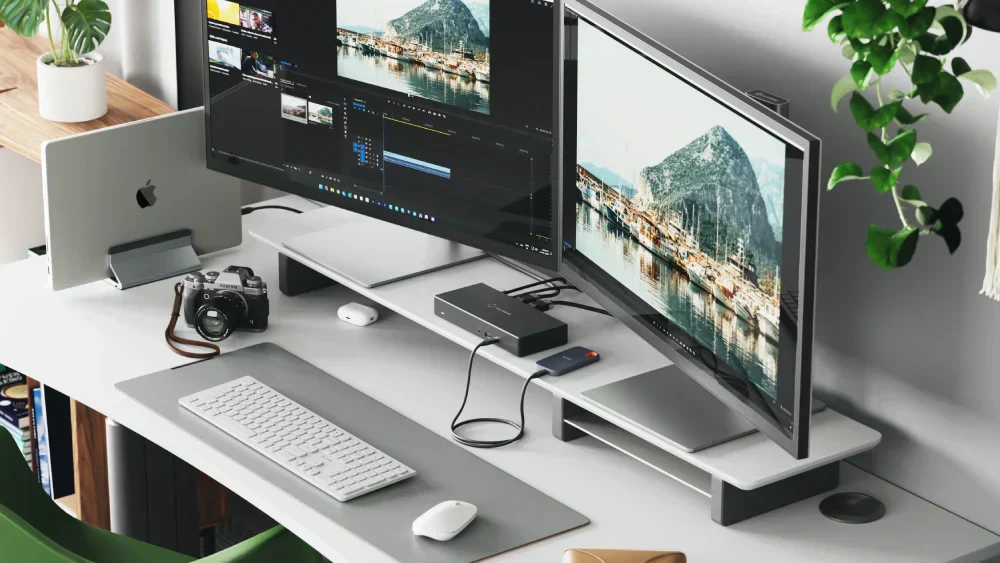
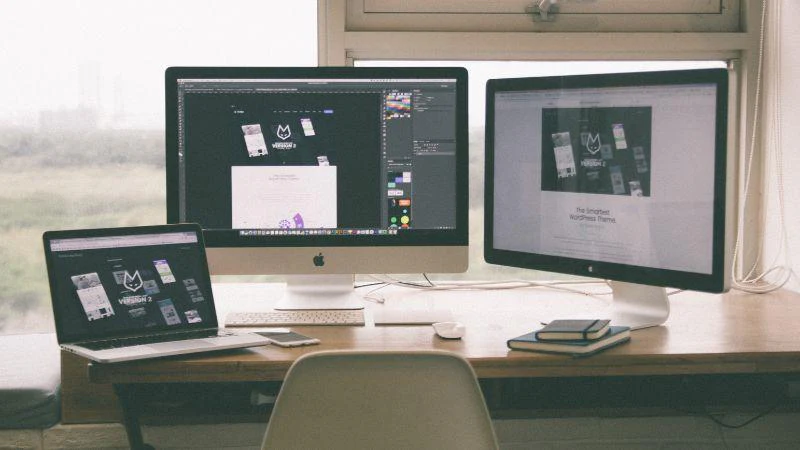
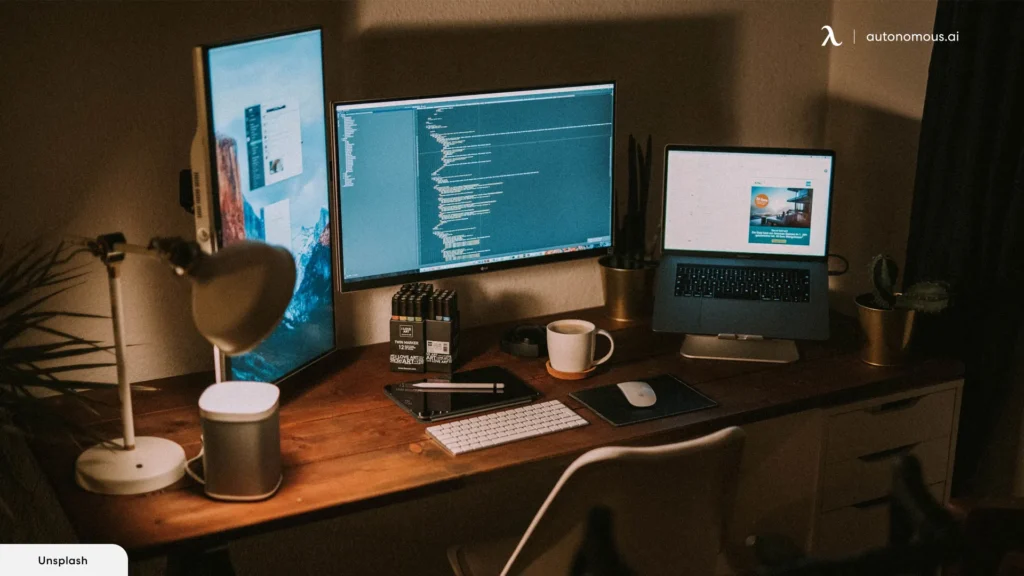
  • How to Set Up a Dual Monitor Setup on a Laptop with One HDMI (Complete 2026 Workstation Guide)

    How to Set Up a Dual Monitor Setup on a Laptop with One HDMI (Complete 2026 Workstation Guide)

    Look, I’ve seen this setup confusion a thousand times—someone buys an extra monitor for productivity, plugs it into their laptop… and then realizes there’s only one HDMI port.

    Panic starts.

    Here is the real talk about why your rig is acting up: laptops are not designed like desktops. You can’t just “split” HDMI and expect two independent displays. That’s not how signal architecture works.

    But don’t worry—in this expert guide from fixrig.xyz, I’ll show you exactly how to set up a dual monitor setup on a laptop with one HDMI, using real hardware solutions, modern 2026 standards, and zero guesswork.


    Why One HDMI Port Isn’t Enough (The Technical Reality)

    HDMI Splitter Myth (Big Mistake)

    A lot of users try this:

    • Buy an HDMI splitter
    • Expect two separate screens

    What actually happens?

    • Both monitors show the SAME display (mirroring)

    Because:

    • HDMI carries a single video signal
    • It cannot output two independent streams

    If your doing this—stop. It won’t work for extended displays.


    Common Symptoms Users Face

    Only One External Monitor Works

    Second screen not detected at all

    Both Screens Show Same Content

    Mirror mode instead of extend

    Monitor Not Detected

    Driver or port limitation

    Lag or Low Resolution

    Wrong adapter or bandwidth limitation


    Tools & Hardware You May Need

    To properly set up dual monitors, prepare:

    • HDMI cable
    • USB to HDMI adapter (DisplayLink recommended)
    • USB-C hub (if supported)
    • Docking station (optional but best solution)
    • Updated graphics drivers

    Pro tip: Always check your laptop’s GPU capabilities before buying adapters.


    Comparison Table: Best Ways to Add a Second Monitor

    MethodCostPerformanceEaseBest For
    HDMI SplitterLowPoorEasyMirroring only
    USB to HDMI AdapterMediumGoodEasyMost users
    USB-C Hub (Alt Mode)MediumExcellentEasyModern laptops
    Docking StationHighBestVery EasyProfessionals

    Step-by-Step: How to Set Up Dual Monitors on a Laptop with One HDMI

    Step 1: Check Your Laptop Ports

    Look for:

    • HDMI
    • USB-C (with DisplayPort Alt Mode)
    • USB 3.0 ports

    This determines your available options.


    Step 2: Choose the Right Method

    Option A: USB to HDMI Adapter (Most Reliable)

    • Plug adapter into USB port
    • Install DisplayLink drivers
    • Connect second monitor

    This creates a virtual GPU output.


    Option B: USB-C Hub (Best for Modern Laptops)

    If your laptop supports it:

    • Connect USB-C hub
    • Use HDMI/DisplayPort outputs

    You can run multiple monitors easily.


    Option C: Docking Station (Pro Setup)

    • Connect dock to laptop
    • Attach multiple monitors

    Best for remote workers and office setups.


    Step 3: Install Required Drivers

    This is where most users mess up.

    • Install DisplayLink drivers (for USB adapters)
    • Update GPU drivers (Intel/AMD/NVIDIA)

    Without proper drivers, your system won’t detect displays correctly.


    Step 4: Configure Display Settings in Windows 11

    • Right-click desktop → Display Settings
    • Click Detect
    • Select Extend these displays

    Arrange monitors based on your setup.


    Step 5: Adjust Resolution & Refresh Rate

    • Set native resolution for each monitor
    • Adjust scaling if needed

    Avoid mismatched settings—it causes lag and blurry output.


    Advanced Optimization (2026 Setup Standards)

    GPU Load Management

    Multiple displays increase GPU usage.

    • Close unnecessary apps
    • Monitor GPU usage

    Avoid Thermal Throttling

    Laptops can overheat with dual displays.

    • Use cooling pad
    • Ensure airflow

    Thermal throttling reduces performance and display smoothness.


    Power Settings Optimization

    • Set power mode to Balanced or High Performance
    • Avoid aggressive power saving

    Troubleshooting Dual Monitor Issues

    Problem: Second Monitor Not Detected

    Cause: Missing drivers
    Fix: Install DisplayLink or update GPU drivers


    Problem: Only Mirror Mode Available

    Cause: HDMI splitter used
    Fix: Use USB adapter or dock


    Problem: Laggy Display

    Cause: USB bandwidth limitation
    Fix: Use USB 3.0 or USB-C


    Problem: Random Disconnects

    Cause: Power instability or cable issue
    Fix: Replace cable or use powered hub


    BIOS & Hardware Considerations

    Yes—BIOS matters here too.

    • Ensure integrated GPU is enabled
    • Check display settings in BIOS

    Some systems disable multi-display support at firmware level.


    Common Mistakes to Avoid

    Using Cheap Adapters

    Low-quality adapters = poor signal + lag

    Ignoring Driver Installation

    Drivers are essential for multi-display support

    Overloading USB Ports

    Too many devices reduce bandwidth

    Not Checking Laptop Specs

    Not all laptops support multiple external displays


    Real-World Setup Example

    Let’s say you have:

    • 1 HDMI port
    • 2 monitors

    Best setup:

    • Monitor 1 → HDMI
    • Monitor 2 → USB to HDMI adapter

    Configure in Windows → Extend display

    Done.


    Pro Tips from a Hardware Engineer

    • Always prefer wired connections over wireless display
    • Use high-quality cables
    • Keep drivers updated regularly
    • Invest in a docking station if you work daily on multi-monitor setup

    And here’s something most guides won’t tell you:
    Your laptop’s internal GPU bandwidth is the real bottleneck—not just the ports.


    When You Need a Hardware Upgrade

    Upgrade if:

    • Laptop doesn’t support multiple displays
    • GPU is too weak
    • Ports are outdated

    Sometimes, no software fix can overcome hardware limitations.


    Final Thoughts: Work Smarter, Not Harder

    Setting up a dual monitor setup on a laptop with one HDMI isn’t complicated—but it does require the right approach.

    Forget splitters.
    Focus on proper signal expansion using adapters or docks.

    Once done right, your productivity can literally double.


    CTA: Upgrade Your Setup with fixrig.xyz

    At fixrig.xyz, we help you turn basic setups into pro-level workstations.

    Still stuck with your dual monitor setup? Not sure which adapter to buy or why your screens aren’t working?

    Drop your laptop model and setup in the comments—and let’s fix your rig step-by-step.

    Because your workspace should empower you… not limit you.

  • How to Troubleshoot Mechanical Keyboard Key Chatter at Home (Complete 2026 Fix Guide)

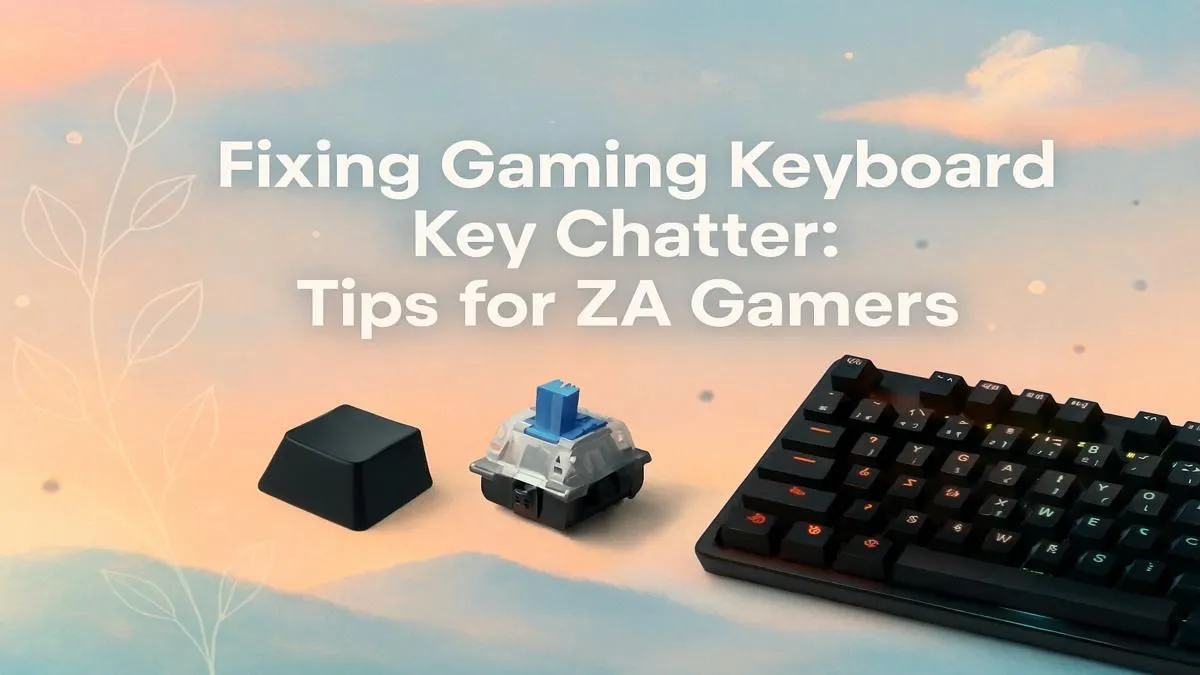
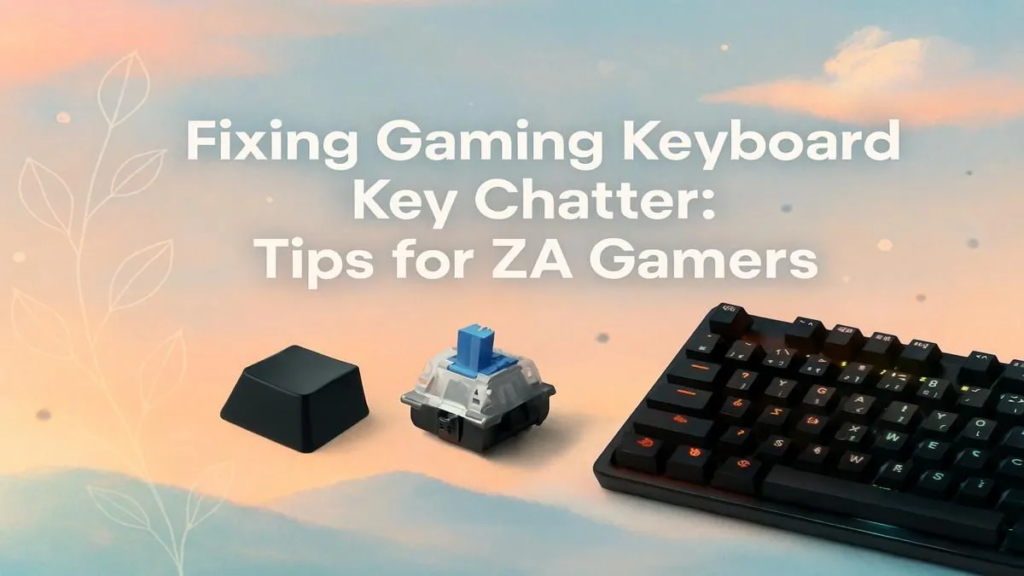
    How to Troubleshoot Mechanical Keyboard Key Chatter at Home (Complete 2026 Fix Guide)

    Look, I’ve seen this issue a thousand times—your mechanical keyboard starts double typing, skipping letters, or randomly repeating keystrokes. One minute you’re typing normally, next minute your doc looks like this: “heelloo woorlld”.

    Here is the real talk about why your rig is acting up: key chatter isn’t random. It’s a signal—either your switches are wearing out, there’s debris interfering with contact points, or your software/firmware isn’t filtering inputs correctly.

    In this deep technical guide from fixrig.xyz, I’ll show you exactly how to troubleshoot mechanical keyboard key chatter at home, step-by-step, using real hardware repair techniques and smart diagnostics.


    What is Key Chatter?

    Key chatter happens when a single keypress registers multiple times.

    Common Symptoms

    • Double typing (e.g., “tt” instead of “t”)
    • Random repeated characters
    • Missed keystrokes followed by duplicates
    • Inconsistent typing behavior

    This issue can affect productivity, gaming, and even coding accuracy.


    Root Causes of Key Chatter (2026 Hardware Perspective)

    1. Worn-Out Mechanical Switches

    Mechanical switches degrade over time—especially budget ones.

    2. Dust & Debris Inside Switch

    Tiny particles can interfere with electrical contact.

    3. Faulty Debounce Settings (Firmware)

    Keyboard firmware controls how keystrokes are registered.

    4. USB Signal Noise or Voltage Instability

    Unstable power can cause erratic input signals.

    5. Outdated Drivers or OS Conflicts

    Yes, software can cause hardware-like issues.


    Tools Checklist for DIY Fix

    Before you start, gather:

    • Keycap puller
    • Switch puller (if hot-swappable)
    • Isopropyl alcohol (90%+)
    • Soft brush or cotton swabs
    • Compressed air
    • Tweezers
    • Spare switches (optional)

    Pro tip: Work on a clean, well-lit surface. You don’t want to lose tiny components.


    Comparison Table: Software Fix vs Hardware Repair

    Fix TypeDifficultyCostEffectiveness
    Update DriversEasyFreeMedium
    Adjust Debounce SoftwareEasyFreeHigh
    Clean SwitchesMediumLowHigh
    Replace SwitchMedium$$Very High
    Replace KeyboardEasy$$$Maximum

    Step-by-Step: How to Troubleshoot Mechanical Keyboard Key Chatter at Home

    Step 1: Identify the Problem Key

    • Open a keyboard tester tool
    • Press each key slowly
    • Look for duplicate inputs

    This helps isolate whether it’s one key or multiple.


    Step 2: Rule Out Software Issues

    Before opening hardware, always check software:

    • Update keyboard drivers
    • Try a different USB port
    • Test on another PC

    If the issue disappears, it’s not hardware.


    Step 3: Adjust Debounce Settings

    Modern keyboards (especially gaming ones) allow debounce control.

    • Increase debounce delay slightly
    • This prevents rapid duplicate signals

    Some software tools let you tune this precisely.


    Step 4: Clean the Switch (Basic Method)

    Dust is a silent killer.

    • Remove keycap
    • Blow compressed air into switch
    • Lightly clean around it

    This fixes a surprising number of cases.


    Step 5: Deep Clean with Isopropyl Alcohol

    If basic cleaning fails:

    • Apply small amount of alcohol
    • Press key repeatedly to distribute
    • Let it dry completely

    This helps remove internal residue affecting контакts.


    Step 6: Test Again

    Reconnect keyboard and test:

    • If chatter is gone → problem solved
    • If still present → move to hardware fix

    Step 7: Replace the Switch (Hot-Swappable Keyboards)

    If your keyboard supports it:

    • Use switch puller
    • Remove faulty switch
    • Install new one

    This is the most reliable fix.


    Step 8: Soldered Keyboard? Advanced Repair

    If switches are soldered:

    • You’ll need a soldering kit
    • Desolder faulty switch
    • Replace with new one

    If your not experienced, don’t risk damaging the motherbord PCB.


    Advanced Troubleshooting (Pro Level)

    Check USB Voltage Stability

    Unstable voltage can cause signal issues:

    • Use powered USB hub
    • Avoid low-quality cables

    Firmware Update

    Manufacturers release updates that fix debounce issues.


    OS-Level Input Filtering

    Some advanced users use software filters to ignore duplicate keystrokes.


    Common Mistakes That Make Key Chatter Worse

    Ignoring Early Signs

    Chatter gets worse over time—not better.

    Overusing Cleaning Liquids

    Too much liquid can damage switches.

    Forcing Switch Removal

    This can damage sockets or PCB.

    Cheap Replacement Switches

    Low-quality switches fail quickly.


    Real-World Scenarios

    Problem: Only one key double types

    Cause: Worn switch
    Fix: Replace switch

    Problem: Multiple keys chattering

    Cause: Firmware or voltage issue
    Fix: Update firmware + check USB

    Problem: Issue disappears on another PC

    Cause: Driver conflict
    Fix: Update or reinstall drivers


    Pro Tips from a Hardware Engineer

    • Invest in hot-swappable keyboards for easier repairs
    • Clean your keyboard monthly
    • Avoid eating over your keyboard (seriously)
    • Use quality switches for longevity

    And here’s something most guides won’t tell you:
    Sometimes the problem isn’t the switch—it’s microscopic oxidation on contact points.


    When to Replace Instead of Repair

    Replace your keyboard if:

    • Multiple switches fail simultaneously
    • PCB is damaged
    • Repair cost exceeds keyboard value

    At that point, your just wasting time.


    Final Thoughts: Precision Matters

    Mechanical keyboards are precision devices. Even a tiny issue can cause major typing problems.

    The good news? Most key chatter issues are fixable at home—if you follow the right proccess.

    The bad news? Ignoring it will only make things worse.


    CTA: Fix Your Keyboard Like a Pro

    At fixrig.xyz, we go beyond basic fixes—we teach you real hardware mastery.

    Still facing key chatter? Not sure if it’s your switch, firmware, or drivers?

    Drop your keyboard model and issue in the comments—and let’s troubleshoot your rig step-by-step.

    Because your typing experience should be smooth… not frustrating.

  • Troubleshooting Bluetooth Connectivity Issues in Windows 11 (2026) – Complete Fix Guide for Stable Connections

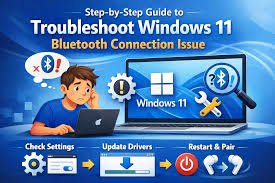
    Troubleshooting Bluetooth Connectivity Issues in Windows 11 (2026) – Complete Fix Guide for Stable Connections

    Look, I’ve seen this error a thousand times—Bluetooth just randomly stops working. Your headphones won’t connect, your mouse lags, or your device disappears completely from the list.

    Here is the real talk about why your rig is acting up: Bluetooth issues in Windows 11 aren’t just “software bugs.” They’re usually a mix of driver conflicts, power management settings, BIOS misconfigurations, or even hardware-level interference.

    In this expert-level guide from fixrig.xyz, I’ll walk you through troubleshooting Bluetooth connectivity issues in Windows 11 (2026) step-by-step, so you can fix it properly—not just temporarily.


    Common Symptoms of Bluetooth Issues

    Before jumping into fixes, identify what you’re dealing with:

    1. Bluetooth Not Showing in Settings

    • Toggle missing completely
    • Device Manager doesn’t list Bluetooth

    2. Devices Won’t Pair

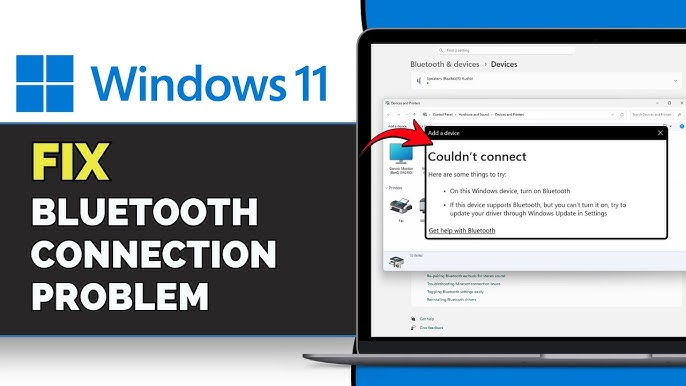
    • “Couldn’t connect” errors
    • Pairing fails instantly

    3. Frequent Disconnects

    • Devices connect but drop randomly
    • Especially common with wireless headphones

    4. Input Lag (Mouse/Keyboard)

    • Delayed response
    • Stuttering movement

    5. Audio Issues

    • Crackling sound
    • Audio cutting out

    If your experiencing any of these, you’re in the right place.


    Root Causes (2026 System-Level Analysis)

    Driver Conflicts or Corruption

    Outdated or broken drivers are the #1 cause.

    Windows Update Bugs

    New updates sometimes break Bluetooth stacks.

    Power Management Settings

    Windows may disable Bluetooth to save power.

    BIOS Configuration Issues

    Bluetooth module may be disabled at firmware level.

    Hardware Interference

    Wi-Fi signals, USB 3.0 ports, and other devices interfere.

    Faulty Bluetooth Module

    Especially in older laptops or budget motherbord designs.


    Tools Checklist for Troubleshooting

    Before starting, prepare:

    • Internet connection (for driver downloads)
    • Device Manager access
    • Optional USB Bluetooth adapter
    • Latest motherboard/laptop drivers
    • BIOS access

    Pro tip: Always create a restore point before major driver changes.


    Comparison Table: Software Fix vs Hardware Fix

    Fix TypeDifficultyCostEffectiveness
    Update DriversEasyFreeHigh
    Restart Bluetooth ServicesEasyFreeMedium
    Adjust Power SettingsEasyFreeHigh
    BIOS EnablementMediumFreeHigh
    Replace Bluetooth AdapterMedium$$Very High

    Step-by-Step: Troubleshooting Bluetooth Connectivity Issues in Windows 11 (2026)

    Step 1: Restart Bluetooth Services

    • Press Win + R → type services.msc
    • Find:
      • Bluetooth Support Service
    • Restart it

    Sometimes the simplest fix works.


    Step 2: Toggle Bluetooth Properly

    • Go to Settings → Bluetooth & Devices
    • Turn Bluetooth OFF → wait 10 seconds → turn ON

    This resets the connection stack.


    Step 3: Check Device Manager

    • Press Win + X → Device Manager
    • Expand Bluetooth

    Look for:

    • Yellow warning icons
    • Missing devices

    If Bluetooth is missing completely, this is a deeper issue.


    Step 4: Update or Reinstall Drivers

    This is critical.

    • Right-click Bluetooth device
    • Select Uninstall device
    • Restart PC

    Then install latest drivers from manufacturer.

    Outdated drivers break compatibility with modern Windows builds.


    Step 5: Disable Power Saving Mode

    Windows loves to cut power silently.

    • Device Manager → Bluetooth adapter
    • Properties → Power Management
    • Uncheck:
      • “Allow the computer to turn off this device”

    This alone fixes random disconnects in many cases.


    Step 6: Run Windows Troubleshooter

    • Settings → System → Troubleshoot
    • Run Bluetooth troubleshooter

    Not always perfect—but worth trying.


    Step 7: Check BIOS Settings

    This is where most users never look.
    • Enter BIOS (DEL/F2)
    • Look for:
      • Wireless settings
      • Bluetooth enable/disable

    Make sure it’s enabled.

    Step 8: Reset Network Settings

    • Settings → Network & Internet
    • Advanced network settings → Network reset

    This resets all wireless configurations.


    Step 9: Test with Another Device

    • Try connecting different Bluetooth device
    • Helps determine if issue is PC or accessory

    Step 10: Use USB Bluetooth Adapter (Fallback Fix)

    If internal module is faulty:

    • Plug in external Bluetooth dongle
    • Install drivers

    This bypasses internal hardware completely.


    Advanced Troubleshooting (Pro Level)

    Fix Driver Conflicts

    Sometimes Windows installs generic drivers.

    • Use manufacturer-specific drivers
    • Avoid relying on Windows Update alone

    Check for USB Interference

    USB 3.0 ports can interfere with Bluetooth signals.

    • Move dongle to USB 2.0 port
    • Use extension cable

    Monitor Background Processes

    High CPU usage can cause:

    • Input lag
    • Audio dropouts

    Check Task Manager for abnormal proccess spikes.


    Firmware Updates

    Update:

    • Motherboard BIOS
    • Laptop firmware

    New updates often fix wireless stability issues.


    Common Mistakes That Make It Worse

    Constantly Re-Pairing Devices

    This doesn’t fix root problems.

    Ignoring Driver Sources

    Wrong drivers = more instability.

    Skipping BIOS Checks

    Bluetooth might be disabled at hardware level.

    Using Cheap USB Adapters

    Low-quality adapters cause more problems.


    Real-World Troubleshooting Scenarios

    Problem: Bluetooth disappeared after Windows update

    Cause: Driver corruption
    Fix: Reinstall drivers manually

    Problem: Headphones connect but audio stutters

    Cause: Interference or power saving
    Fix: Disable power management + move adapter

    Problem: Mouse lagging randomly

    Cause: CPU spikes or signal interference
    Fix: Check background tasks + USB placement


    Pro Tips from a Hardware Engineer

    • Always install drivers from official manufacturer sites
    • Keep BIOS updated—but don’t rush unstable releases
    • Use high-quality Bluetooth devices
    • Maintain distance from interference sources

    And here’s something most guides won’t tell you:
    Bluetooth stability depends heavily on antenna placement inside your system—especially in compact builds.


    When to Replace Hardware

    Replace your Bluetooth module if:

    • Device not detected even in BIOS
    • Constant disconnects despite fixes
    • Adapter overheating or failing

    At that point, your just wasting time troubleshooting.


    Final Thoughts: Stability Comes from System Balance

    Bluetooth issues in Windows 11 (2026) are rarely caused by one thing. It’s usually a chain reaction:

    Drivers + Power Settings + Hardware + Interference

    Fix all of them—and your system becomes rock solid.

    Ignore one—and problems come back.


    CTA: Fix It Right with fixrig.xyz

    At fixrig.xyz, we don’t believe in temporary fixes—we help you master your system.

    Still facing Bluetooth issues? Devices not connecting? Random disconnects driving you crazy?

    Drop your exact system specs and issue in the comments—and let’s troubleshoot your rig like a pro.

    Because your setup should just work… not fight you every day.

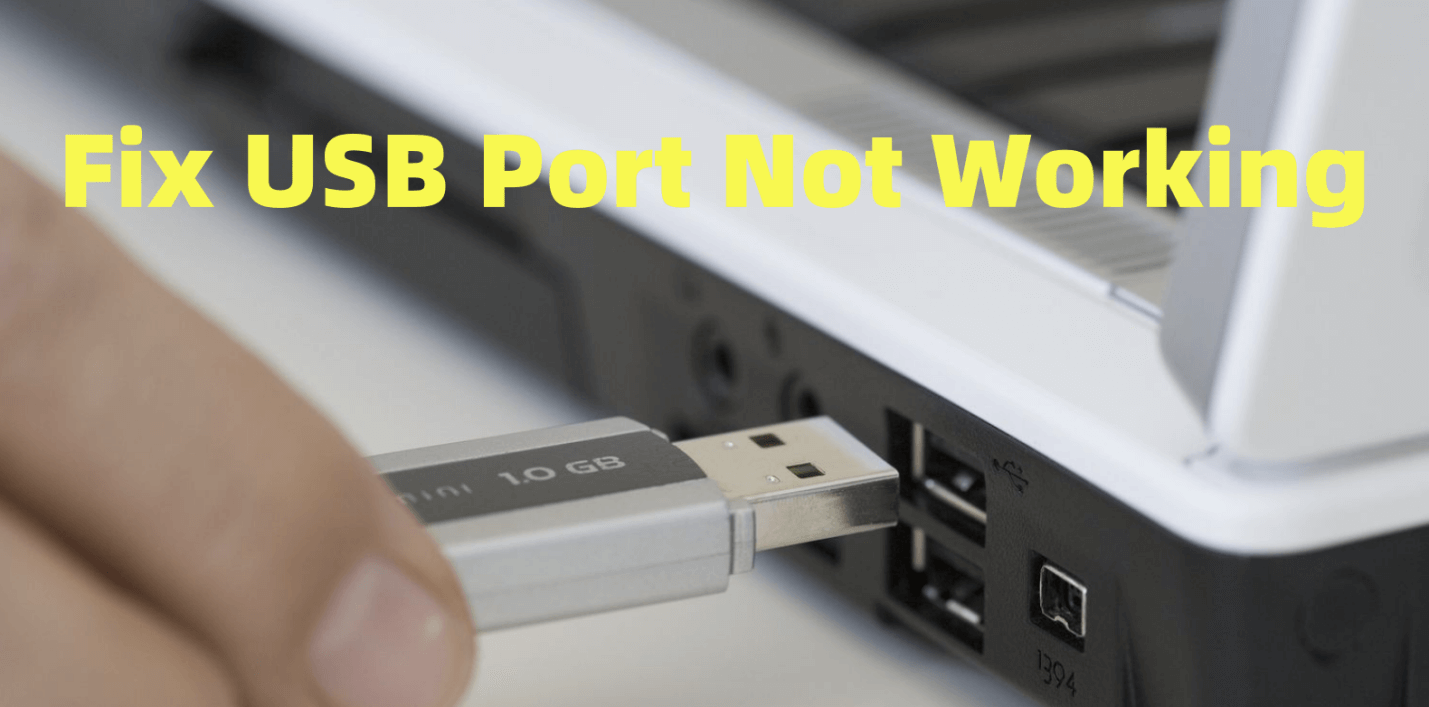
  • Fixing USB Port Not Working on PC: Hardware vs Software (Complete 2026 Troubleshooting Guide)

    Fixing USB Port Not Working on PC: Hardware vs Software (Complete 2026 Troubleshooting Guide)

    Look, I’ve seen this error a thousand times—your USB port suddenly stops working, your mouse disconnects, your keyboard won’t respond, or your flash drive just isn’t detected.

    Here is the real talk about why your rig is acting up: a dead USB port is rarely just “dead.” It’s usually either a software-level conflict (drivers, power settings, BIOS) or a hardware-level failure (port damage, voltage issues, motherboard faults).

    In this deep technical guide from fixrig.xyz, I’ll walk you through fixing USB port not working on PC: hardware vs software, step-by-step—so you can diagnose the real cause and fix it properly.


    Common Symptoms of USB Port Failure

    Before fixing anything, identify the exact behavior:

    1. USB Device Not Recognized

    • Error message in Windows
    • Device doesn’t show in File Explorer

    2. Intermittent Connection

    • Device connects/disconnects randomly
    • Especially when cable moves

    3. No Power from USB Port

    • Phone not charging
    • USB light not turning on

    4. Only Certain Ports Not Working

    • Front panel ports fail
    • Rear motherboard ports work fine

    5. All USB Ports Dead

    • System-wide issue
    • Likely BIOS or power-related

    If your seeing one of these, you’re already halfway to diagnosing the problem.


    Hardware vs Software: The Core Difference

    This is where most people get confused.

    Software Issues

    • Driver corruption
    • Windows update bugs
    • Power management settings
    • BIOS misconfiguration

    Hardware Issues

    • Physical port damage
    • Broken motherboard traces
    • Faulty USB controller
    • Insufficient voltage supply

    Understanding this difference saves hours of guesswork.


    Quick Comparison Table: Software Fix vs Hardware Repair

    CategorySoftware FixHardware Fix
    DifficultyEasyMedium-Hard
    CostFree$$–$$$
    RiskLowMedium
    Time RequiredMinutesHours
    Success RateHigh (if software issue)High (if hardware replaced)

    Tools Checklist Before Troubleshooting

    Prepare these tools:

    • Flash drive or USB device (for testing)
    • Screwdriver set
    • Device Manager access
    • Latest motherboard drivers
    • Optional USB hub or adapter
    • BIOS access

    Pro tip: Always test with multiple USB devices—don’t assume your device isn’t the problem.


    Step-by-Step: Fixing USB Port Not Working on PC

    Step 1: Test the USB Device First

    • Plug into another PC
    • Try a different cable

    If it doesn’t work anywhere, your device—not the port—is faulty.


    Step 2: Try Different USB Ports

    • Test front vs rear ports
    • Test USB 2.0 vs USB 3.0

    This helps isolate whether the issue is localized.


    Step 3: Restart Your System (Yes, Seriously)

    Temporary glitches happen.

    • Full shutdown (not restart)
    • Power on again

    Simple—but surprisingly effective.


    Step 4: Check Device Manager

    • Press Win + X → Device Manager
    • Expand Universal Serial Bus controllers

    Look for:

    • Yellow warning icons
    • Unknown devices

    Step 5: Reinstall USB Drivers

    This is critical.

    • Right-click each USB controller
    • Select Uninstall device
    • Restart PC

    Windows will reinstall drivers automatically.

    Outdated drivers are a major cause in 2026 systems.


    Step 6: Disable USB Power Saving

    Windows can disable ports silently.

    • Device Manager → USB Root Hub
    • Properties → Power Management
    • Uncheck:
      • “Allow the computer to turn off this device”

    This fixes random disconnect issues.


    Step 7: Check BIOS Settings

    Most users skip this—and regret it.

    • Enter BIOS (DEL/F2)
    • Look for:
      • USB Configuration
      • Legacy USB Support

    Ensure everything is enabled.

    If USB is disabled here, Windows won’t detect it at all.


    Step 8: Update Chipset Drivers

    USB controllers rely on chipset drivers.

    • Download from motherboard manufacturer
    • Install latest version

    This step alone solves many compatibility issues.


    Step 9: Inspect Physical Ports

    Now we move into hardware territory.

    Check for:

    • Bent pins
    • Dust buildup
    • Loose connectors

    Clean gently using compressed air.


    Step 10: Check Front Panel Connections

    If front USB ports don’t work:

    • Open case
    • Check USB header cable connected to motherbord

    Loose cables are a very common issue.


    Step 11: Test with External USB Hub

    • Plug hub into working port
    • Connect devices through hub

    If hub works, your port may have power limitations.


    Step 12: Advanced Hardware Diagnosis

    If all else fails:

    • Test motherboard USB controller
    • Check PSU voltage stability
    • Inspect for burn marks or damage

    At this stage, hardware replacement may be required.


    Advanced Troubleshooting (Pro Level)

    Check Voltage Output

    USB ports require stable 5V output.

    • Weak PSU = unstable USB behavior
    • Especially in older systems

    Monitor System Load

    High CPU load or thermal throttling can affect USB stability.

    • Check Task Manager
    • Look for abnormal proccess spikes

    BIOS Firmware Update

    Manufacturers release fixes for USB compatibility.

    Update carefully—don’t interrupt the proccess.


    Common Mistakes That Make It Worse

    Ignoring BIOS Settings

    USB might be disabled at firmware level.

    Using Cheap USB Devices

    Low-quality devices cause connection issues.

    Forcing Damaged Ports

    This can permanently damage your motherboard.

    Skipping Driver Updates

    Drivers are critical for USB functionality.


    Real-World Scenarios

    Problem: Only front USB ports not working

    Cause: Loose internal cable
    Fix: Reconnect USB header

    Problem: USB works but disconnects randomly

    Cause: Power saving or voltage issue
    Fix: Disable power management

    Problem: No USB ports working

    Cause: BIOS disabled or chipset failure
    Fix: Enable BIOS or update drivers


    Pro Tips from a Hardware Engineer

    • Always use rear motherboard USB ports for critical devices
    • Keep ports clean and dust-free
    • Avoid overloading USB hubs
    • Invest in a reliable PSU

    And here’s something most guides won’t tell you:
    USB issues can sometimes be caused by electromagnetic interference inside your case—especially with poor cable shielding.


    When to Replace Hardware

    Replace components if:

    • Ports are physically damaged
    • USB controller fails completely
    • Motherboard shows burn marks

    At that point, your just delaying the inevitable.


    Final Thoughts: Diagnose Before You Replace

    Fixing USB port not working on PC comes down to one thing: correct diagnosis.

    Software issues are quick wins.
    Hardware issues require careful inspection.

    But if you follow this guide step-by-step, you’ll know exactly what’s wrong—and how to fix it.


    CTA: Fix It Right with fixrig.xyz

    At fixrig.xyz, we don’t just give quick fixes—we teach you how to master your hardware.

    Still dealing with dead USB ports? Not sure if it’s drivers, BIOS, or your motherboard?

    Drop your system specs and issue in the comments—and let’s troubleshoot your rig like a pro.

    Because your PC should work for you… not against you.

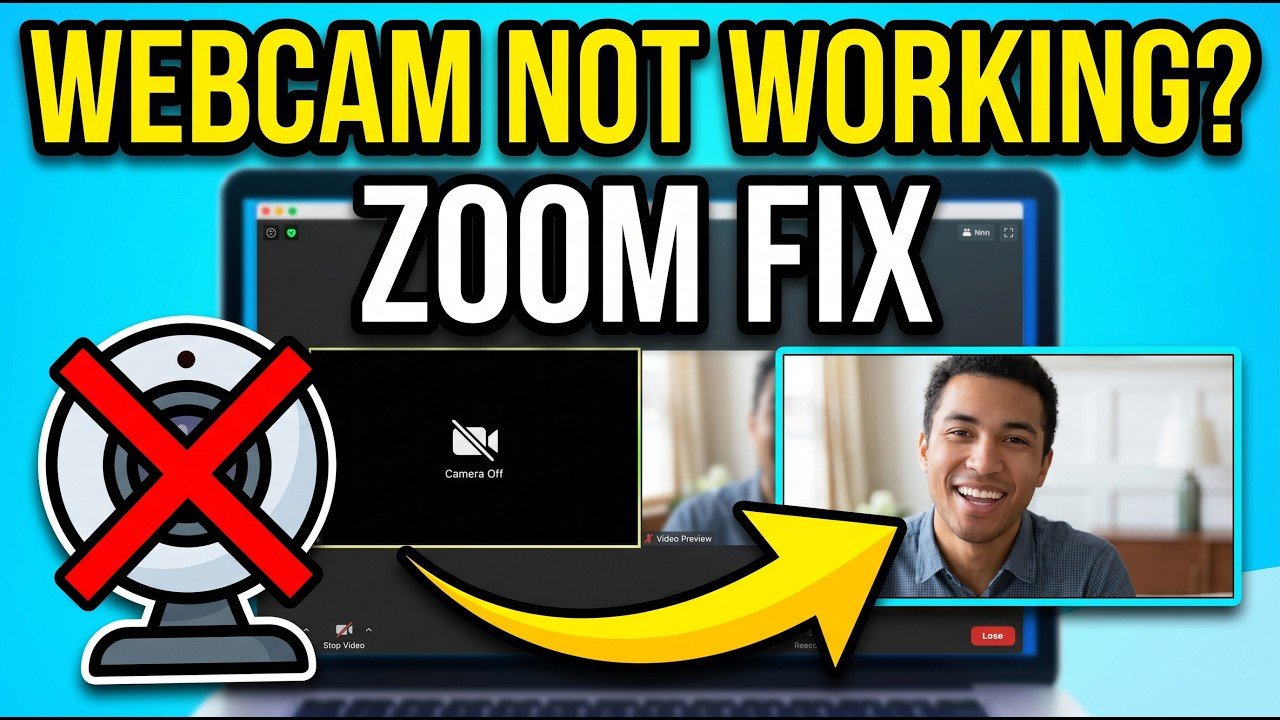
  • Troubleshooting Webcam Not Working on Zoom: Hardware Check (Complete 2026 Fix Guide That Actually Works)

    Troubleshooting Webcam Not Working on Zoom: Hardware Check (Complete 2026 Fix Guide That Actually Works)

    Look, I’ve seen this issue a thousand times—you join an important meeting, turn on your camera… and nothing. Black screen. Error message. Or worse—Zoom can’t even detect your webcam.

    Here is the real talk about why your rig is acting up: when your webcam isn’t working on Zoom, it’s not always a “Zoom problem.” In many cases, it’s a deeper issue involving hardware detection, drivers, BIOS settings, USB bandwidth, or even voltage instability.

    In this expert-level guide from fixrig.xyz, I’ll walk you through troubleshooting webcam not working on Zoom: hardware check, step-by-step—so you can identify the root cause and fix it properly.


    Common Symptoms of Webcam Issues on Zoom

    Before you start fixing anything, identify the exact problem:

    1. Black Screen in Zoom

    • Camera selected but no video output

    2. “No Camera Detected” Error

    • Zoom doesn’t recognize webcam

    3. Webcam Works in Other Apps but Not Zoom

    • Conflict or permission issue

    4. Flickering or Freezing Video

    • Hardware bandwidth or driver instability

    5. Camera Disconnects Randomly

    • USB or power-related issue

    If your experiencing any of these, don’t worry—we’ll break it down.


    Root Causes (2026 Hardware-Level Analysis)

    USB Port Failure or Weak Power

    Webcams rely on stable voltage via USB.

    Driver Corruption or Incompatibility

    Camera drivers control detection and image processing.

    BIOS Camera Disable Setting

    Some laptops disable webcam at firmware level.

    USB Bandwidth Overload

    Too many devices = unstable webcam feed.

    Privacy Shutter / Hardware Switch

    Yes—sometimes it’s just physically blocked.

    Thermal or System Load Interference

    High CPU usage can affect video capture performance.


    Tools Checklist Before Troubleshooting

    Prepare these tools:

    • External webcam (if available)
    • Access to Device Manager
    • Latest webcam drivers
    • USB ports (front + rear)
    • BIOS access

    Pro tip: Always test your webcam outside Zoom first.


    Comparison Table: Software Fix vs Hardware Fix

    Fix TypeDifficultyCostEffectiveness
    Restart ZoomEasyFreeLow
    Update DriversEasyFreeHigh
    Change USB PortEasyFreeHigh
    BIOS Enable CameraMediumFreeHigh
    Replace WebcamMedium$$Maximum

    Step-by-Step: Troubleshooting Webcam Not Working on Zoom (Hardware Check)

    Step 1: Test Webcam Outside Zoom

    • Open Camera app in Windows
    • Check if video works

    If it doesn’t → hardware or driver issue
    If it works → Zoom configuration issue


    Step 2: Check Physical Camera Status

    • Ensure privacy shutter is open
    • Check for hardware toggle key (Fn + camera icon)

    You’d be surprised how often this is the issue.


    Step 3: Try Different USB Port

    For external webcams:

    • Use rear motherboard USB port
    • Avoid front panel ports

    Rear ports provide more stable voltage.


    Step 4: Check Device Manager

    • Press Win + X → Device Manager
    • Expand Cameras

    Look for:

    • Missing device
    • Warning icons

    If webcam isn’t listed → detection issue.


    Step 5: Reinstall Webcam Drivers

    • Right-click webcam → Uninstall
    • Restart PC

    Then install latest drivers from manufacturer.

    Drivers are critical for compatibility with modern apps like Zoom.


    Step 6: Check Zoom Camera Settings

    Inside Zoom:

    • Go to Settings → Video
    • Select correct camera

    Sometimes Zoom defaults to wrong device.


    Step 7: Close Conflicting Applications

    Apps like:

    • Browsers
    • OBS
    • Other video tools

    Can lock the camera.

    Close them before launching Zoom.


    Step 8: Check Windows Privacy Settings

    • Settings → Privacy → Camera
    • Enable access for apps
    • Ensure Zoom is allowed

    Without permission, camera won’t work.


    Step 9: Enter BIOS and Verify Camera

    This is where most users never look.

    • Restart → Enter BIOS (DEL/F2)
    • Locate:
      • Integrated camera setting

    Make sure it’s enabled.

    If disabled here, no software fix will work.


    Step 10: Test with External Webcam

    • Plug in USB webcam
    • Check detection

    If external works → internal camera hardware issue.


    Advanced Troubleshooting (Pro Level)

    Check USB Bandwidth

    Too many USB devices can overload:

    • Disconnect unnecessary peripherals
    • Test webcam alone

    Monitor System Load

    High CPU usage can cause:

    • Video freezing
    • Camera lag

    Check Task Manager for heavy proccess usage.


    Update BIOS Firmware

    Manufacturers release fixes for camera detection issues.

    Update carefully—don’t interrupt the proccess.


    Common Mistakes That Make It Worse

    Ignoring BIOS Settings

    Camera may be disabled at firmware level.

    Using Front USB Ports

    These often provide unstable power.

    Skipping Driver Installation

    Drivers are essential for camera functionality.

    Running Multiple Camera Apps

    This causes device conflicts.


    Real-World Scenarios

    Problem: Webcam not detected anywhere

    Cause: Hardware or BIOS issue
    Fix: Enable in BIOS or replace camera

    Problem: Works in Camera app but not Zoom

    Cause: App conflict or settings
    Fix: Check Zoom configuration

    Problem: Video freezes randomly

    Cause: USB bandwidth or CPU load
    Fix: Reduce load + change port


    Pro Tips from a Hardware Engineer

    • Always use rear USB ports for webcams
    • Keep drivers updated regularly
    • Avoid cheap USB hubs
    • Monitor system performance during calls

    And here’s something most guides won’t tell you:
    Your GPU load (especially during screen sharing) can indirectly affect webcam performance due to shared system resources.


    When to Replace Hardware

    Replace your webcam if:

    • Not detected in Device Manager
    • Fails across multiple systems
    • Internal camera stops working permanently

    At that point, your just wasting time troubleshooting.


    Final Thoughts: Diagnose Before You Panic

    Troubleshooting webcam not working on Zoom comes down to systematic diagnosis:

    Hardware → Drivers → BIOS → Software

    Skip one—and you’ll miss the real problem.

    Follow all steps—and your camera will be back online.


    CTA: Fix Your Setup Like a Pro

    At fixrig.xyz, we don’t just fix problems—we help you master your hardware.

    Still stuck with a black screen on Zoom? Camera not detected?

    Drop your laptop/PC specs and issue in the comments—and let’s troubleshoot your rig step-by-step.

    Because your meetings should run smoothly… not stressfully.

  • Fixing Mic Static and Background Noise on PC (Complete 2026 Troubleshooting Guide That Actually Works)

    Fixing Mic Static and Background Noise on PC (Complete 2026 Troubleshooting Guide That Actually Works)

    Look, I’ve seen this issue a thousand times—you join a meeting, start talking… and someone says, “Bro, your mic is buzzing.”

    Or worse—your audio sounds like you’re broadcasting from inside a broken radio.

    Here is the real talk about why your rig is acting up: mic static and background noise on PC is rarely just “a bad mic.” It’s usually a combination of grounding issues, driver problems, poor shielding, voltage interference, or wrong audio settings.

    In this deep technical guide from fixrig.xyz, I’ll walk you through fixing mic static and background noise on PC, step-by-step—covering both software and hardware-level solutions used by professionals.


    Common Symptoms of Mic Static & Noise

    Before fixing anything, identify the type of noise:

    1. Constant Buzzing (Electrical Noise)

    • Low hum or high-pitched buzz
    • Gets louder when PC is under load

    2. Hissing Sound

    • Background “ssssss” noise
    • Common with cheap microphones

    3. Crackling or Popping

    • Random audio distortion
    • Often driver or cable related

    4. Echo or Background Amplification

    • Picks up room noise excessively
    • Poor noise suppression settings

    If your hearing any of these, your audio chain needs fixing.


    Root Causes (2026 Audio System Breakdown)

    Ground Loop Interference

    Electrical grounding issues cause buzzing.

    Poor Shielding (Cables/Mic)

    Cheap cables pick up interference.

    Outdated or Corrupt Audio Drivers

    Drivers control audio signal processing.

    High Mic Gain Settings

    Too much gain amplifies noise.

    USB Power Noise

    Unstable voltage from USB ports.

    Thermal or System Load Interference

    Yes—thermal throttling and high load can affect audio clarity.


    Tools Checklist Before You Start

    Prepare these tools:

    • Headphones (for monitoring)
    • Alternative USB port
    • Updated audio drivers
    • Optional USB sound card
    • Shielded audio cables

    Pro tip: Always test your mic on another device to isolate the problem.


    Comparison Table: Software Fix vs Hardware Fix

    Fix TypeDifficultyCostEffectiveness
    Adjust Mic SettingsEasyFreeMedium
    Update DriversEasyFreeHigh
    Reduce GainEasyFreeHigh
    Use USB Sound CardMedium$$Very High
    Replace Mic/CableMedium$$–$$$Maximum

    Step-by-Step: Fixing Mic Static and Background Noise on PC

    Step 1: Test the Microphone

    • Plug mic into another PC or phone
    • Record sample

    If noise persists → hardware issue
    If clean → PC issue


    Step 2: Check Basic Connections

    • Ensure cable is fully plugged in
    • Avoid loose jacks
    • Try different USB or audio port

    Loose connections cause crackling and static.


    Step 3: Reduce Microphone Gain

    This is one of the biggest mistakes users make.

    • Right-click sound icon → Sounds
    • Recording tab → Select mic
    • Properties → Levels

    Set:

    • Mic volume: 70–80%
    • Boost: As low as possible

    Too much gain = amplified noise.


    Step 4: Disable Audio Enhancements

    • Go to mic properties
    • Disable all enhancements

    Some enhancements introduce noise instead of removing it.


    Step 5: Update Audio Drivers

    • Device Manager → Sound, video and game controllers
    • Update drivers

    Better: download from motherboard or laptop manufacturer.

    Drivers directly impact audio processing quality.


    Step 6: Use Noise Suppression Software

    Modern tools can help:

    • Enable built-in noise suppression
    • Use third-party filters if needed

    But remember—software is not a complete fix.


    Step 7: Change USB Port (Critical for USB Mics)

    • Move mic to different USB port
    • Prefer rear motherboard ports

    Front ports often have more interference.


    Step 8: Eliminate Electrical Interference

    Keep mic cables away from:

    • Power cables
    • GPU area
    • PSU

    Electromagnetic interference is a silent killer.


    Step 9: Use External USB Sound Card

    If using 3.5mm mic:

    • Plug into USB sound card
    • Bypass motherboard audio

    This removes internal noise from the system.


    Step 10: Check Grounding

    If you hear buzzing:

    • Try different power outlet
    • Use surge protector
    • Ensure proper grounding

    Ground loop issues are very common.


    Advanced Troubleshooting (Pro Level)

    Check System Load & Thermal Behavior

    High CPU usage or thermal throttling can cause:

    • Audio glitches
    • Crackling

    Monitor Task Manager for abnormal proccess spikes.


    BIOS Audio Settings

    • Enter BIOS
    • Ensure onboard audio enabled
    • Check for audio-related settings

    Some BIOS configurations affect signal stability.


    Cable Quality Upgrade

    • Use shielded cables
    • Avoid cheap adapters

    Cable quality directly affects noise levels.


    Common Mistakes That Make It Worse

    Using Maximum Mic Boost

    This amplifies noise instead of voice.

    Ignoring Cable Quality

    Cheap cables = interference magnet.

    Plugging Into Front Panel

    Front ports often have poor shielding.

    Skipping Driver Updates

    Outdated drivers cause audio instability.


    Real-World Scenarios

    Problem: Constant buzzing sound

    Cause: Ground loop
    Fix: Change outlet or use USB sound card

    Problem: Hissing background noise

    Cause: High gain
    Fix: Lower mic levels

    Problem: Crackling audio

    Cause: Loose connection or driver issue
    Fix: Reconnect + update drivers


    Pro Tips from a Hardware Engineer

    • Always use rear motherboard ports for audio
    • Keep cables organized and separated
    • Invest in a good microphone—it matters
    • Monitor your system load during recording

    And here’s something most guides won’t tell you:
    Your GPU can introduce electrical noise into your audio chain—especially under heavy load.


    When to Replace Hardware

    Replace your mic or setup if:

    • Noise persists after all fixes
    • Cable damage is visible
    • Internal mic circuitry fails

    At that point, your just fighting hardware limitations.


    Final Thoughts: Clean Audio is a System-Level Result

    Fixing mic static and background noise on PC isn’t about one setting—it’s about optimizing your entire audio chain:

    Drivers + Power + Cables + Settings + Hardware

    Get all of them right—and your audio becomes crystal clear.


    CTA: Fix Your Audio Like a Pro

    At fixrig.xyz, we don’t just fix problems—we help you master your setup.

    Still hearing static? Not sure if it’s your mic, drivers, or interference?

    Drop your setup details in the comments—and let’s troubleshoot your rig step-by-step.

    Because your voice deserves to be heard clearly… not through static.