Look, I’ve seen this issue a thousand times—you join an important meeting, turn on your camera… and nothing. Black screen. Error message. Or worse—Zoom can’t even detect your webcam.
Here is the real talk about why your rig is acting up: when your webcam isn’t working on Zoom, it’s not always a “Zoom problem.” In many cases, it’s a deeper issue involving hardware detection, drivers, BIOS settings, USB bandwidth, or even voltage instability.
In this expert-level guide from fixrig.xyz, I’ll walk you through troubleshooting webcam not working on Zoom: hardware check, step-by-step—so you can identify the root cause and fix it properly.
Common Symptoms of Webcam Issues on Zoom
Before you start fixing anything, identify the exact problem:
1. Black Screen in Zoom
- Camera selected but no video output
2. “No Camera Detected” Error
- Zoom doesn’t recognize webcam
3. Webcam Works in Other Apps but Not Zoom
- Conflict or permission issue
4. Flickering or Freezing Video
- Hardware bandwidth or driver instability
5. Camera Disconnects Randomly
- USB or power-related issue
If your experiencing any of these, don’t worry—we’ll break it down.

Root Causes (2026 Hardware-Level Analysis)
USB Port Failure or Weak Power
Webcams rely on stable voltage via USB.
Driver Corruption or Incompatibility
Camera drivers control detection and image processing.
BIOS Camera Disable Setting
Some laptops disable webcam at firmware level.
USB Bandwidth Overload
Too many devices = unstable webcam feed.
Privacy Shutter / Hardware Switch
Yes—sometimes it’s just physically blocked.
Thermal or System Load Interference
High CPU usage can affect video capture performance.
Tools Checklist Before Troubleshooting
Prepare these tools:
- External webcam (if available)
- Access to Device Manager
- Latest webcam drivers
- USB ports (front + rear)
- BIOS access
Pro tip: Always test your webcam outside Zoom first.
Comparison Table: Software Fix vs Hardware Fix
| Fix Type | Difficulty | Cost | Effectiveness |
|---|---|---|---|
| Restart Zoom | Easy | Free | Low |
| Update Drivers | Easy | Free | High |
| Change USB Port | Easy | Free | High |
| BIOS Enable Camera | Medium | Free | High |
| Replace Webcam | Medium | $$ | Maximum |
Step-by-Step: Troubleshooting Webcam Not Working on Zoom (Hardware Check)
Step 1: Test Webcam Outside Zoom
- Open Camera app in Windows
- Check if video works
If it doesn’t → hardware or driver issue
If it works → Zoom configuration issue
Step 2: Check Physical Camera Status
- Ensure privacy shutter is open
- Check for hardware toggle key (Fn + camera icon)
You’d be surprised how often this is the issue.
Step 3: Try Different USB Port
For external webcams:
- Use rear motherboard USB port
- Avoid front panel ports
Rear ports provide more stable voltage.
Step 4: Check Device Manager
- Press Win + X → Device Manager
- Expand Cameras
Look for:
- Missing device
- Warning icons
If webcam isn’t listed → detection issue.
Step 5: Reinstall Webcam Drivers
- Right-click webcam → Uninstall
- Restart PC
Then install latest drivers from manufacturer.
Drivers are critical for compatibility with modern apps like Zoom.
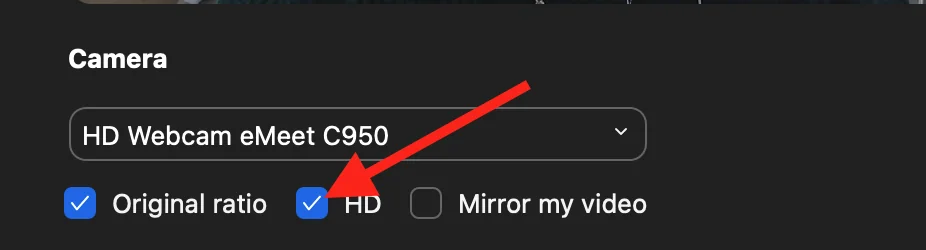
Step 6: Check Zoom Camera Settings
Inside Zoom:
- Go to Settings → Video
- Select correct camera
Sometimes Zoom defaults to wrong device.
Step 7: Close Conflicting Applications
Apps like:
- Browsers
- OBS
- Other video tools
Can lock the camera.
Close them before launching Zoom.
Step 8: Check Windows Privacy Settings
- Settings → Privacy → Camera
- Enable access for apps
- Ensure Zoom is allowed
Without permission, camera won’t work.
Step 9: Enter BIOS and Verify Camera
This is where most users never look.
- Restart → Enter BIOS (DEL/F2)
- Locate:
- Integrated camera setting
Make sure it’s enabled.
If disabled here, no software fix will work.
Step 10: Test with External Webcam
- Plug in USB webcam
- Check detection
If external works → internal camera hardware issue.
Advanced Troubleshooting (Pro Level)
Check USB Bandwidth
Too many USB devices can overload:
- Disconnect unnecessary peripherals
- Test webcam alone
Monitor System Load
High CPU usage can cause:
- Video freezing
- Camera lag
Check Task Manager for heavy proccess usage.
Update BIOS Firmware
Manufacturers release fixes for camera detection issues.
Update carefully—don’t interrupt the proccess.
Common Mistakes That Make It Worse
Ignoring BIOS Settings
Camera may be disabled at firmware level.
Using Front USB Ports
These often provide unstable power.
Skipping Driver Installation
Drivers are essential for camera functionality.
Running Multiple Camera Apps
This causes device conflicts.
Real-World Scenarios
Problem: Webcam not detected anywhere
Cause: Hardware or BIOS issue
Fix: Enable in BIOS or replace camera
Problem: Works in Camera app but not Zoom
Cause: App conflict or settings
Fix: Check Zoom configuration
Problem: Video freezes randomly
Cause: USB bandwidth or CPU load
Fix: Reduce load + change port
Pro Tips from a Hardware Engineer
- Always use rear USB ports for webcams
- Keep drivers updated regularly
- Avoid cheap USB hubs
- Monitor system performance during calls
And here’s something most guides won’t tell you:
Your GPU load (especially during screen sharing) can indirectly affect webcam performance due to shared system resources.
When to Replace Hardware
Replace your webcam if:
- Not detected in Device Manager
- Fails across multiple systems
- Internal camera stops working permanently
At that point, your just wasting time troubleshooting.
Final Thoughts: Diagnose Before You Panic
Troubleshooting webcam not working on Zoom comes down to systematic diagnosis:
Hardware → Drivers → BIOS → Software
Skip one—and you’ll miss the real problem.
Follow all steps—and your camera will be back online.
CTA: Fix Your Setup Like a Pro
At fixrig.xyz, we don’t just fix problems—we help you master your hardware.
Still stuck with a black screen on Zoom? Camera not detected?
Drop your laptop/PC specs and issue in the comments—and let’s troubleshoot your rig step-by-step.
Because your meetings should run smoothly… not stressfully.
Leave a Reply