H1: How to troubleshoot RAM issues using beep codes and fix memory errors like a pro
When your PC refuses to boot and instead starts making those annoying beep sounds, it’s not random noise—it’s your motherboard trying to talk to you.
And look, I’ve seen this situation a thousand times in gaming rigs, office PCs, and even high-end workstation builds. Most users panic and assume the system is dead. But in reality, those beep codes are one of the most useful diagnostic tools you have.
If you understand how to troubleshoot RAM issues using beep codes, you can save yourself from unnecessary repairs, data loss, and expensive replacements.
Let’s break it down like a senior IT hardware engineer would—simple, real, and based on modern 2026 troubleshooting standards.
What Are Beep Codes in RAM Troubleshooting?
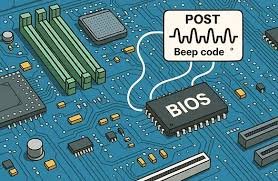
Beep codes are audio signals produced by your motherboard during POST (Power-On Self Test). When your system detects a hardware issue—especially with RAM—it uses a specific beep pattern to report the error.
Instead of showing a display error, the system says:
“Hey, something is wrong with memory initialization.”
Different BIOS manufacturers (AMI, Award, Phoenix, UEFI-based systems) use different beep patterns.
Common RAM-Related Beep Code Symptoms
Before jumping into fixes, identify the signs:
Typical Symptoms
- Continuous long beeps on startup
- 1 long + 2 short beeps (common RAM error pattern)
- No display but system powers on
- System restarts repeatedly before BIOS screen
- Fans spin but no boot signal
Advanced Symptoms (2026 systems)
- RGB lights on RAM but no POST
- Debug LED stuck on “DRAM”
- Intermittent boot failure (works sometimes, fails sometimes)
Look, if your system is doing any of these, RAM or memory channel is your first suspect.
Why RAM Errors Trigger Beep Codes (Root Causes)
Let’s go deeper into the actual technical reasons.
1. Improper RAM Seating
Even a slightly loose DIMM can break memory initialization.
2. Dirty or Oxidized Contacts
Dust or oxidation on RAM pins disrupts signal transmission.
3. BIOS Incompatibility
New DDR5/DDR5X modules sometimes need BIOS updates.
4. Faulty RAM Stick
One bad module can stop the entire system from booting.
5. Motherboard Slot Failure
Yes, sometimes it’s not RAM—it’s the slot or memory channel.
6. Voltage Instability
Incorrect XMP/EXPO profiles can cause memory training failure.
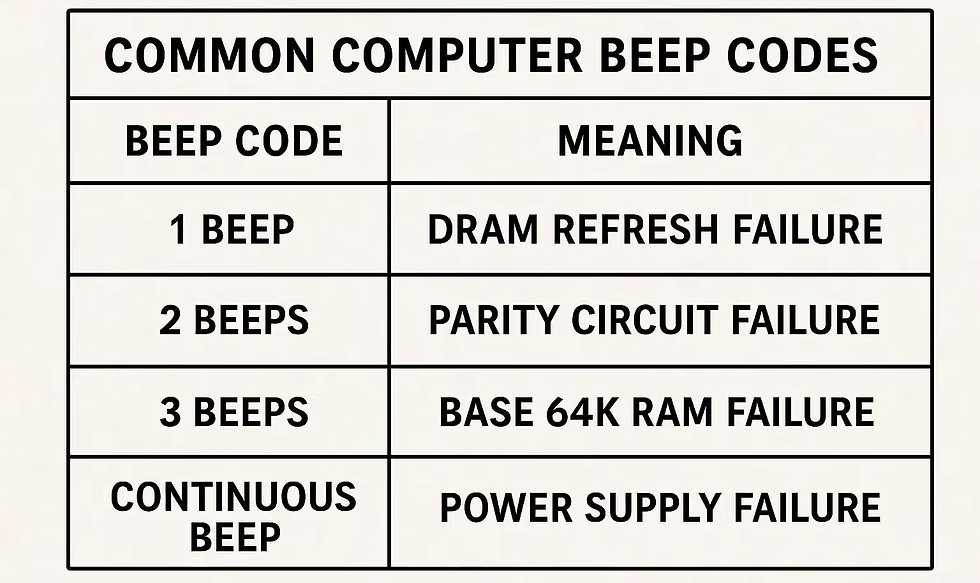
RAM Beep Code Reference Table (General 2026 Guide)
| Beep Pattern | Meaning | Likely Issue |
|---|---|---|
| 1 long, 2 short | RAM error | Faulty or unseated RAM |
| Continuous short beeps | Power/RAM issue | Voltage or seating problem |
| 3 long beeps | Base memory failure | RAM not detected |
| No beep, no display | Severe hardware issue | RAM or motherboard fault |
| Repeating long beeps | Memory training failure | BIOS or RAM incompatibility |
Note: Exact patterns vary by motherboard manufacturer, so always check BIOS type.
Tools You Need for RAM Troubleshooting
Before opening your system, gather these:
- Compressed air or blower
- Isopropyl alcohol (for cleaning contacts)
- Soft brush
- Screwdriver kit
- Known-good RAM stick (for testing)
- CMOS reset jumper or screwdriver
- Anti-static wrist strap (recommended but often ignored 😅)
Step-by-Step Guide: How to troubleshoot RAM issues using beep codes
Now let’s fix the problem systematically.
Step 1: Identify Beep Pattern Carefully
Restart the system and listen closely.
Don’t rush this step. Even a small difference in beep timing can change diagnosis.
Step 2: Power Off and Disconnect System
Turn off PSU switch and unplug the system completely.
Wait at least 30–60 seconds before touching internal components.
Step 3: Reseat RAM Modules
Remove RAM sticks and reinstall them firmly until you hear a click.
💡 Tech Mentor Tip: I once fixed a “dead motherboard” issue just by reseating RAM. No joke, it was just slightly loose.
Step 4: Test One RAM Stick at a Time
If you have multiple sticks:
- Boot with one stick only
- Try different slots
- Identify faulty module or slot
This is the most important isolation method.
Step 5: Clear CMOS / Reset BIOS
If RAM still fails:
- Reset BIOS settings
- Remove CMOS battery for 5 minutes
- Or use motherboard reset jumper
This clears unstable memory training settings.
Step 6: Disable XMP / EXPO Profiles
Modern RAM runs at high frequencies, but unstable profiles cause boot failure.
- Enter BIOS
- Disable XMP/EXPO
- Boot with default speed
If system works, instability was the issue.
Step 7: Check for BIOS Update
Older BIOS versions often fail with new DDR5 modules.
Update motherboard firmware carefully (don’t interrupt power or you’ll regret it 😬).
Step 8: Test on Another System (If Possible)
If RAM still fails:
- Test in another PC
- Or use memory diagnostic tools
If it fails everywhere → RAM is likely dead.
Software vs Hardware Fix Comparison
| Fix Type | When to Use | Success Rate |
|---|---|---|
| BIOS reset | Random boot failures | High |
| Reseat RAM | Beep codes + no display | Very High |
| Single-stick test | Intermittent issues | High |
| XMP disable | Boot loops | Medium-High |
| RAM replacement | Confirmed failure | Final solution |
Real Talk: When RAM Is Actually Dead
Here’s the honest truth most people don’t want to hear.
Your RAM is likely failing if:
- It fails in multiple systems
- Beep codes persist after all fixes
- BIOS cannot detect any module
- System only boots with random sticks sometimes
At that point, no software tweak will save it.
Preventing RAM Issues in Future Builds
If you want a stable system in 2026:
- Always check motherboard QVL list
- Avoid mixing different RAM brands
- Keep BIOS updated
- Don’t push unstable overclocks
- Use quality PSU (yes, it affects RAM too)
- Clean system every few months
Small mistakes = big instability later.
Tech Mentor Insight
Here is the real talk about why your rig is acting up: most RAM failures are not sudden—they are gradual. Systems usually “warn you” through beep codes before complete failure.
But users ignore those signals.
And then they blame the motherboard or CPU.
When in reality, your system was telling you the problem all along.
Also, small typo warning from real-world experience—people often misread “motherboard” as “motherbord” in panic situations, so yeah, don’t rush troubleshooting 😄
Final Thoughts & CTA
If you’re dealing with RAM beep codes, don’t panic and don’t start replacing parts randomly. Follow a structured approach and isolate the issue step by step.
For more deep hardware troubleshooting guides, DIY repair walkthroughs, and real-world PC fixes, visit fixrig.xyz—your go-to hub for hardware enthusiasts and system builders.
Got a stubborn RAM issue that won’t go away? Drop your problem in the comments or reach out to the fixrig.xyz community. Someone has definitely seen that exact beep pattern before and already solved it.
Because in modern PC repair, knowledge isn’t optional anymore—it’s the difference between a quick fix and a costly mistake.
Leave a Reply