H1: Troubleshooting GPU Artifacting: Is Your Card Dying or Just Misbehaving?
If your screen suddenly starts showing weird colored squares, flickering textures, random glitches, or “digital snow,” then congrats—you’ve just met GPU artifacting. And look, I’ve seen this error a thousand times in gaming rigs, editing stations, and even high-end AI workstations. Sometimes it’s nothing serious. Other times… yeah, your GPU might be on life support.
Here’s the real talk: not every artifact means your card is dead. But ignoring it? That’s how people turn a fixable issue into a full GPU replacement.
Let’s break it down like a senior hardware engineer would—simple, practical, and based on real-world 2026 troubleshooting standards.
What is GPU Artifacting (In Simple Terms)?
GPU artifacting is visual corruption caused when your graphics card starts producing incorrect image data.
Instead of clean frames, you get:
- Random colored pixels
- Checkerboard patterns
- Flickering textures
- Screen tearing that looks “broken”
- Weird geometric glitches in games or UI
In modern systems (RTX 40/50 series, RX 7000+ and newer), artifacting is often tied to VRAM instability, overheating, or driver-level conflicts.
Common Symptoms of GPU Artifacting
If you’re unsure whether your GPU is failing, check for these signs:
Visual Symptoms
- Pink/green squares in games
- Texture flashing or disappearing
- UI elements glitching in Windows
- Black screen flashes during load
Performance Symptoms
- Sudden FPS drops
- System freezes under load
- Crashes when launching games
Hardware Behavior
- GPU fans ramping up aggressively
- High temperatures even at idle
- Coil whine increasing over time
Root Causes of GPU Artifacting (2026 Breakdown)
Let’s go deeper than just “your GPU is bad.”
1. VRAM Degradation
Modern GPUs rely heavily on GDDR6X / GDDR7 memory. If VRAM starts failing, artifacting is usually the first sign.
2. Thermal Throttling
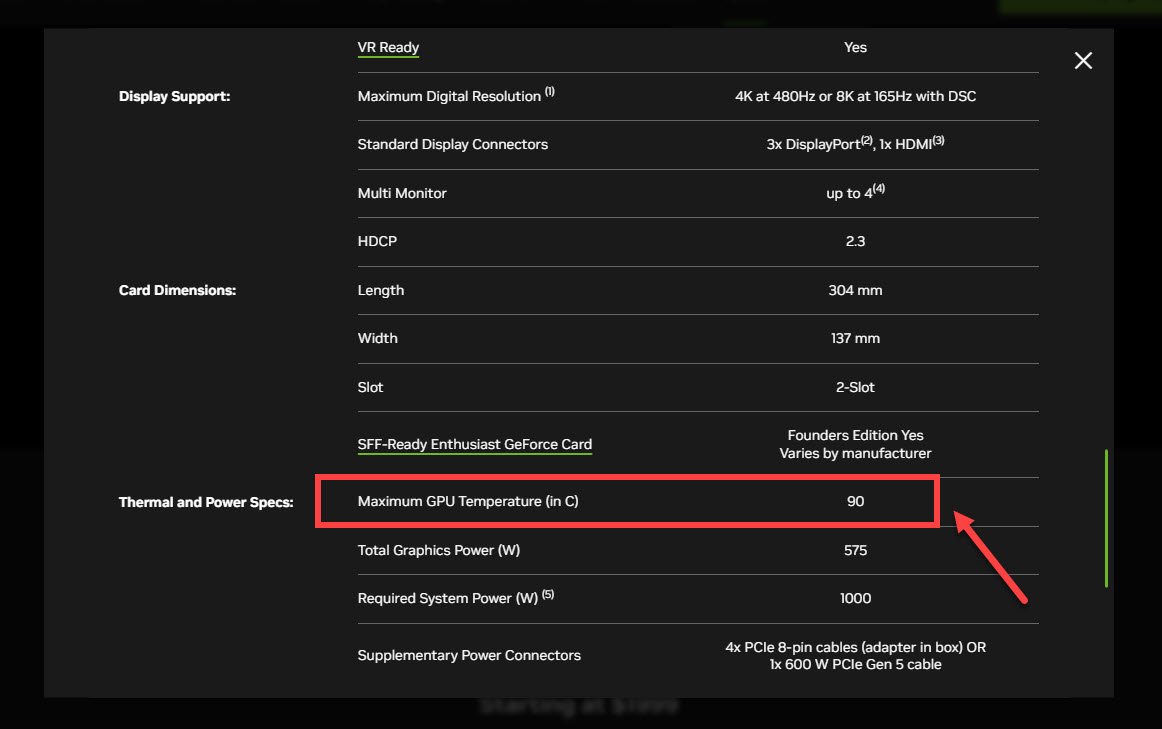
When temps exceed safe limits (~85–95°C depending on model), the GPU starts miscalculating frames.
3. Driver Corruption
Bad or outdated drivers can easily cause artifact-like symptoms, especially after Windows updates.
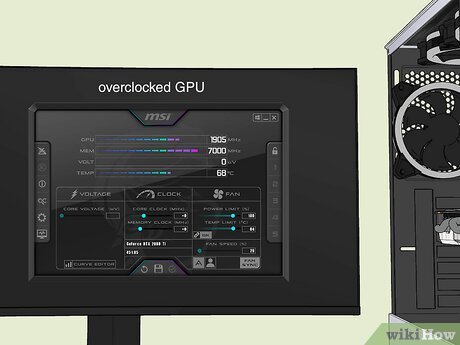
4. Overclock Instability
Even factory OC cards can become unstable over time due to silicon aging.
5. Power Supply Issues
Undervoltage or unstable PSU rails can corrupt GPU output signals.
6. Physical Damage or Dust
Dust buildup or poor airflow = overheating = artifacts. Simple but deadly.
Quick Diagnosis Table: Software vs Hardware Issue
| Symptom | Likely Cause | Fix Type |
|---|---|---|
| Artifacts only in games | Driver/overclock | Software fix |
| Artifacts on boot screen | Hardware failure | Hardware repair |
| Crashes under load | PSU/GPU heat | Mixed fix |
| Normal desktop, glitches in 3D apps | VRAM stress | Hardware/VRAM issue |
| Random flicker + black screen | Power instability | PSU check |
Step-by-Step GPU Artifact Troubleshooting Guide
Let’s fix this like professionals at fixrig.xyz would.
Step 1: Check Temperatures First
Download any hardware monitor tool and check:
- Idle GPU temp
- Load GPU temp
If you’re hitting 85°C+ constantly, that’s your first red flag.
💡 Tech Mentor Tip: I once saw a “dead GPU” turn out to be just clogged with 3 years of dust. No joke.
Step 2: Reset GPU Overclock
If you’ve overclocked your card:
- Reset to stock settings
- Disable any boost utilities
Even factory OC cards can become unstable over time (silicon aging is real).
Step 3: Clean Driver Reinstall (VERY IMPORTANT)
Do NOT just update drivers. Do a clean install:
- Use DDU (Display Driver Uninstaller)
- Reinstall latest stable driver
- Avoid beta drivers unless testing
Step 4: Test VRAM Stability
Run a VRAM stress test or benchmark tool.
If errors appear quickly:
- Likely VRAM degradation
- Possible permanent hardware issue
Step 5: Check PSU Stability
Low-quality or aging PSUs cause unstable GPU behavior.
Check:
- Wattage sufficiency
- Voltage stability
- Cable seating (very common issue)
Step 6: Physical Inspection
Open your rig and check:
- Dust on heatsink
- Fan health
- Loose GPU seating
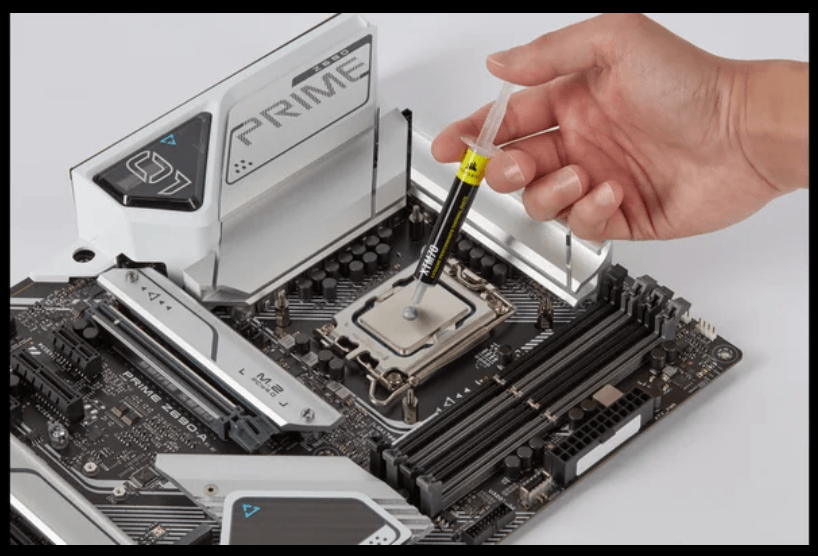
- Thermal paste condition
Yes, dried thermal paste still kills GPUs in 2026.
Software Fix vs Hardware Replacement
| Option | When to Use | Success Rate |
|---|---|---|
| Driver reinstall | Random glitches, new issues | High |
| Reset overclock | After tuning instability | High |
| Thermal cleaning | High temps + artifacts | Medium-High |
| PSU replacement | Random crashes + artifacts | Medium |
| GPU replacement | VRAM failure, boot artifacts | Final solution |
When Your GPU Is Actually Dying
Here’s the uncomfortable truth.
Your GPU is likely failing if:
- Artifacts appear even in BIOS
- VRAM test fails repeatedly
- System crashes under minimal load
- Visual corruption happens immediately at startup
At this stage, no software fix will save it.
Look, I’ve seen rigs go from “small flicker” to full dead screen in just a few weeks. Don’t delay if symptoms are getting worse.
Preventing GPU Artifacting in Future Builds
If you want your next GPU to last longer:
- Keep temps below 80°C under load
- Use a high-quality PSU (don’t cheap out)
- Clean dust every 2–3 months
- Avoid aggressive overclocking
- Maintain good airflow in case
Small habits = long GPU life.
Real Talk from a Tech Mentor
Here is the truth most people ignore: GPU artifacting doesn’t always mean instant failure. But it always means something is wrong—either heat, power, or memory stress.
And yes, sometimes it is the beginning of the end for your card.
But more often than not? It’s fixable if you act early.
Don’t ignore the warning signs, because your system usually gives you multiple chances before it completely gives up.
Final CTA: Fix It Before It Gets Worse
If your GPU is showing any of these symptoms, don’t wait for a full crash.
Head over to fixrig.xyz for more deep troubleshooting guides, DIY repair walkthroughs, and real-world hardware fixes made for gamers, creators, and tech enthusiasts.
Got a weird GPU issue that doesn’t make sense? Drop your problem in the comments or reach out to the fixrig.xyz community—someone has probably seen it before and already solved it.
Because in 2026, smart troubleshooting isn’t optional anymore… it’s survival for your rig.
Leave a Reply