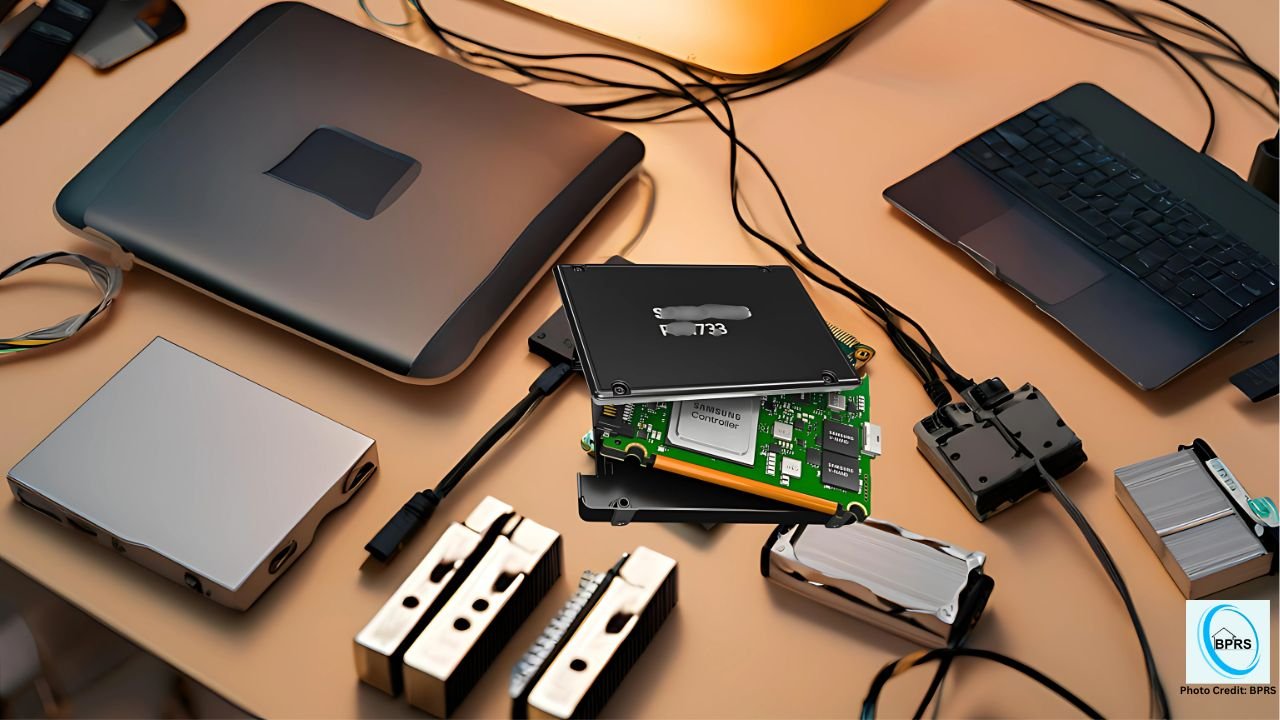
H1: Best budget SSD upgrades for slow office computers in 2026 and how to dramatically boost performance without replacing your PC
If your office computer feels slow, freezes during multitasking, or takes forever to boot, you’re not alone.
And look, I’ve seen this issue a thousand times in real office environments—accounting PCs, admin systems, and remote work setups running on outdated HDDs that struggle just to keep up with modern workloads.
Here is the real talk about why your rig is acting up: most “slow office computers” are not actually weak—they are just bottlenecked by old mechanical hard drives and poor storage architecture.
Let’s fix that like a senior IT hardware engineer working in 2026 system optimization labs.
Why SSD upgrades matter so much in office PCs
Even a basic SSD upgrade can completely transform performance because:
- HDDs rely on spinning disks (slow mechanical access)
- SSDs use flash memory (instant data access)
- Office tasks depend heavily on file read/write speed
In 2026, even budget SSDs outperform older enterprise HDD setups by 10x–20x in real-world usage.
Common symptoms of slow office computers
Performance symptoms
- Slow boot time (2–5 minutes or more)
- Excel or Word lagging
- Apps freezing during multitasking
- File opening delays
System symptoms
- High disk usage (100% in Task Manager)
- Random system hangs
- Slow file transfers
- Delayed login response
Advanced 2026 symptoms
- Cloud sync delays (OneDrive, Google Drive)
- Virtual desktop lag (remote work environments)
- Background indexing overload
Root causes of slow office systems
1. Mechanical HDD bottleneck
Old spinning drives are the biggest performance limiter.
2. Fragmented storage systems
Over time, file fragmentation slows access speed.
3. Background office applications
Teams, Outlook, and sync tools consume disk constantly.
4. Low RAM + HDD combo
This creates extreme paging slowdown.
5. Thermal throttling
Overheating CPUs reduce system responsiveness.
Tools checklist for SSD upgrade
Before upgrading:
- SATA SSD or NVMe SSD (based on system)
- USB cloning tool or fresh Windows installer
- Screwdriver set
- External backup drive
- BIOS access tool
- Disk migration software (optional)
💡 Tech Mentor Tip: I’ve seen office PCs feel “dead” simply because HDD health was at 30%. SSD upgrade instantly brought them back to life.
Comparison: HDD vs SSD performance impact
| Feature | HDD | SSD |
|---|---|---|
| Boot time | Slow (2–5 min) | Fast (10–20 sec) |
| File access | Mechanical delay | Instant |
| Multitasking | Poor | Smooth |
| Noise | Audible spinning | Silent |
| Durability | Fragile | High |
Step-by-step guide: Best budget SSD upgrades for slow office computers in 2026
Now let’s go step-by-step like a professional hardware engineer.
Step 1: Check current storage type
Open system:
- Task Manager → Performance → Disk
- Check if it says HDD or SSD
If HDD → upgrade is highly recommended.
Step 2: Choose the right SSD type
There are two main options:
SATA SSD (budget-friendly)
- Works with older office PCs
- Easy installation
- Good performance boost
NVMe SSD (faster option)
- Requires M.2 slot
- Much faster speeds
- Ideal for newer systems
💡 Tech Mentor Tip: Look, I’ve seen many users overpay for NVMe drives when their system only supports SATA. Always check motherboard compatibility first.
Step 3: Backup your data
Before installing:
- Backup files to external drive
- Sync cloud documents
- Save browser profiles if needed
Never skip this step.
Step 4: Install SSD physically
For SATA SSD:
- Replace HDD with SSD
- Connect SATA cable + power cable
For NVMe SSD:
- Insert into M.2 slot at angle
- Secure properly (screw or bracket if available)
Step 5: Clone system or install fresh OS
Two options:
Option A: Clone existing system
- Use cloning software
- Keeps all files and apps
Option B: Fresh installation
- Install clean Windows
- Better long-term performance
Step 6: BIOS configuration
Enter BIOS and check:
- SSD detection
- Boot priority settings
- AHCI mode enabled (important for SATA SSDs)
BIOS settings directly affect performance stability.
Step 7: Optimize Windows after upgrade
After installation:
- Disable unnecessary startup apps
- Turn off background indexing
- Enable “Best Performance” mode
- Update drivers
This ensures maximum SSD efficiency.
Real Tech Mentor insight
Here is the truth most IT users don’t realize: in office environments, SSD upgrades don’t just improve speed—they change workflow efficiency entirely.
Excel files open instantly, system lag disappears, and even remote desktop sessions become smoother.
And yes, I’ve seen people blame “RAM shortage” or even say “motherbord is slow” when the real issue was just a dying HDD.
Best budget SSD recommendations (2026 perspective)
Without going into brands too deeply, here’s what matters:
- Entry-level SATA SSD = best for old PCs
- Mid-range NVMe SSD = best balance
- High-end NVMe = overkill for office use
Focus on reliability over maximum speed for office systems.
Common mistakes users make
- Keeping HDD as primary drive
- Not enabling AHCI mode in BIOS
- Cloning without SSD optimization
- Installing wrong SSD type
- Ignoring driver updates after upgrade
Even small mistakes can reduce SSD performance significantly.
When SSD upgrade is NOT enough
You may need further upgrades if:
- RAM is below 8GB
- CPU is extremely outdated
- System overheats frequently
- Motherboard is failing
SSD fixes storage bottleneck—not full system limitations.
Prevention tips for long-term performance
- Keep SSD at least 20% free space
- Update firmware occasionally
- Avoid unnecessary background apps
- Clean system files regularly
- Monitor disk health
These habits keep office PCs fast for years.
Final CTA: Upgrade smart, work faster
If your office computer is slow, don’t replace the entire system immediately.
Now you know the best budget SSD upgrades for slow office computers in 2026 using practical, real-world hardware optimization techniques.
For more deep hardware upgrade guides, repair tutorials, and system performance tips, visit fixrig.xyz—your ultimate hub for hardware enthusiasts and DIY fixers.
Got a slow PC setup at work? Drop your system specs in the comments or ask the fixrig.xyz community. Someone has already optimized your exact office configuration before.
Because in modern computing, speed doesn’t come from new PCs—it comes from smart upgrades.
Leave a Reply