
Look, I’ve seen this situation go wrong more times than I can count—someone tries a BIOS update, power flickers for one second, and suddenly the motherboard is a very expensive paperweight.
Here is the real talk about why your rig is acting up when BIOS updates fail: BIOS flashing is one of the most sensitive operations in modern hardware because it directly modifies firmware at the motherboard level.
And doing it without a UPS (Uninterruptible Power Supply) increases the risk of interruption—so the goal is not “zero risk” (that doesn’t exist), but controlled risk management.
In this fixrig.xyz expert guide, we’ll break down How to update BIOS safely without a UPS using real engineering practices used by technicians in 2026.
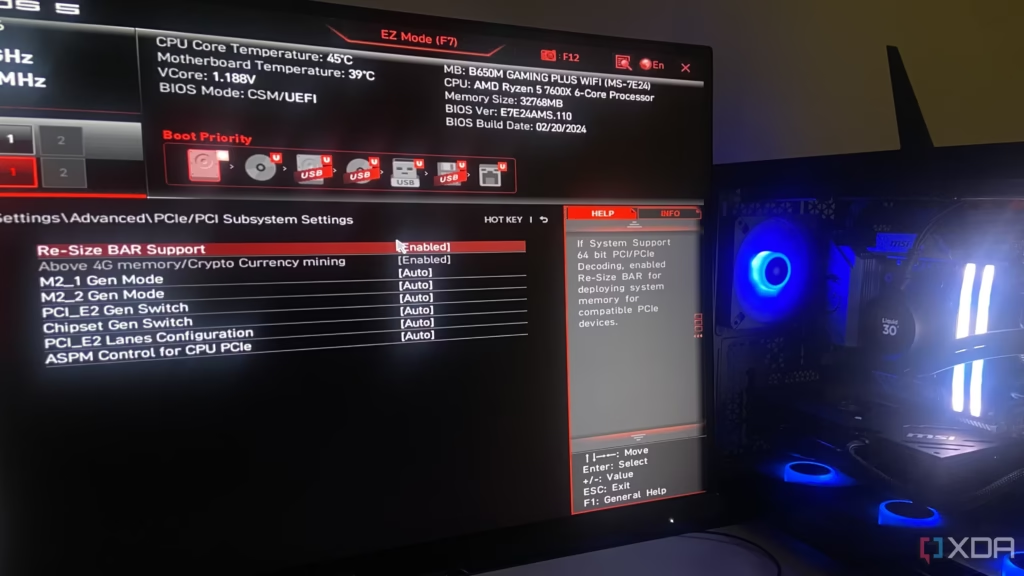
Why BIOS Updates Are High-Risk Operations
BIOS is the foundation firmware of your system. It controls:
- CPU initialization
- RAM training
- Storage detection
- Power sequencing
- PCIe device handshake
If something interrupts this process, the system may fail to boot.

Common Risks When Updating BIOS Without UPS
1. Sudden Power Loss
The biggest danger—can corrupt firmware mid-write.
2. System Freeze During Flashing
Often caused by unstable drivers or background processes.
3. Incorrect BIOS File
Wrong version = incompatibility or boot failure.
4. Overheating During Update
Rare, but possible on poorly cooled systems.
5. Motherboard Recovery Failure
Older boards may not support dual BIOS recovery.
Safe Conditions Before Updating BIOS (Critical Checklist)
Before you even think about flashing BIOS, ensure:
- Stable power outlet (no loose wiring)
- Fully charged laptop battery (if laptop)
- No background heavy processes
- Correct BIOS version downloaded
- USB drive properly formatted (FAT32)
Comparison Table: BIOS Update With vs Without UPS
| Scenario | Risk Level | Stability | Recommendation |
|---|---|---|---|
| With UPS | Very Low | High | Ideal method |
| Without UPS | Moderate | Depends on environment | Acceptable with precautions |
| Low-quality power supply | High | Unstable | Not recommended |
Tools Checklist for Safe BIOS Update Without UPS
You will need:
- Stable USB flash drive (FAT32 formatted)
- Official motherboard BIOS file
- BIOS flash utility (EZ Flash / Q-Flash)
- Laptop charger or stable PSU
- Optional: multimeter (advanced users)
Step-by-Step Guide: How to Update BIOS Safely Without a UPS
Step 1: Verify Motherboard Model
Look, I’ve seen this error a thousand times—people download wrong BIOS versions.
Check:
- Exact motherboard model
- Revision number
- Manufacturer website
Never guess BIOS files.
Step 2: Download Official BIOS Only
Go to:
- ASUS / MSI / Gigabyte official site
Avoid:
- Third-party BIOS files
- Modified firmware
One wrong file = dead board.
Step 3: Prepare USB Drive Properly
Format USB as:
- FAT32
- Clean partition
- Single BIOS file only
Rename file if required by manufacturer.
Step 4: Ensure Stable Power Environment
Since you are not using a UPS, do this:
- Avoid peak electricity hours
- Do not plug into loose sockets
- Disconnect unnecessary devices
If on laptop:
- Plug in charger
- Ensure battery is above 70%
Step 5: Enter BIOS Flash Utility
Most boards use:
- ASUS EZ Flash
- MSI M-Flash
- Gigabyte Q-Flash
Navigate carefully—do not change unrelated settings.
Step 6: Start BIOS Update Process
Now comes the critical moment.
- Select BIOS file from USB
- Confirm update
- Do NOT touch system
This process may take 2–10 minutes.
Step 7: Do Not Interrupt Under Any Condition
This is where most failures happen.
Rules:
- Do NOT restart
- Do NOT press keys
- Do NOT power off system
Even small interruptions can corrupt firmware.
Step 8: Wait for Automatic Reboot
System will restart itself after update.
First boot may take longer than usual—this is normal.
Advanced Safety Techniques (Pro-Level Engineering Tips)
1. Disable Overclocking Before BIOS Update
Overclock instability can cause flashing errors.
2. Close All Background Applications
Reduces system interference.
3. Use BIOS Flashback Feature (If Available)
Some modern boards allow flashing without booting OS.
4. Avoid Storm or Voltage-Unstable Conditions
Even without UPS, environmental stability matters.
5. Keep BIOS File on Root of USB
Avoid folder path confusion during selection.
What Happens If Power Fails Mid-Update?
Here’s the engineering reality:
- BIOS chip may become corrupted
- System may fail POST
- Recovery mode may be required
- In worst case: motherboard replacement
Some modern boards have:
- Dual BIOS recovery
- USB BIOS Flashback recovery
But not all systems are protected.
Recovery Options If BIOS Update Fails
1. CMOS Reset
- Remove battery
- Clear CMOS jumper
2. BIOS Flashback Recovery
- Use dedicated recovery USB port
3. Manufacturer Recovery Mode
Some boards auto-enter recovery BIOS.
Common Mistakes Users Make
Using Wrong BIOS Version
Even slightly wrong version can break compatibility.
Updating During Unstable Power Conditions
Biggest risk without UPS.
Interrupting Update Process
Never touch system during flashing.
Ignoring Motherboard Instructions
Each board has specific update rules.
Real Engineering Insight
BIOS update is not just a “software upgrade”—it is a firmware-level rewrite of your system’s hardware control logic.
That’s why:
- Stability matters more than speed
- Environment matters more than convenience
- Precision matters more than assumptions
Final Thoughts: Risk Control is the Real Skill
Learning How to update BIOS safely without a UPS is not about avoiding risk completely—it’s about minimizing failure probability through preparation and discipline.
If you follow correct steps:
- Stable environment
- Correct BIOS file
- No interruptions
- Proper USB preparation
Then even without UPS, success rate remains high.
CTA: Upgrade Your System Safely with fixrig.xyz
At fixrig.xyz, we don’t just explain BIOS updates—we engineer safe hardware workflows.
Still unsure about your BIOS version or worried about flashing risk?
Drop your motherboard model in the comments, and I’ll guide you step-by-step like a real hardware engineer.
Because in firmware engineering… the smallest mistake can become the biggest failure.
Leave a Reply