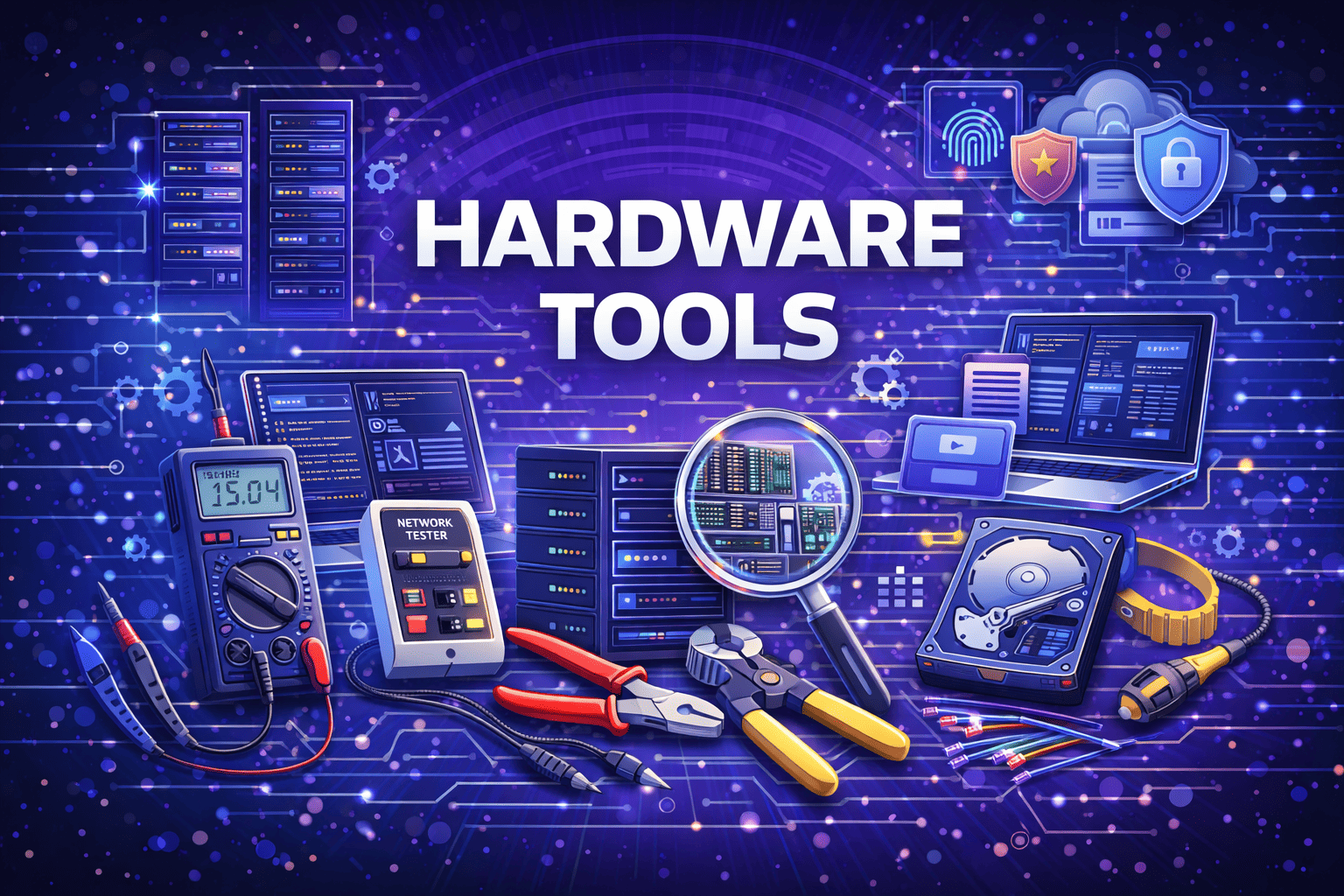
If you’re doing IT support in 2026, one thing is clear—remote troubleshooting is no longer optional, it’s the standard.
Look, I’ve seen this shift happen across companies: laptops, workstations, and even high-end gaming rigs are now diagnosed without ever touching the device physically.
Here is the real talk about why your IT workflow matters now more than ever: modern systems are complex mixes of BIOS-level firmware, cloud-connected drivers, GPU acceleration layers, and power-managed hardware states.
So in this fixrig.xyz expert guide, we’ll break down the Best remote hardware troubleshooting tools for IT support in 2026, and how professionals actually use them in real-world environments.

Why Remote Hardware Troubleshooting Matters in 2026
Modern systems are:
- Hybrid cloud-connected devices
- Driver-dependent ecosystems
- BIOS + firmware integrated platforms
- Power-managed intelligent hardware
This means IT support is no longer just “restart your PC” level work.
Now you diagnose:
- GPU instability
- RAM timing issues
- BIOS misconfigurations
- Thermal throttling
- Driver conflicts
All remotely.
Common Symptoms IT Teams Diagnose Remotely
1. System Random Freezing
Often GPU or RAM instability.
2. High CPU/GPU Usage with No Load
Background driver or malware issue.
3. Boot Failures or BIOS Loop
Firmware corruption or hardware mismatch.
4. Peripheral Not Responding
USB controller or driver-level failure.
5. Thermal Shutdowns
Overheating detected via sensors.
Core Categories of Remote Hardware Troubleshooting Tools
To understand the ecosystem, break tools into categories:
1. Remote Access Tools
Used to control systems directly.
2. Hardware Diagnostic Tools
Check system health, sensors, and components.
3. Network-Level Monitoring Tools
Ensure connectivity and packet stability.
4. BIOS & Firmware Tools
Low-level system configuration access.
5. Performance Monitoring Tools
Track voltage, temperature, and load.
Comparison Table: Popular Remote IT Support Tools
| Tool Type | Example Tools | Use Case | Efficiency |
|---|---|---|---|
| Remote Access | AnyDesk, TeamViewer | Full system control | Very High |
| Diagnostics | HWMonitor, AIDA64 | Hardware health check | High |
| Network Tools | Wireshark, PingPlotter | Network debugging | High |
| BIOS Tools | Vendor utilities | Firmware updates | Medium |
| Monitoring | MSI Afterburner | GPU/CPU tracking | Very High |
Best Remote Hardware Troubleshooting Tools for IT Support in 2026
Now let’s go deep into actual tools used by professionals.
1. AnyDesk (Fast Remote Hardware Access)
AnyDesk is still a top-tier solution in 2026.
Why IT engineers use it:
- Low latency control
- Lightweight architecture
- Cross-platform support
Best for:
- Driver fixes
- System configuration
- Software-level diagnostics
2. TeamViewer (Enterprise Remote Support)
Still widely used in corporate environments.
Strengths:
- Secure encrypted sessions
- File transfer support
- Multi-device control
IT use case:
- Remote BIOS troubleshooting support
- Enterprise workstation repair
3. AIDA64 (Hardware Diagnostic King)
Look, this is where real hardware engineers live.
What it does:
- CPU stress testing
- GPU monitoring
- RAM latency tracking
- Temperature sensors
Why it matters:
It reveals hidden instability in hardware before crashes happen.
4. HWMonitor (Thermal + Voltage Tracking)
This tool is essential for modern troubleshooting.
Tracks:
- CPU temperature
- GPU temperature
- Voltage fluctuations
- Fan speed
If voltage is unstable, systems behave unpredictably.
5. MSI Afterburner (GPU-Level Control Tool)
Not just for gamers—it’s an IT diagnostic weapon.
Features:
- GPU clock monitoring
- VRAM usage tracking
- Fan curve adjustment
Pro tip:
Thermal throttling issues are often solved here first.
6. Wireshark (Network-Level Debugging Tool)
Used when systems appear “slow” remotely.
Detects:
- Packet loss
- Network delays
- DNS issues
Because sometimes the “hardware issue” is actually network lag.
7. Vendor BIOS Utilities (Low-Level Fix Tools)
Motherboard manufacturers provide firmware tools:
- ASUS Armoury Crate
- MSI Dragon Center
- Gigabyte Control Center
Use cases:
- BIOS updates
- Fan curve control
- Hardware compatibility fixes
Step-by-Step Remote Troubleshooting Workflow
Step 1: Establish Remote Session
Use AnyDesk or TeamViewer to access system.
Step 2: Check System Performance
Open:
- Task Manager
- Resource Monitor
Look for abnormal CPU or RAM usage.
Step 3: Run Hardware Diagnostics
Launch AIDA64 or similar tool:
- Check CPU temps
- Stress test GPU
- Monitor RAM stability
Step 4: Inspect Drivers
Look, I’ve seen this error a thousand times—drivers are often the root cause.
- Update GPU drivers
- Reinstall chipset drivers
- Remove corrupted drivers
Step 5: Check BIOS Configuration
Remote BIOS checks:
- Boot priority
- XMP status
- CPU voltage settings
Incorrect BIOS settings = unstable system.
Step 6: Monitor Thermals and Voltage
Use HWMonitor:
- If voltage drops → PSU issue
- If temps high → cooling issue
Step 7: Network Verification (If System Feels Slow)
Use Wireshark or ping tests:
- Packet loss detection
- Latency spikes
Advanced IT Support Techniques (Pro Level)
Remote Safe Mode Boot
Used to isolate driver issues.
Registry-Level Fixes
Used for persistent OS corruption.
BIOS Firmware Flashing (Carefully)
Fixes deep compatibility issues.
Virtual Hardware Simulation Testing
Used in enterprise environments for prediction.
Common Mistakes IT Technicians Make
Ignoring Thermal Data
Temperature tells the real story.
Updating Everything at Once
Breaks system stability.
Not Checking Power Supply Health
Voltage instability causes random crashes.
Assuming Software Issue Only
Hardware is often the real culprit.
Real-World IT Scenario Examples
Case 1: Remote PC keeps freezing
Cause: GPU overheating
Fix: fan curve + thermal paste
Case 2: System slow but internet fine
Cause: background driver failure
Fix: clean reinstall drivers
Case 3: Random reboot during workload
Cause: PSU voltage instability
Fix: hardware replacement
Pro Tips from Hardware Engineers
- Always monitor voltage, not just temperature
- Use multiple tools, not just one
- Remote diagnosis requires pattern recognition
- BIOS misconfiguration causes 30%+ of “ghost issues”
And here’s the real engineering truth:
Remote troubleshooting is not about tools—it’s about interpreting hardware behavior through software signals.
Final Thoughts: The Future of IT Support
In 2026, IT support is evolving into:
- AI-assisted diagnostics
- Remote firmware control
- Predictive hardware failure detection
And professionals using the best remote hardware troubleshooting tools for IT support in 2026 are already ahead of the curve.
CTA: Join the fixrig.xyz Hardware Engineering Community
At fixrig.xyz, we break down real hardware problems like engineers—not guesswork tutorials.
Got a stubborn PC issue or remote system failure?
Drop your case in the comments and get real diagnostic guidance.
Because in modern IT support… the right tool doesn’t just fix problems—it predicts them before they happen.
Leave a Reply