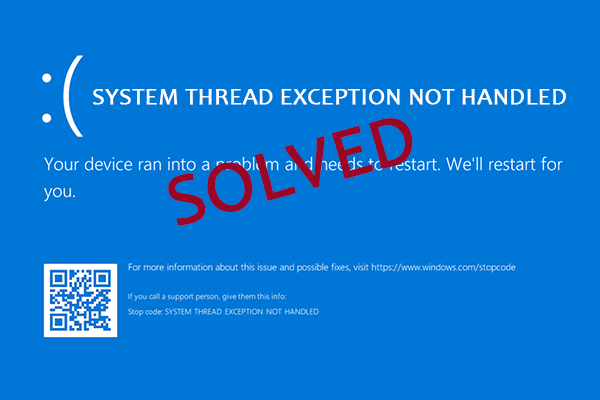
Look, I’ve seen this BSOD a thousand times—and it almost always hits users at the worst possible moment.
You’re working, gaming, or just booting your PC… and suddenly the system crashes with a blue screen:
“SYSTEM_THREAD_EXCEPTION_NOT_HANDLED”
Here is the real talk about why your rig is acting up: this error is almost always caused by faulty drivers, corrupted system files, GPU instability, or low-level hardware conflicts inside Windows kernel operations.
In this fixrig.xyz expert guide, I’ll walk you through Troubleshooting “System Thread Exception Not Handled” BSOD step-by-step like a real hardware engineer—not generic Windows advice.
Common Symptoms of This BSOD Error
Before fixing it, confirm what you’re seeing:
1. Sudden Blue Screen on Startup
System crashes before login screen.
2. Looping Restart Cycle
PC keeps restarting repeatedly.
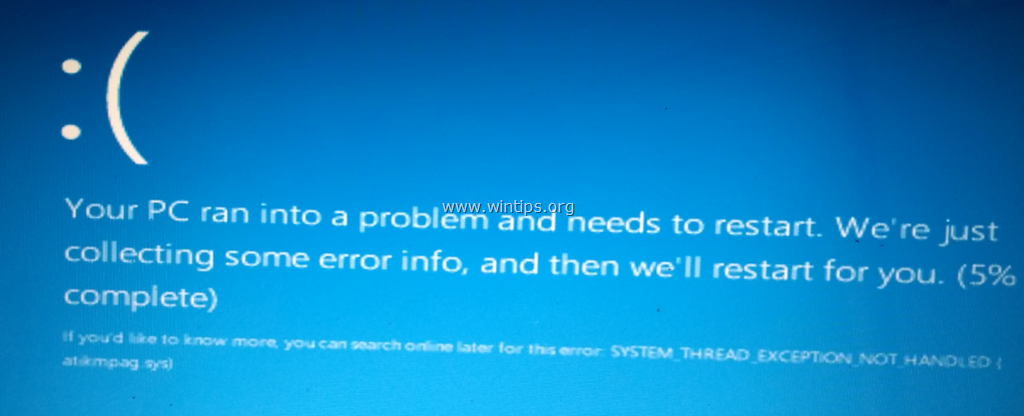
3. Error Points to a File (e.g., nvlddmkm.sys)
Indicates driver-level failure.
4. Random Crashes During Gaming or Load
Usually GPU or RAM instability.
5. Safe Mode Works, Normal Mode Doesn’t
Strong indicator of driver issue.
Root Causes (Deep Hardware + Software Breakdown)
Corrupt or Faulty GPU Drivers
Most common cause in modern systems.
Incompatible Windows Update
Driver mismatch after update.
RAM Instability or XMP Issues
Overclocked memory causing kernel faults.
Faulty System Files
Windows kernel corruption.
Overheating or Thermal Throttling
Unstable hardware behavior under load.
BIOS Misconfiguration
Incorrect memory or CPU settings.
Tools Checklist Before Troubleshooting
Prepare these tools:
- Windows Safe Mode access
- Driver update/uninstaller tool (DDU recommended)
- USB recovery drive
- BIOS access
- RAM testing tool (Windows Memory Diagnostic / MemTest)
Pro tip: Always isolate software vs hardware before making changes.
Comparison Table: Software Fix vs Hardware Fix
| Fix Type | Difficulty | Cost | Effectiveness |
|---|---|---|---|
| Driver Repair | Easy | Free | Very High |
| System Restore | Easy | Free | High |
| BIOS Reset | Medium | Free | High |
| RAM Testing | Medium | Free | Medium-High |
| Hardware Replacement | Hard | $$ | Permanent Fix |
Step-by-Step Fix for “System Thread Exception Not Handled”
Step 1: Boot into Safe Mode
If system crashes:
- Force shutdown 3 times
- Enter Recovery Mode
- Select Safe Mode
Safe Mode disables problematic drivers.
Step 2: Identify Faulty Driver File
If BSOD shows file like:
- nvlddmkm.sys (GPU driver)
- ntfs.sys (storage)
This gives direct clue.
Step 3: Clean Reinstall GPU Drivers
Look, I’ve seen this error a thousand times—GPU drivers are usually the real culprit.
Use:
- Display Driver Uninstaller (DDU)
- Reinstall latest stable driver
Avoid beta drivers unless necessary.
Step 4: Run System File Checker
Open CMD (Admin):
- sfc /scannow
- DISM /Online /Cleanup-Image /RestoreHealth
This repairs corrupted Windows files.
Step 5: Check RAM Stability
Faulty RAM = kernel crash.
Test using:
- Windows Memory Diagnostic
- MemTest86
If errors appear → RAM issue confirmed.
Step 6: Reset BIOS Settings
Enter BIOS:
- Load default settings
- Disable unstable XMP profiles temporarily
Incorrect RAM timing can trigger BSOD.
Step 7: Check Temperature & Voltage
Overheating causes instability:
- Monitor CPU/GPU temps
- Check voltage fluctuations
Thermal throttling can indirectly cause system crashes.
Step 8: Uninstall Recent Windows Updates
If issue started recently:
- Roll back latest update
- Or use System Restore point
Some updates break driver compatibility.
Step 9: Update Chipset & Motherboard Drivers
Many users ignore this step:
- Install latest chipset drivers
- Update motherboard firmware
This improves system stability.
Advanced Troubleshooting (Pro Level Fixes)
GPU Underclocking Test
If crash happens under load:
- Reduce GPU clock speed
- Test stability
RAM XMP Disable Test
XMP profiles can be unstable:
- Disable XMP
- Run system at default speed
Check Storage Health
Corrupt system files may come from failing SSD/HDD:
- Run SMART test
- Check disk errors
BIOS Update (Careful)
If motherboard firmware is outdated:
- Update BIOS safely
- Avoid power interruption
This fixes deep compatibility issues.
Common Mistakes That Make It Worse
Reinstalling Windows Immediately
Often unnecessary and time-consuming.
Ignoring Driver Conflicts
Most BSODs are driver-related.
Keeping Overclock Enabled
Unstable OC = random kernel crashes.
Installing Random Drivers from Websites
Always use official sources.
Real-World Scenarios
Problem: BSOD after GPU driver update
Cause: Driver corruption
Fix: Clean reinstall using DDU
Problem: BSOD during gaming
Cause: GPU instability or heat
Fix: Lower clocks + check temps
Problem: BSOD after RAM upgrade
Cause: XMP mismatch
Fix: Disable XMP or retune RAM
Pro Tips from a Hardware Engineer
- Always use stable GPU drivers, not latest experimental ones
- Keep BIOS settings simple unless you understand tuning
- Monitor RAM stability after upgrades
- Maintain clean driver environment
And here’s something most guides won’t tell you:
This BSOD is rarely random—it’s almost always a driver-hardware communication failure inside Windows kernel execution threads.
When to Consider Hardware Failure
You may have hardware issues if:
- BSOD persists after clean reinstall
- RAM tests fail
- GPU crashes across multiple systems
- System corrupts repeatedly
At that stage, replacement or deep diagnostics is needed.
Final Thoughts: Stability is Engineering, Not Luck
Troubleshooting “System Thread Exception Not Handled” BSOD is about systematic isolation:
Drivers → RAM → BIOS → GPU → Storage → OS
Skip steps, and you miss the real problem.
Follow the process, and most systems recover completely.
CTA: Fix Your System Like a Pro
At fixrig.xyz, we don’t guess—we diagnose hardware at engineering level.
Still stuck on BSOD errors? Not sure if it’s RAM, GPU, or drivers?
Drop your full system details in the comments—and let’s debug it step-by-step.
Because in real hardware troubleshooting… every crash is just a clue waiting to be decoded.
Leave a Reply