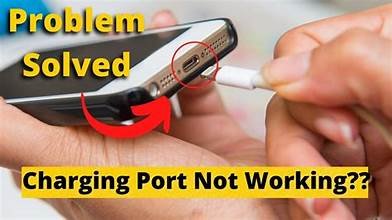
H1: How to fix a loose charging port on a tablet and restore stable charging without damage
A loose charging port on a tablet is one of those issues that starts small but quickly becomes annoying—and eventually critical.
At first, you notice charging only works at a certain angle. Then it disconnects randomly. Finally, your tablet stops charging altogether.
And look, I’ve seen this error a thousand times in repair labs—people assume the battery is dead or the charger is faulty, but here is the real talk about why your rig is acting up: in most cases, it’s a physically worn charging port, not a software problem.
Let’s break it down like a senior IT hardware engineer working with 2026 repair standards.
What is a loose charging port in tablets?
A loose charging port means the connector inside your tablet no longer holds the charging cable firmly.
This results in:
- Unstable power delivery
- Intermittent charging
- Physical movement sensitivity
- Eventual complete charging failure
Modern tablets (USB-C based in 2026) rely on precision-fit ports, so even slight wear creates major issues.
Common symptoms of a loose charging port
Physical symptoms
- Cable wiggles inside port
- Charging stops when cable moves
- Port feels “hollow” or loose
- Connector doesn’t click firmly
Functional symptoms
- Charging only at specific angles
- Slow or inconsistent charging
- Tablet disconnects from PC randomly
Advanced 2026 symptoms
- USB-C power negotiation failure
- Smart charging protection triggering
- BIOS-level power warnings (on hybrid tablets)
Root causes of charging port looseness
1. Frequent plugging/unplugging
Every insertion wears down internal metal contacts.
2. Cable strain damage
Using tablet while charging bends port internally.
3. Dust and debris buildup
Lint blocks proper connector seating.
4. Cheap or incompatible chargers
Poor quality cables damage port alignment over time.
5. Internal solder joint failure
Port detaches slightly from motherboard over time.
Tools checklist for safe repair
Before starting any repair:
- Precision screwdriver set
- Plastic pry tools
- Compressed air blower
- Isopropyl alcohol (90%+)
- Soft brush
- Tweezers
- Magnifying light (recommended)
- Replacement charging port (if needed)
💡 Tech Mentor Tip: I’ve seen users force cables into loose ports until the entire motherboard charging rail got damaged. That’s how small issues become expensive repairs.
Comparison: Temporary fix vs proper repair
| Method | Safety | Durability | Recommendation |
|---|---|---|---|
| Cleaning port | High | Medium | First step |
| Cable adjustment | Medium | Low | Temporary |
| Internal resoldering | High | High | Professional fix |
| Port replacement | Very high | Very high | Best solution |
| Ignoring issue | Low | None | Not recommended |
Step-by-step guide: How to fix a loose charging port on a tablet
Now let’s go step-by-step like a professional technician.
Step 1: Inspect charging cable and adapter
Before opening the tablet:
- Test another compatible cable
- Check for loose connector head
- Inspect charging brick
💡 Tech Mentor Tip: Look, I’ve seen this error a thousand times—it’s not the tablet, it’s the cheap cable pretending to be fine.
Step 2: Clean the charging port
Use:
- Compressed air
- Soft brush
- Wooden toothpick (carefully)
Remove:
- Dust
- Lint
- Debris buildup
Never use metal objects inside the port.
Step 3: Test port stability
Insert cable and gently move it:
- If connection drops → port is physically loose
- If stable → issue may be software or cable
Step 4: Open tablet (advanced users only)
If cleaning doesn’t help:
- Power off device
- Remove back cover carefully
- Disconnect battery first
This prevents short circuits.
Step 5: Inspect charging port assembly
Check for:
- Loose solder joints
- Broken connector pins
- PCB damage near port
This is where most real faults are found.
Step 6: Tighten or resolder connection
If solder joints are weak:
- Reflow solder carefully (professional method)
- Or replace port module entirely
⚠️ Note: Improper heating can damage motherboard traces or BIOS-related power circuits.
Step 7: Replace charging port (best solution)
If damage is severe:
- Remove old port
- Install new OEM-compatible port
- Ensure alignment is perfect
This restores factory-level stability.
Step 8: Reassemble and test charging
After repair:
- Reconnect battery
- Test charging stability
- Check movement sensitivity
Cable should feel firm with no wobble.
Software vs hardware confusion (common mistake)
Many users think:
- “Battery issue”
- “Charging bug”
- “Software glitch”
But charging port issues are almost always hardware-based.
No BIOS update or driver fix will repair a physically loose connector.
Real Tech Mentor insight
Here is the truth most people miss: charging ports don’t suddenly fail—they slowly degrade over time.
You’ll notice:
- Slight looseness first
- Then unstable charging
- Then complete failure
And yes, I’ve seen users blame “drivers” or even motherboard issues (or write “motherbord damage”) when the real issue was just a worn-out USB-C port.
Modern tablets in 2026 are powerful but physically delicate at connection points.
When you should NOT DIY repair
Stop immediately if:
- Port is detached from board
- Burn marks near charging IC
- Device overheats during charging
- Multiple failed charging components
At that stage, professional micro-soldering is required.
Prevention tips for future
- Avoid charging while bending cable
- Use magnetic charging adapters (where supported)
- Clean port monthly
- Use high-quality certified chargers
- Avoid cheap cables that loosen connectors
Small habits extend port life significantly.
Final CTA: Fix it before it becomes a motherboard issue
If your tablet charging port feels loose or unstable, don’t ignore it.
Now you know exactly how to fix a loose charging port on a tablet using safe 2026 repair methods and real hardware engineering logic.
For more deep repair guides, troubleshooting tutorials, and DIY hardware fixes, visit fixrig.xyz—your ultimate destination for hardware enthusiasts and repair experts.
Got a tricky charging issue? Drop your problem in the comments or join the fixrig.xyz community. Someone has already fixed your exact tablet model before.
Because in modern devices, a small loose port today can become a full motherboard failure tomorrow.
Leave a Reply