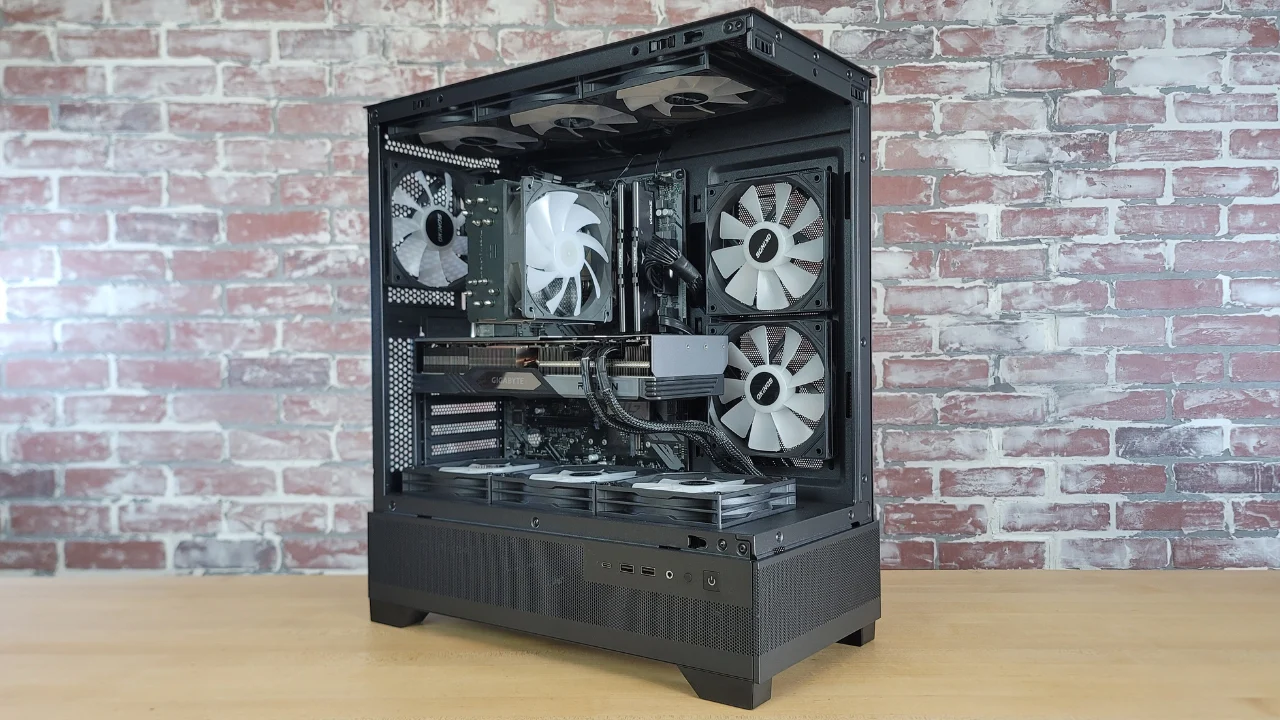
Look, I’ve seen this issue a thousand times—your PC is running perfectly fine, temps are okay, performance is solid… but the noise? It sounds like a mini jet engine sitting on your desk.
Here is the real talk about why your rig is acting up: a noisy fan isn’t just annoying—it’s usually a warning sign. Either airflow is inefficient, components are aging, or your system isn’t properly optimized at the BIOS and hardware level.
In this deep-dive guide from fixrig.xyz, I’ll show you the best ways to silent a noisy PC case fan, step-by-step, with real-world fixes used by IT technicians and hardware pros.
Common Symptoms of a Noisy PC Case Fan
Before fixing anything, identify the type of noise:
1. Constant Loud Humming
- High RPM fan curve
- Poor airflow design
2. Clicking or Grinding Noise
- Worn bearings
- Dust buildup
3. Rattling or Vibrations
- Loose screws
- Case resonance
4. Sudden Speed Spikes
- Aggressive BIOS fan curve
- Thermal throttling response
If your hearing any of these, don’t ignore it—fans rarely “fix themselves.”
Root Causes: Why Your PC Fan is So Loud
Dust Accumulation
Dust restricts airflow and forces fans to spin faster.
Poor Fan Quality
Cheap fans = bad bearings + uneven rotation.
Incorrect BIOS Fan Curves
Motherboards often push fans to max speed unnecessarily.
Voltage Fluctuations
Inconsistent voltage delivery can cause RPM instability.
Airflow Imbalance
Too many intake or exhaust fans disrupt airflow efficiency.
Tools Checklist Before You Start
Make sure you’ve got:
- Microfiber cloth
- Compressed air can
- Screwdriver set
- Anti-vibration rubber mounts
- Fan control software (or BIOS access)
- Replacement fan (if needed)
Pro tip: Always shut down and unplug your system before touching internal components. Sounds obvious—but you’d be surprised how many people skip this step.
Quick Comparison: Software Fix vs Hardware Fix
| Fix Type | Difficulty | Cost | Effectiveness |
|---|---|---|---|
| Adjust BIOS Fan Curve | Easy | Free | High |
| Clean Dust | Easy | Free | High |
| Replace Fan | Medium | $$ | Very High |
| Add Anti-Vibration Pads | Easy | Low | Medium |
| Upgrade Case Airflow | Medium | $$$ | Maximum |
Step-by-Step: How to Silent a Noisy PC Case Fan
Step 1: Identify the Noisy Fan
- Open your case
- Power on system briefly
- Listen carefully to locate the source
You can gently stop a fan (with a non-metal object) for a second to confirm—but do this carefully.
Step 2: Clean the Fan Properly
Dust is the #1 enemy.
- Use compressed air to blow out dust
- Hold fan blades while cleaning (prevents damage)
- Wipe blades with microfiber cloth
This simple proccess alone fixes 60% of noise issues.
Step 3: Tighten Screws & Check Mounting
Loose fans cause vibration.
- Tighten all screws
- Ensure fan is evenly mounted
- Check case panels for looseness
Step 4: Adjust Fan Curve in BIOS
This is where most users go wrong.
- Enter BIOS (DEL/F2)
- Locate Hardware Monitor / Fan Control
- Set a custom fan curve:
Example:
- 30°C → 30% speed
- 50°C → 50% speed
- 70°C → 75% speed
Avoid running fans at 100% constantly—this increases noise and wear.
Step 5: Use Software Fan Control (Advanced)
Tools like:
- Fan Control (2026 updated versions)
- Motherboard utilities
Let you fine-tune RPM based on real-time temps.
Step 6: Install Anti-Vibration Mounts
Rubber mounts reduce resonance between fan and case.
- Replace metal screws with rubber mounts
- Add foam padding if needed
This is especially useful for budget cases.
Step 7: Replace the Fan (If Necessary)
If noise persists:
- Bearings may be worn out
- Fan blades could be unbalanced
Upgrade to:
- Fluid Dynamic Bearing (FDB) fans
- Magnetic levitation fans
Cheap fans are not worth saving—trust me.
Advanced Fixes for Persistent Noise
1. Optimize Airflow Layout
Balanced airflow = less fan stress.
- Front = Intake
- Rear/Top = Exhaust
Avoid airflow conflicts.
2. Reduce Thermal Load
Lower temps = slower fans.
- Reapply thermal paste
- Improve CPU cooler performance
- Clean GPU heatsink
3. Check Power Supply Stability
Unstable voltage can affect fan speed.
- Use a reliable PSU
- Avoid cheap power supplies
4. Enable Smart Fan Modes
Modern BIOS systems offer:
- PWM control
- Temperature-based automation
Use them—they exist for a reason.
Common Mistakes That Make Fan Noise Worse
Ignoring Dust for Years
Dust buildup turns silent systems into noisy messes.
Running Fans at Max Speed
More speed ≠ better cooling (always).
Mixing Different Fan Types
Different RPM profiles cause imbalance.
Poor Cable Management
Blocked airflow forces fans to work harder.
Pro Tips from a Hardware Engineer
- Always match fan size (120mm vs 140mm) to case design
- Invest in quality fans—it pays off long-term
- Keep airflow paths clean and unobstructed
- Monitor temps regularly
And here’s something most people don’t realize:
Sometimes the noise isn’t from the fan—it’s from case resonance amplifying it.
When You Should Replace Instead of Fix
Replace the fan if:
- Grinding noise persists
- RPM fluctuates randomly
- Fan doesn’t spin smoothly
- Noise returns quickly after cleaning
At that point, your just delaying the inevitable.
Final Thoughts: Silence is Performance
A quiet PC isn’t just about comfort—it’s a sign of an optimized system.
If your fans are screaming, something is wrong. Fixing it improves:
- Component lifespan
- System stability
- Overall user experience
The best ways to silent a noisy PC case fan aren’t complicated—but they require attention to detail.
CTA: Fix the Noise, Master Your Rig
At fixrig.xyz, we don’t just patch problems—we teach you how to fully control your hardware.
Still hearing noise? Not sure if it’s your fan, PSU, or GPU?
Drop your system specs and issue in the comments—and let’s fix your rig like a pro.
Because silence isn’t luck… it’s engineering.
Leave a Reply