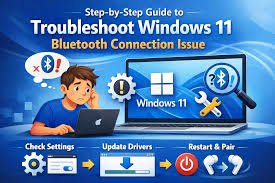
Look, I’ve seen this error a thousand times—Bluetooth just randomly stops working. Your headphones won’t connect, your mouse lags, or your device disappears completely from the list.
Here is the real talk about why your rig is acting up: Bluetooth issues in Windows 11 aren’t just “software bugs.” They’re usually a mix of driver conflicts, power management settings, BIOS misconfigurations, or even hardware-level interference.
In this expert-level guide from fixrig.xyz, I’ll walk you through troubleshooting Bluetooth connectivity issues in Windows 11 (2026) step-by-step, so you can fix it properly—not just temporarily.
Common Symptoms of Bluetooth Issues
Before jumping into fixes, identify what you’re dealing with:
1. Bluetooth Not Showing in Settings
- Toggle missing completely
- Device Manager doesn’t list Bluetooth
2. Devices Won’t Pair
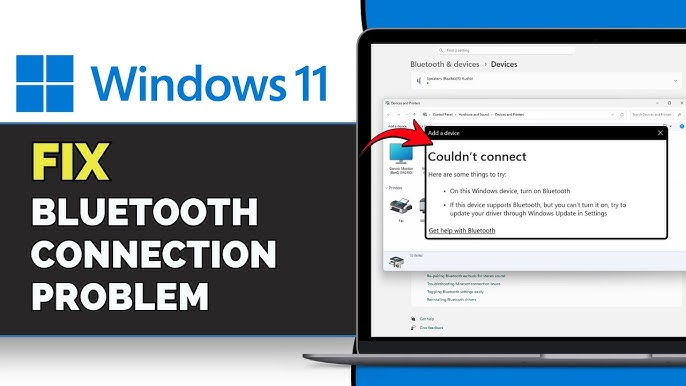
- “Couldn’t connect” errors
- Pairing fails instantly
3. Frequent Disconnects
- Devices connect but drop randomly
- Especially common with wireless headphones
4. Input Lag (Mouse/Keyboard)
- Delayed response
- Stuttering movement
5. Audio Issues
- Crackling sound
- Audio cutting out
If your experiencing any of these, you’re in the right place.
Root Causes (2026 System-Level Analysis)
Driver Conflicts or Corruption
Outdated or broken drivers are the #1 cause.
Windows Update Bugs
New updates sometimes break Bluetooth stacks.
Power Management Settings
Windows may disable Bluetooth to save power.
BIOS Configuration Issues
Bluetooth module may be disabled at firmware level.
Hardware Interference
Wi-Fi signals, USB 3.0 ports, and other devices interfere.
Faulty Bluetooth Module
Especially in older laptops or budget motherbord designs.
Tools Checklist for Troubleshooting
Before starting, prepare:
- Internet connection (for driver downloads)
- Device Manager access
- Optional USB Bluetooth adapter
- Latest motherboard/laptop drivers
- BIOS access
Pro tip: Always create a restore point before major driver changes.
Comparison Table: Software Fix vs Hardware Fix
| Fix Type | Difficulty | Cost | Effectiveness |
|---|---|---|---|
| Update Drivers | Easy | Free | High |
| Restart Bluetooth Services | Easy | Free | Medium |
| Adjust Power Settings | Easy | Free | High |
| BIOS Enablement | Medium | Free | High |
| Replace Bluetooth Adapter | Medium | $$ | Very High |
Step-by-Step: Troubleshooting Bluetooth Connectivity Issues in Windows 11 (2026)
Step 1: Restart Bluetooth Services
- Press Win + R → type
services.msc - Find:
- Bluetooth Support Service
- Restart it
Sometimes the simplest fix works.
Step 2: Toggle Bluetooth Properly
- Go to Settings → Bluetooth & Devices
- Turn Bluetooth OFF → wait 10 seconds → turn ON
This resets the connection stack.
Step 3: Check Device Manager
- Press Win + X → Device Manager
- Expand Bluetooth
Look for:
- Yellow warning icons
- Missing devices
If Bluetooth is missing completely, this is a deeper issue.
Step 4: Update or Reinstall Drivers
This is critical.
- Right-click Bluetooth device
- Select Uninstall device
- Restart PC
Then install latest drivers from manufacturer.
Outdated drivers break compatibility with modern Windows builds.
Step 5: Disable Power Saving Mode
Windows loves to cut power silently.
- Device Manager → Bluetooth adapter
- Properties → Power Management
- Uncheck:
- “Allow the computer to turn off this device”
This alone fixes random disconnects in many cases.
Step 6: Run Windows Troubleshooter
- Settings → System → Troubleshoot
- Run Bluetooth troubleshooter
Not always perfect—but worth trying.
Step 7: Check BIOS Settings
This is where most users never look.
- Enter BIOS (DEL/F2)
- Look for:
- Wireless settings
- Bluetooth enable/disable
Make sure it’s enabled.
Step 8: Reset Network Settings
- Settings → Network & Internet
- Advanced network settings → Network reset
This resets all wireless configurations.
Step 9: Test with Another Device
- Try connecting different Bluetooth device
- Helps determine if issue is PC or accessory
Step 10: Use USB Bluetooth Adapter (Fallback Fix)
If internal module is faulty:
- Plug in external Bluetooth dongle
- Install drivers
This bypasses internal hardware completely.
Advanced Troubleshooting (Pro Level)
Fix Driver Conflicts
Sometimes Windows installs generic drivers.
- Use manufacturer-specific drivers
- Avoid relying on Windows Update alone
Check for USB Interference
USB 3.0 ports can interfere with Bluetooth signals.
- Move dongle to USB 2.0 port
- Use extension cable
Monitor Background Processes
High CPU usage can cause:
- Input lag
- Audio dropouts
Check Task Manager for abnormal proccess spikes.
Firmware Updates
Update:
- Motherboard BIOS
- Laptop firmware
New updates often fix wireless stability issues.
Common Mistakes That Make It Worse
Constantly Re-Pairing Devices
This doesn’t fix root problems.
Ignoring Driver Sources
Wrong drivers = more instability.
Skipping BIOS Checks
Bluetooth might be disabled at hardware level.
Using Cheap USB Adapters
Low-quality adapters cause more problems.
Real-World Troubleshooting Scenarios
Problem: Bluetooth disappeared after Windows update
Cause: Driver corruption
Fix: Reinstall drivers manually
Problem: Headphones connect but audio stutters
Cause: Interference or power saving
Fix: Disable power management + move adapter
Problem: Mouse lagging randomly
Cause: CPU spikes or signal interference
Fix: Check background tasks + USB placement
Pro Tips from a Hardware Engineer
- Always install drivers from official manufacturer sites
- Keep BIOS updated—but don’t rush unstable releases
- Use high-quality Bluetooth devices
- Maintain distance from interference sources
And here’s something most guides won’t tell you:
Bluetooth stability depends heavily on antenna placement inside your system—especially in compact builds.
When to Replace Hardware
Replace your Bluetooth module if:
- Device not detected even in BIOS
- Constant disconnects despite fixes
- Adapter overheating or failing
At that point, your just wasting time troubleshooting.
Final Thoughts: Stability Comes from System Balance
Bluetooth issues in Windows 11 (2026) are rarely caused by one thing. It’s usually a chain reaction:
Drivers + Power Settings + Hardware + Interference
Fix all of them—and your system becomes rock solid.
Ignore one—and problems come back.
CTA: Fix It Right with fixrig.xyz
At fixrig.xyz, we don’t believe in temporary fixes—we help you master your system.
Still facing Bluetooth issues? Devices not connecting? Random disconnects driving you crazy?
Drop your exact system specs and issue in the comments—and let’s troubleshoot your rig like a pro.
Because your setup should just work… not fight you every day.
Leave a Reply